OpenAI
Power AI features in your site, like a chat assistant, text generation or structured outputs, with your own OpenAI account. Usage is billed to your OpenAI account.
Connect
- Open Settings > Connectors, click OpenAI, then Connect.
- Go to platform.openai.com/api-keys and click Create new secret key.
- Copy the key, paste it into API Key and click Connect.
WebTwizz checks the key with OpenAI before saving it. If OpenAI rejects it, you'll see Invalid API key.
What you see
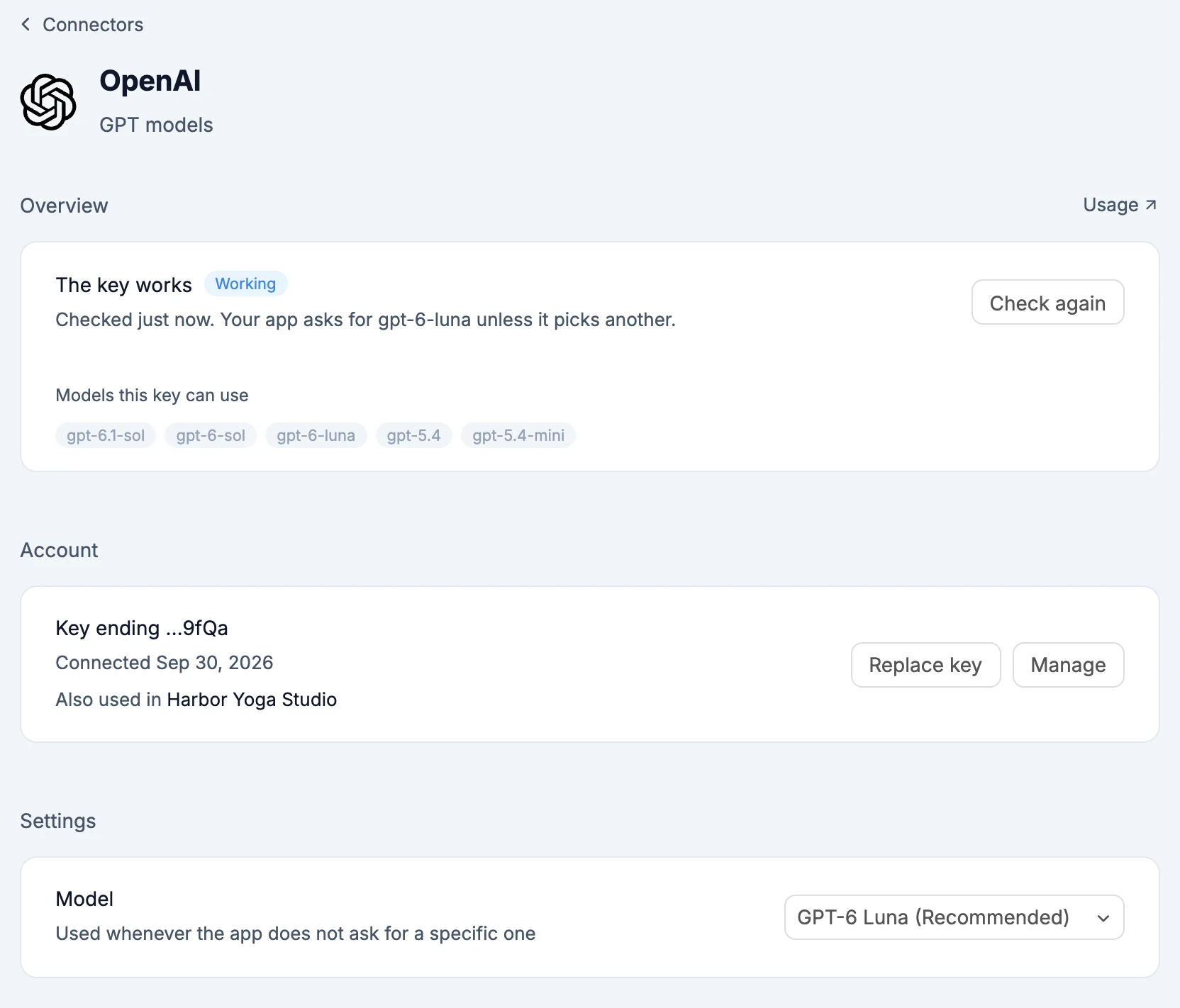
- Overview: The key works with a Working label, checked when you open it. Check again checks it now. Below that, Models this key can use. Usage opens your usage on OpenAI.
- Account: the key, shown by its last four characters, with Replace key.
- Settings: Model, used whenever your app doesn't ask for a specific one. Pick from GPT-6 Luna (Recommended), GPT-6.1 Sol, GPT-6 Sol, GPT-5.4 and GPT-5.4 Mini.
What the AI can do
The AI checks that your key works and which models it reaches, then uses those exact model names in your code.
Environment variables
OPENAI_API_KEY: your OpenAI API key, server-side onlyOPENAI_MODEL: the default model,gpt-6-lunaunless you pick another
Good to know
- Replacing the key under Account switches every project that uses it.
- Removing OpenAI from a project takes both variables out. Your OpenAI account is untouched.