API
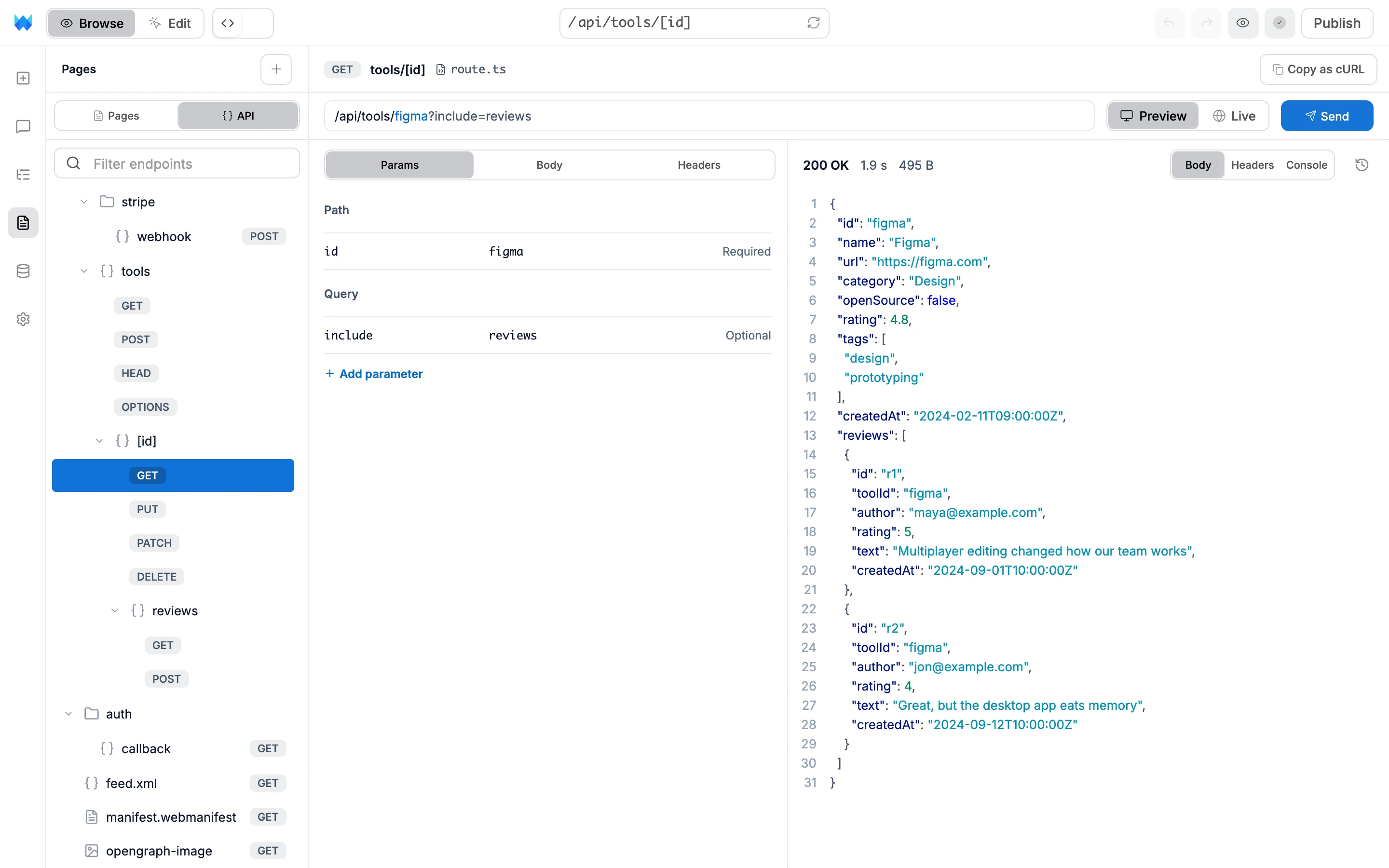
Some parts of your site answer requests instead of showing a page: a contact form that saves a message, a checkout that asks Stripe for a payment, a job that sends tomorrow's reminders. Each one is a route in your site's code, and the API view lets you try any of them without leaving the builder.
Opening it
When your site has routes, a Pages | API switch appears at the top of the Pages panel. Click API to see them.
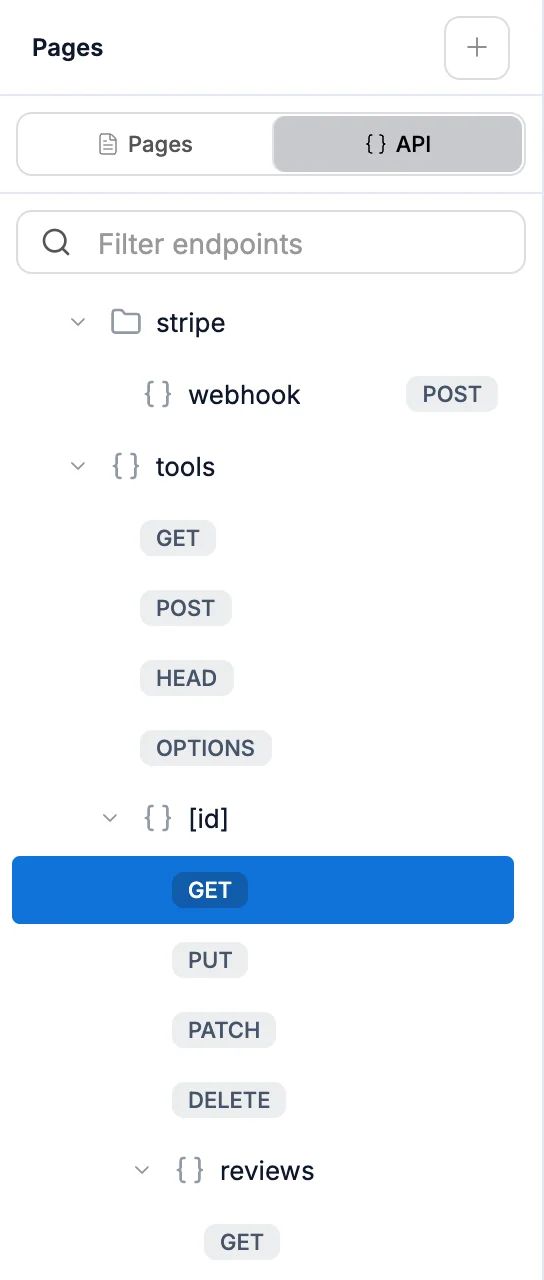
The list is laid out like your pages, one level per part of the address:
- A route that answers one way shows its method on its own row, like GET next to
health. Click the row to open it. - A route that answers several ways opens to a row per method, like GET, POST and DELETE.
- Folders group routes that share the start of their address.
- Your sitemap, robots.txt, app manifest and social images are listed too, since your code makes them.
On a site with lots of routes, a Filter endpoints field appears at the top.
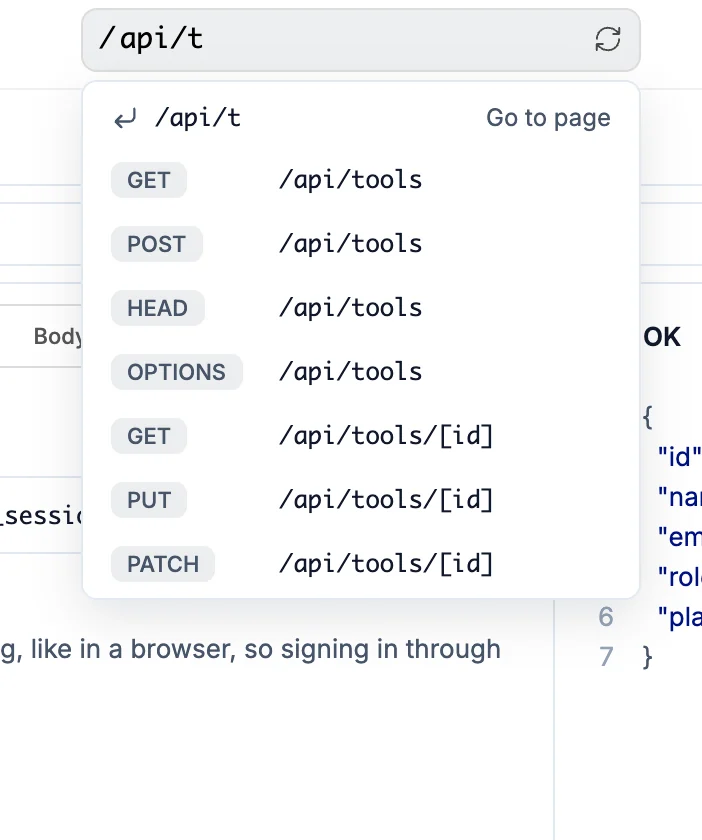
You can also type an address that starts with /api/ in the address bar at the top of the builder, or pick a route from the list that opens under it. Typing a full address like /api/tools/figma opens the route and fills in figma for you.
On a phone, open the site menu at the top and choose API, or pick a route from the page list.
Sending a request
Pick a method and the canvas becomes the API view. The address at the top shows exactly what will be sent, and updates as you fill things in.
- Preview sends to the draft you're building. Live sends to your published site.
- Send sends it.
⌘↵/Ctrl+Enterworks too.
Params
The values the route reads from its address. Path values are the parts in brackets, like [id], and are marked Required. Query values are the ones after ? that the route looks for. Click Add parameter to send one it doesn't list.
Body
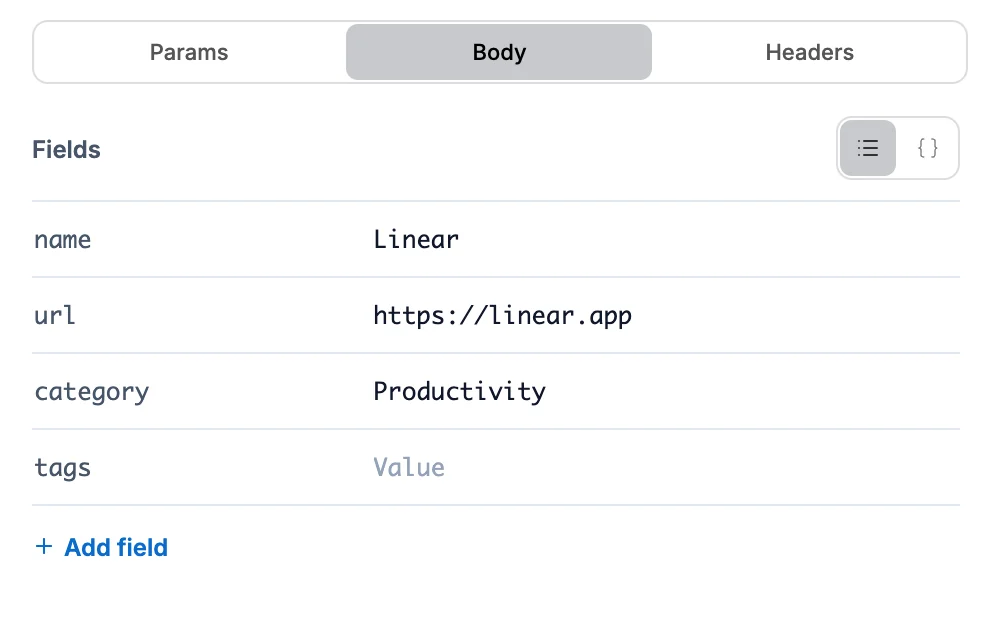
For POST, PUT, PATCH and DELETE. The fields the route reads are already listed, so fill them in like a form. Switch to JSON to write the body yourself. A route that reads a form gets form fields, sent the way a browser sends a form.
Headers
Extra information sent along, like a sign-in token. Click Add header to add one.
Reading the response
The status shows first, with how long it took and how big the answer was. Below it:
- Body shows what came back in a form that reads well: colored JSON, formatted XML and HTML (with a Page view for HTML), a table for CSV, and pictures for images.
- Headers lists the headers the route sent back.
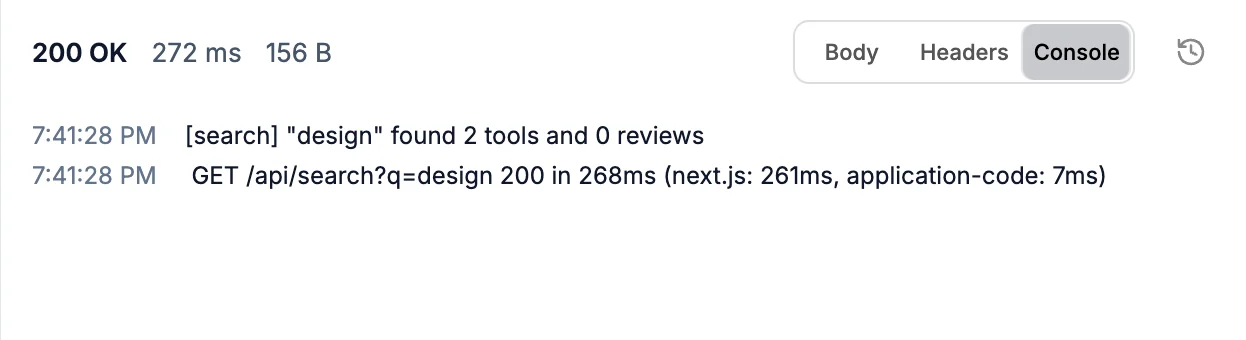
- Console shows what your site's server printed while answering. It works for requests sent to the preview.
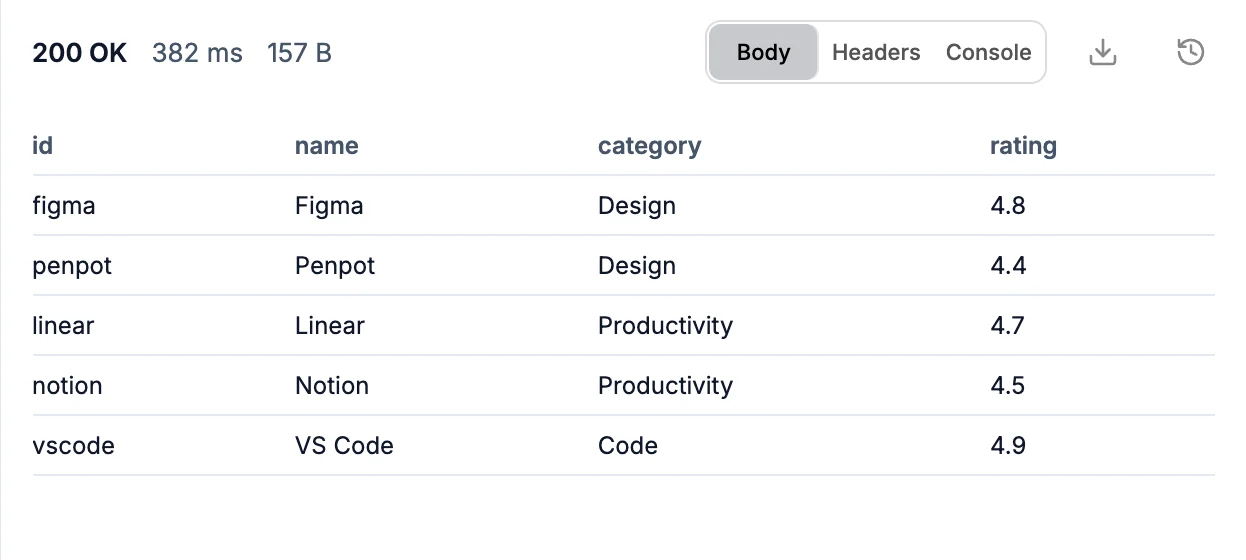
A route that sends a file, like a CSV export or a generated image, gets a Download button. A route that sends visitors somewhere else says where, with Open page when it's a page on your site.
Click the clock to see the requests you sent this session and open any of them again.
When something breaks
If your code fails while answering, the API view shows the error and the line of code it happened on.
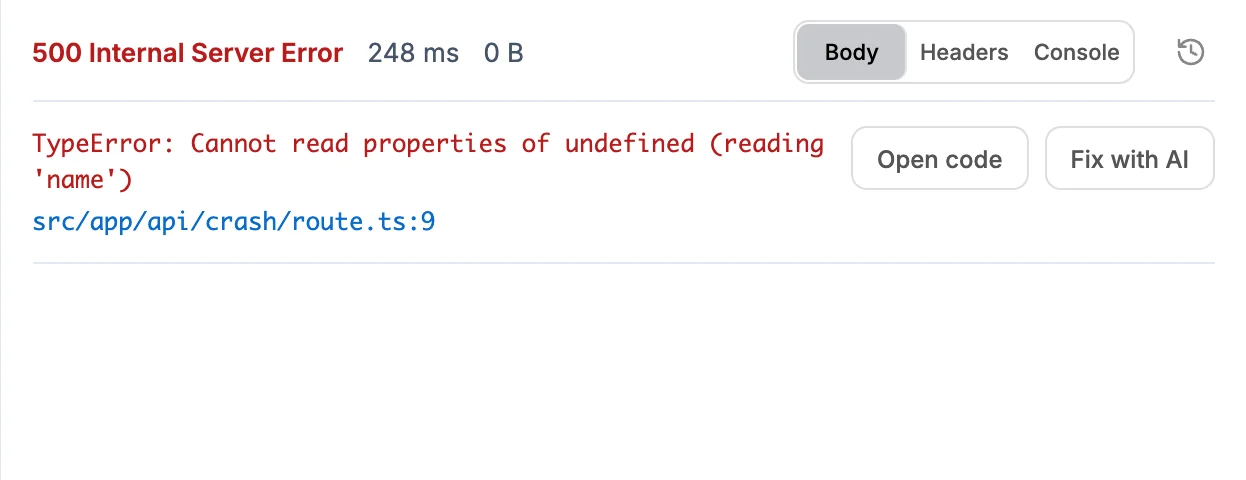
- Open code opens that file in the code editor.
- Fix with AI starts a chat with the error and what your server printed, so the AI can fix it.
Signed-in requests
Some routes only answer people who are signed in. Send your site's sign-in route first, with an email and password from your site: the API view keeps the cookies your site sets and sends them with your next requests, the way a browser does. They show under Headers as Cookie, with Clear to sign out.
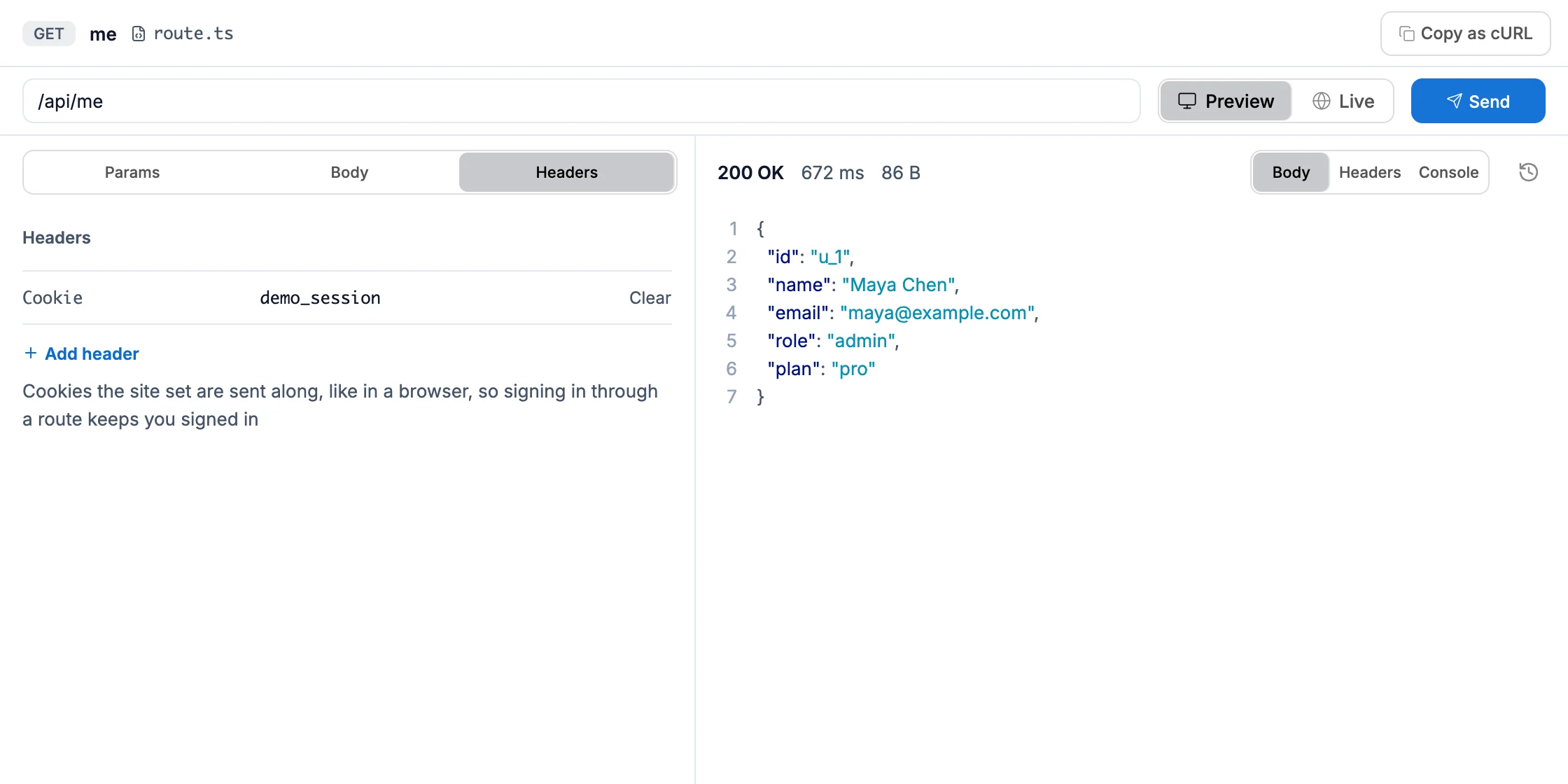
You can also add an Authorization header yourself if your routes use tokens.
Scheduled jobs and payments
You don't need to copy any secrets to test these:
- Routes that run on a schedule check a secret your site keeps. The API view sends it for you.
- Stripe webhooks check a signature. The API view starts the body with a Stripe test event and signs it with your site's own secret. Signed test events only go to Preview, so a test never acts on real orders on your live site.
Adding a route
Click + at the top of the Pages panel while you're on API. Choose New Endpoint from the menu when you're on Pages.
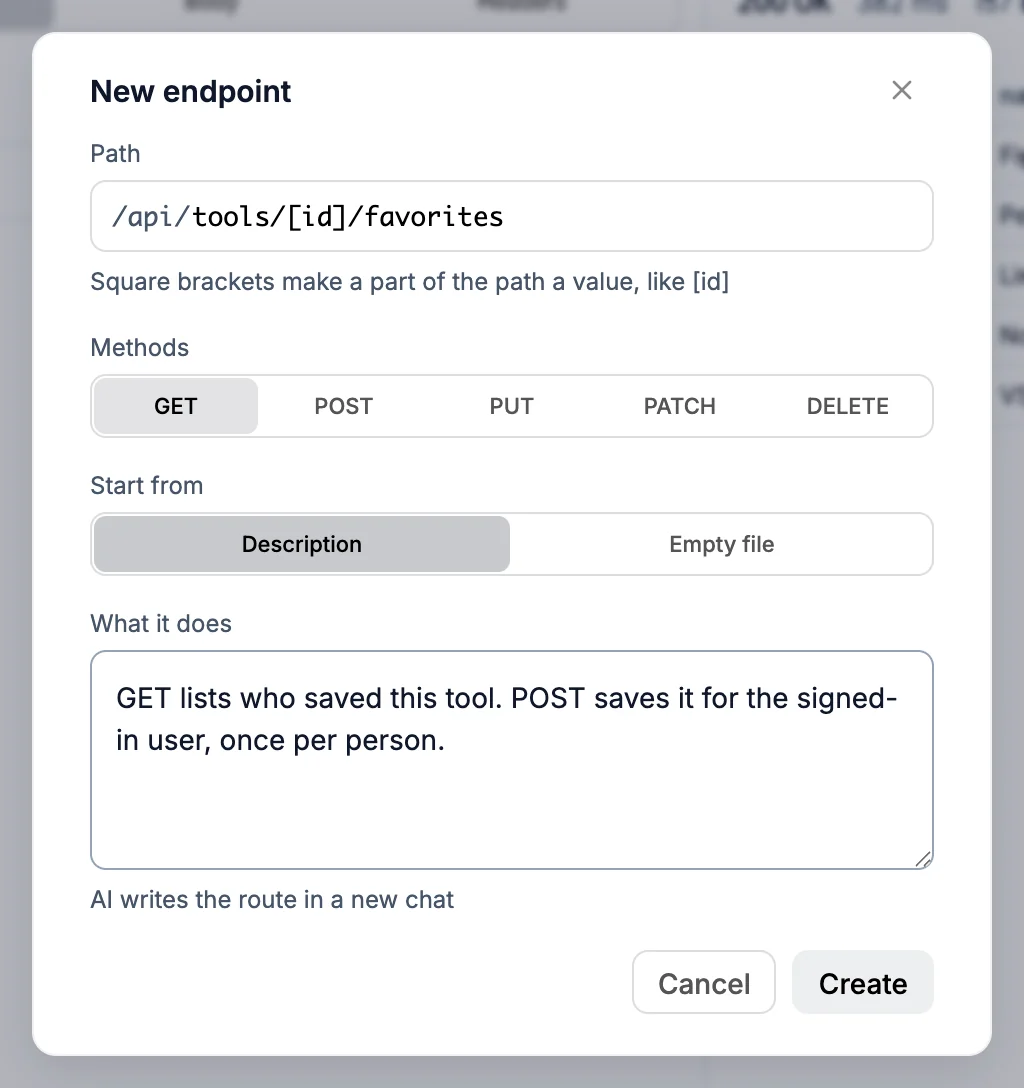
- Path is the route's address after
/api/. Use[id]for a part that changes, liketools/[id]/reviews. - Methods are the ways it answers. Pick as many as you need.
- Description lets the AI write the route in a new chat. Empty file starts a plain one you write yourself.
The new route opens in the API view as soon as it exists, so you can try it straight away.
Good to know
- A request gets 12 seconds. A route that's still sending after that shows what arrived so far.
- The API view shows up to 512 KB of a response, and files up to 5 MB can be downloaded.
- You can have 3 requests going at once, and send up to 30 a minute.
- Your requests, history and cookies stay until you reload the builder.
- Sending to Live needs your site to be published.