Google Analytics
See who visits your published site, which pages they read and where they come from, right in the builder. Connecting also adds the Google Analytics tag to your site for you.
Connect
- Open Settings > Connectors, click Google Analytics, then Connect.
- Sign in with Google and allow WebTwizz to see and set up your Analytics.
- Under Finish connecting, pick the Property.
WebTwizz uses that property's web stream for your site, and adds one if there isn't one yet. It adds the Analytics tag to your project's connector code, so you don't have to touch code. The tag only runs on your published site, so your own visits to the preview don't count. Publish to start counting visitors.
Until Google finishes reviewing WebTwizz, signing in shows Google hasn't verified this app. To continue, click Advanced, then the link to go on to WebTwizz.
Paste a measurement ID instead
Already have a web stream? Choose Paste a measurement ID and paste the ID that starts with G-. You'll find it in Google Analytics under Admin > Data streams, in your web stream. WebTwizz adds the tag the same way.
With a pasted ID, your site is tracked, but visitors don't show in the builder and the AI can't read them. That needs the Google sign-in: the overview says Sign in to Google to see visitors here, with Sign in to Google.
What you see
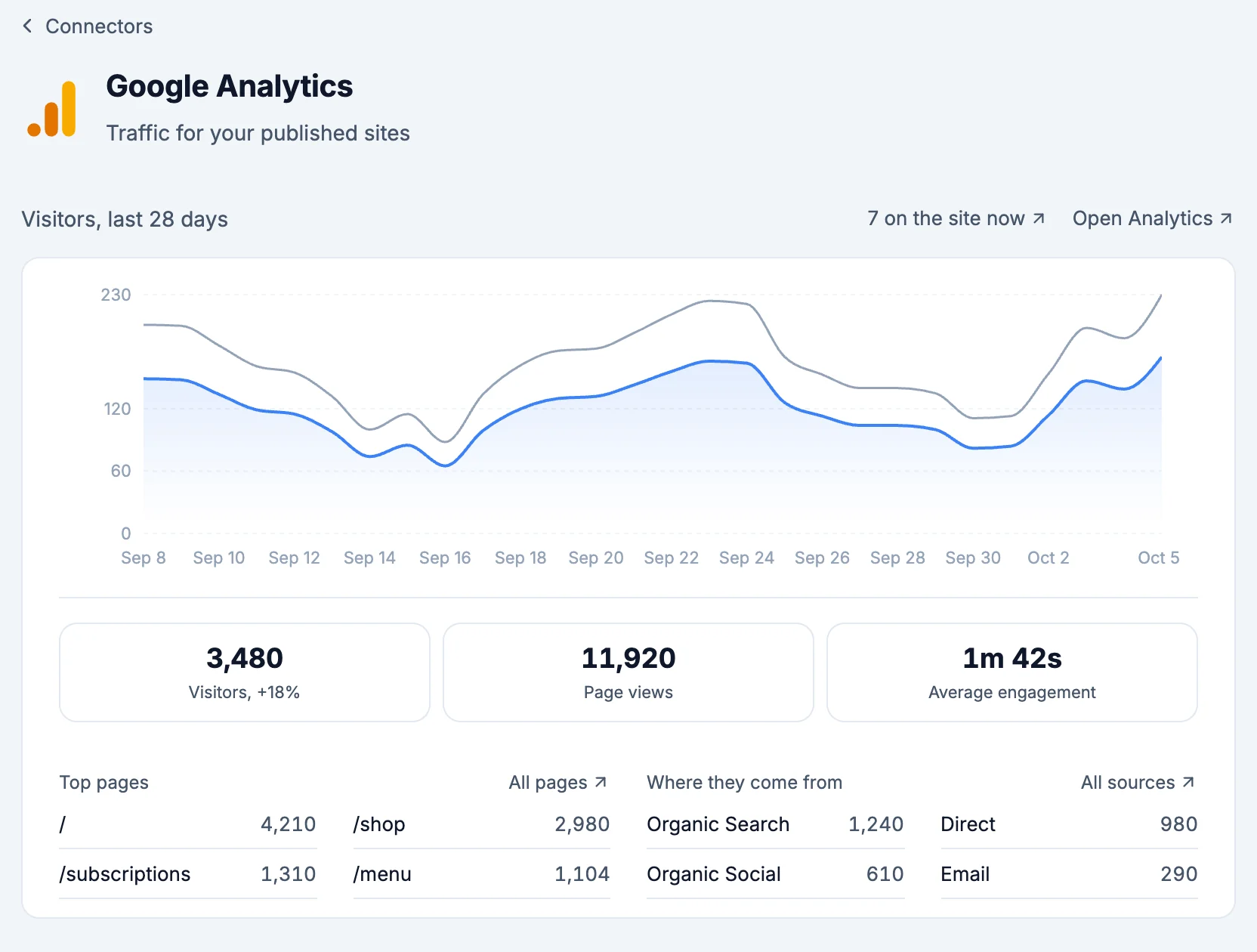
- Visitors, last 28 days: visitors and sessions by day. Switch to 7 days or 90 days at the top. The count of people on the site now opens Google's realtime view, and Open Analytics opens Google Analytics.
- Visitors, Page views and Average visit, with the change in visitors from the period before. Each opens Google Analytics.
- Top pages, Where they come from, Countries and Devices. All pages, All sources, All countries and All devices open the full report in Google Analytics. Once the site is published, each top page opens on your live site.
- Then, for the same period, these show when Google Analytics has data for them:
- Goals: your key events, with how many happened and where most of them came from.
- Sales: Revenue, Orders and Top products, with how many of each sold and what they brought in.
- Campaigns: each campaign, where its visits came from and how many there were.
- Quick exits: pages where at least 10 visits started and 60% or more left right away. Ask the AI to improve opens a new chat where the AI changes the page so more people stay and take the next step.
- Settings:
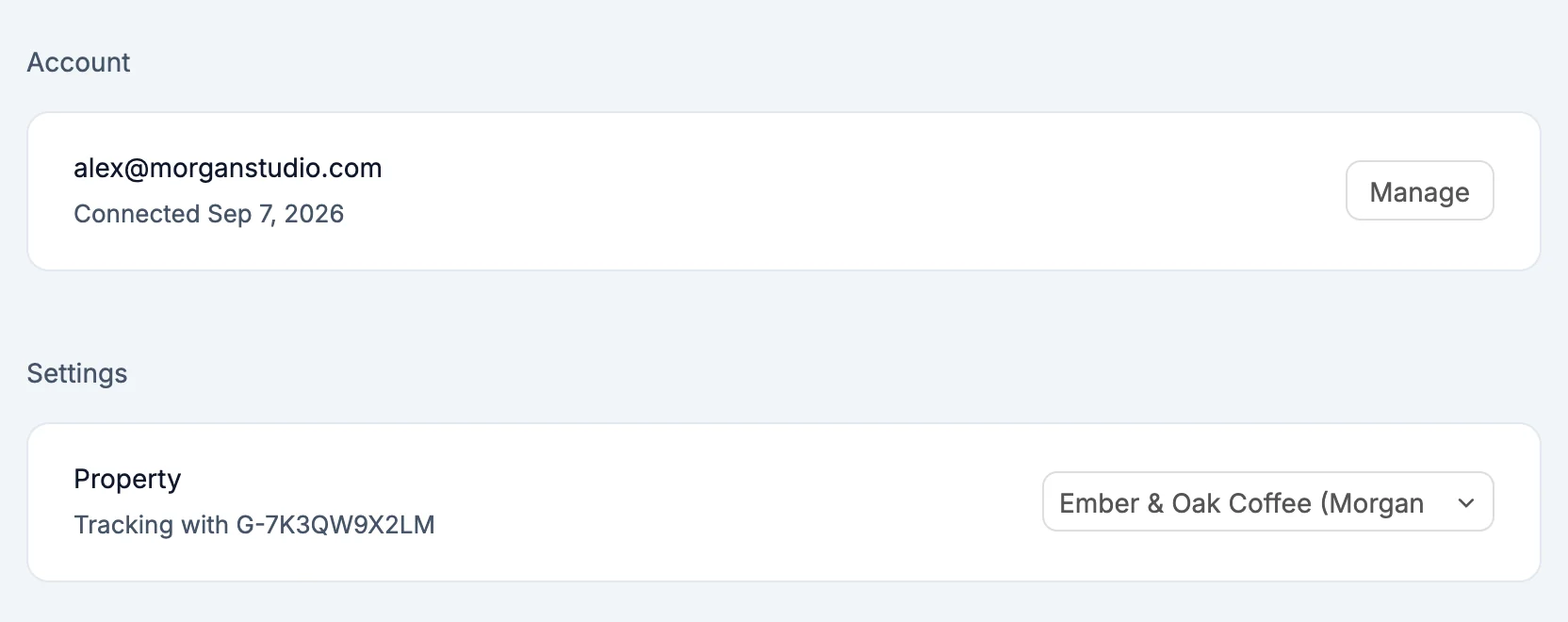
- Property: where this site's visits are counted. Pick another property to switch.
- Live site: Running once your published site has the tag, Publish to update when a change is waiting for your next publish, or After you publish.
What the AI can do
Ask "how many people visited last month?" and the AI reads your visitors, top pages, where they come from, countries and devices, for any period up to 90 days.
Secrets
NEXT_PUBLIC_GA_MEASUREMENT_ID: the measurement ID, likeG-7K3QW9X2LM, read by the tag
Good to know
- One Google account can serve both Google Analytics and Google Sheets, but each asks for its own permission the first time.
- The measurement ID field that used to be in Settings > General is now this connector.