Resend
Send transactional email from your site: sign-up confirmations, contact form messages, order receipts.
Connect
You can sign in to Resend or paste an API key.
Sign in
- Open Settings > Connectors, click Resend, then Connect.
- Resend opens. Sign in and approve access.
WebTwizz makes a send-only key for this project in your Resend account. Removing Resend from the project deletes that key, and your other projects keep theirs.
Paste an API key
- Click Paste an API key.
- Go to resend.com/api-keys and click Create API Key.
- Copy the key, paste it into API Key and click Connect.
WebTwizz checks the key with Resend before saving it. If Resend rejects it, you'll see That key was not accepted. A send-only key works for sending, but WebTwizz can't list your domains or emails with it. Use a full access key to see them here.
What you see
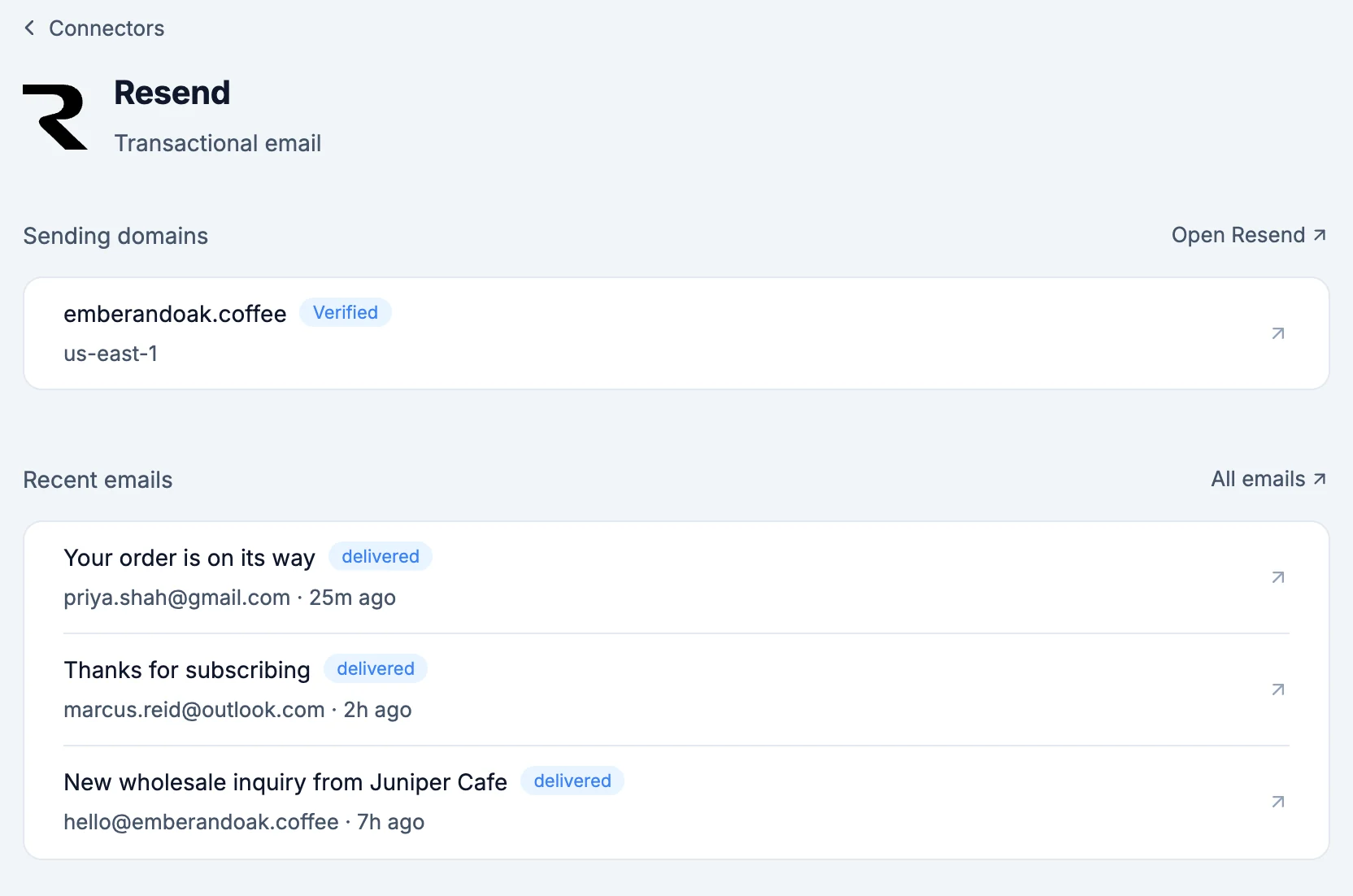
- Sending domains: each domain in your Resend account and whether it's verified. Open Resend opens your domains.
- A verified domain has Opens and Clicks, which turn open and click tracking on or off right away, with Undo in the message that follows. Open opens it in Resend.
- A domain that isn't verified yet lists its DNS records, each with Copy name and Copy value. Add them where the domain's DNS is managed, then press Verify to have Resend check again.
- Remove takes a domain out of Resend. Confirm with Remove domain. If your site sends from it, its emails stop until you add it again.
- Add a domain adds another domain or subdomain to send from: type it under Domain and click Add domain. With no domain yet, the row says No sending domain yet.
- Recent emails: All emails opens Resend.
- Test email: click Send me a test, then Send, to get a test from your site's sender at your own email.
- Each email's subject, its status, like Delivered or Bounced, and when it was sent. Click one to see To, From, Subject, Status, Sent and its text. Open in Resend opens it. Show more loads older ones.
- When some of the latest emails didn't arrive, Didn't arrive shows only those: bounced, marked as spam, delayed or not sent.
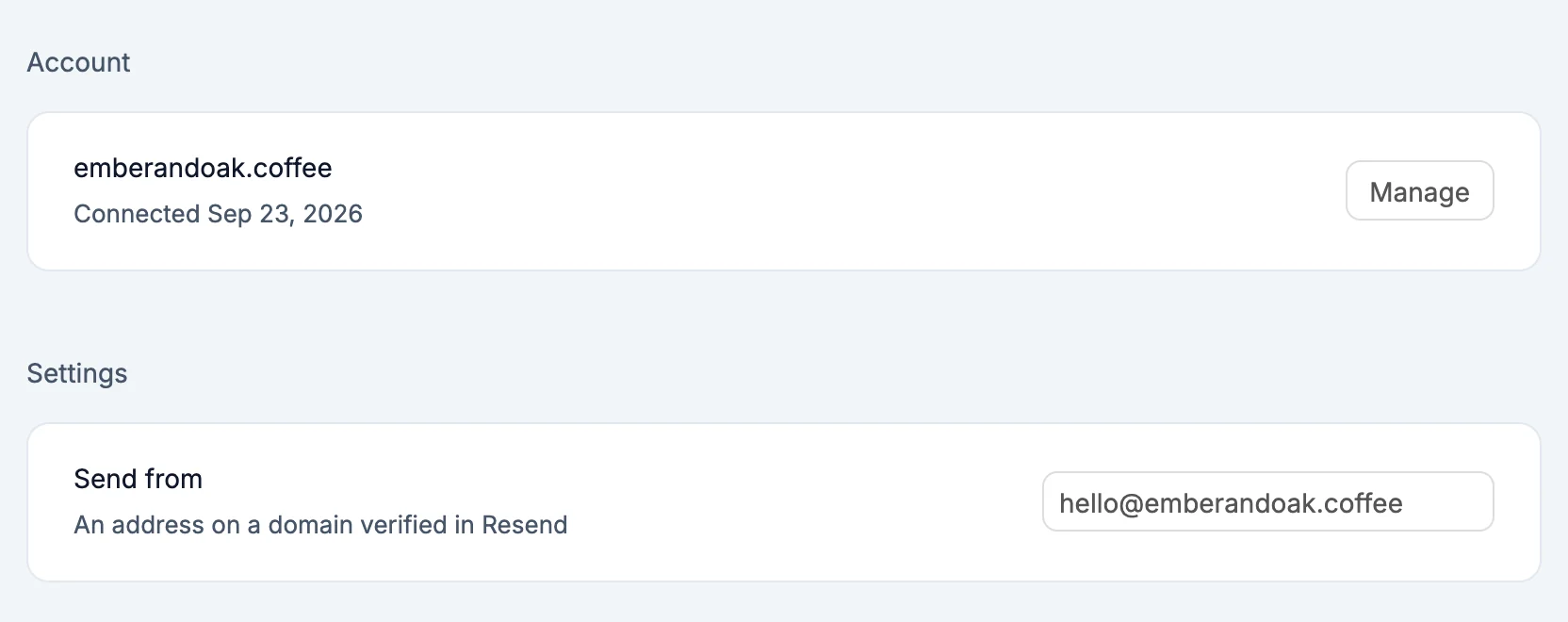
- Settings: Send from, a domain verified in Resend, and Address, the part before the @, like
hello. Until a domain is verified, there's nothing to pick.
With a send-only key, Sending domains says This key can only send and keeps the test email, and Send from is an address you type.
What the AI can do
- Check your sending domains and list the DNS records still missing, so you know exactly what to add
- Add a sending domain to Resend. It asks first.
- Ask Resend to check a domain's DNS records again
- Send a test email to your own inbox, to prove the setup works. It never sends to anyone else, so it doesn't ask first.
Secrets
RESEND_API_KEY: the key your site sends with, server-side onlyRESEND_FROM_EMAIL: the address your site sends from, when you set one
Good to know
- Resend only sends from a domain you've verified in Resend. Until you verify one, emails go out from
onboarding@resend.devand only reach your own Resend account's email. - Signing in to Resend works on app.webtwizz.com only. On any other WebTwizz address, like a preview or staging build, use Paste an API key.
- Removing Resend from a project takes its keys out. Your Resend account, domains and sent emails are untouched.