Sentry
Catch the errors your visitors run into. Sentry records each one with where it happened, and WebTwizz shows them in the builder so the AI can fix them.
Connect
- Open Settings > Connectors, click Sentry, then Connect.
- Sentry opens. Approve read access to your organization and projects.
- Under Finish connecting, pick the Sentry project.
WebTwizz uses the project's active client key (DSN). If it has none, you'll see No active DSN found for this project. Turn one on in Sentry and pick the project again. No projects yet? Create one in Sentry first.
What you see
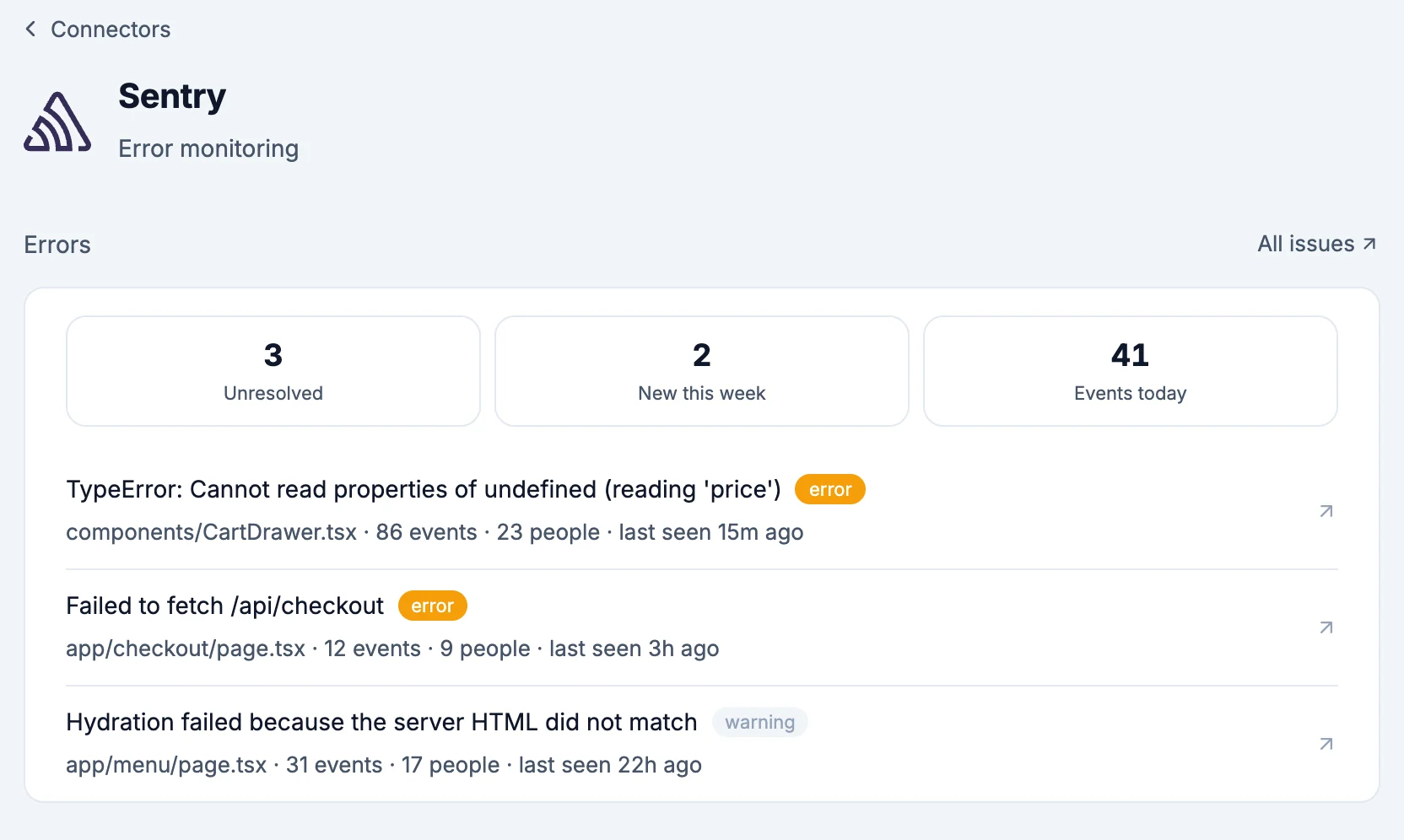
- Errors: Unresolved, New this week and Events today.
- Your unresolved errors, each with the file it came from, how often it happened, how many people hit it and when it was last seen. Click one to open it in Sentry. All issues opens the full list.
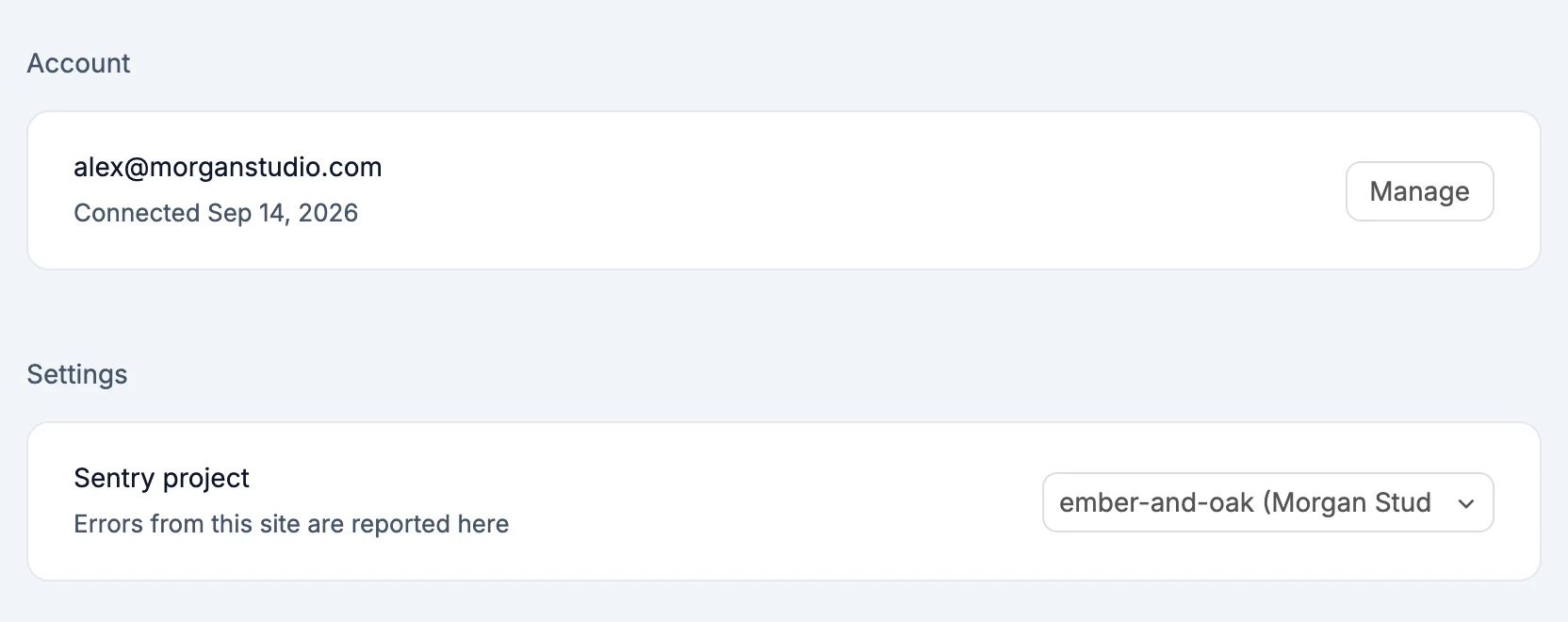
- Settings: Sentry project, where errors from this site are reported. Pick another project to switch.
What the AI can do
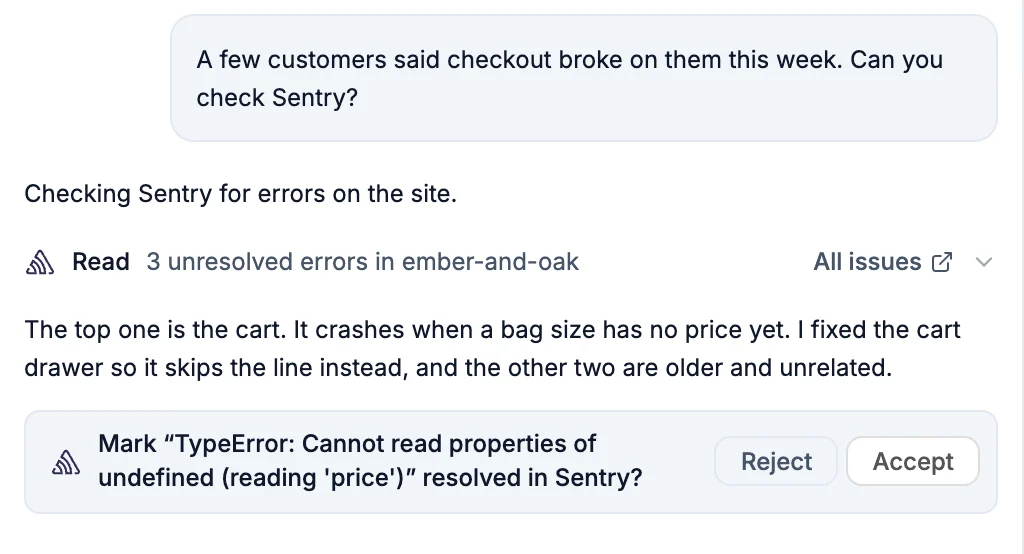
- Read your unresolved errors
- Read one error in full: the exception, the lines of your code it went through, and the steps before it, like the page someone came from and the request that failed. It reads this before fixing anything.
- Mark an error resolved in Sentry. It asks first, and only does it after you click Accept.
In a chat, the Sentry live card has Fix next to each error. Click it and the AI reads that error and fixes it.
Environment variables
NEXT_PUBLIC_SENTRY_DSN: the DSN of the project you picked, used by Sentry in the browser and on the server
Good to know
- Sentry accounts connected before the overview arrived don't have permission to read errors. The connector says Sentry needs one more permission. Click Connect again and approve. Errors keep being reported the whole time.
- Removing Sentry from a project takes
NEXT_PUBLIC_SENTRY_DSNout. Your Sentry organization, projects and events are untouched.