Intercom
Add Intercom's Messenger to your site, so visitors can chat with you and your team answers from Intercom.
Connect
Intercom connects with your App ID.
- Open Settings > Connectors, click Intercom, then Connect.
- Go to Intercom Settings → Identity Verification. Your App ID is shown at the top of the page.
- Paste it into App ID and click Connect.
WebTwizz doesn't check the App ID with Intercom, so make sure you copied all of it.
Then ask the AI to add the Messenger to your site. It uses your App ID.
What you see
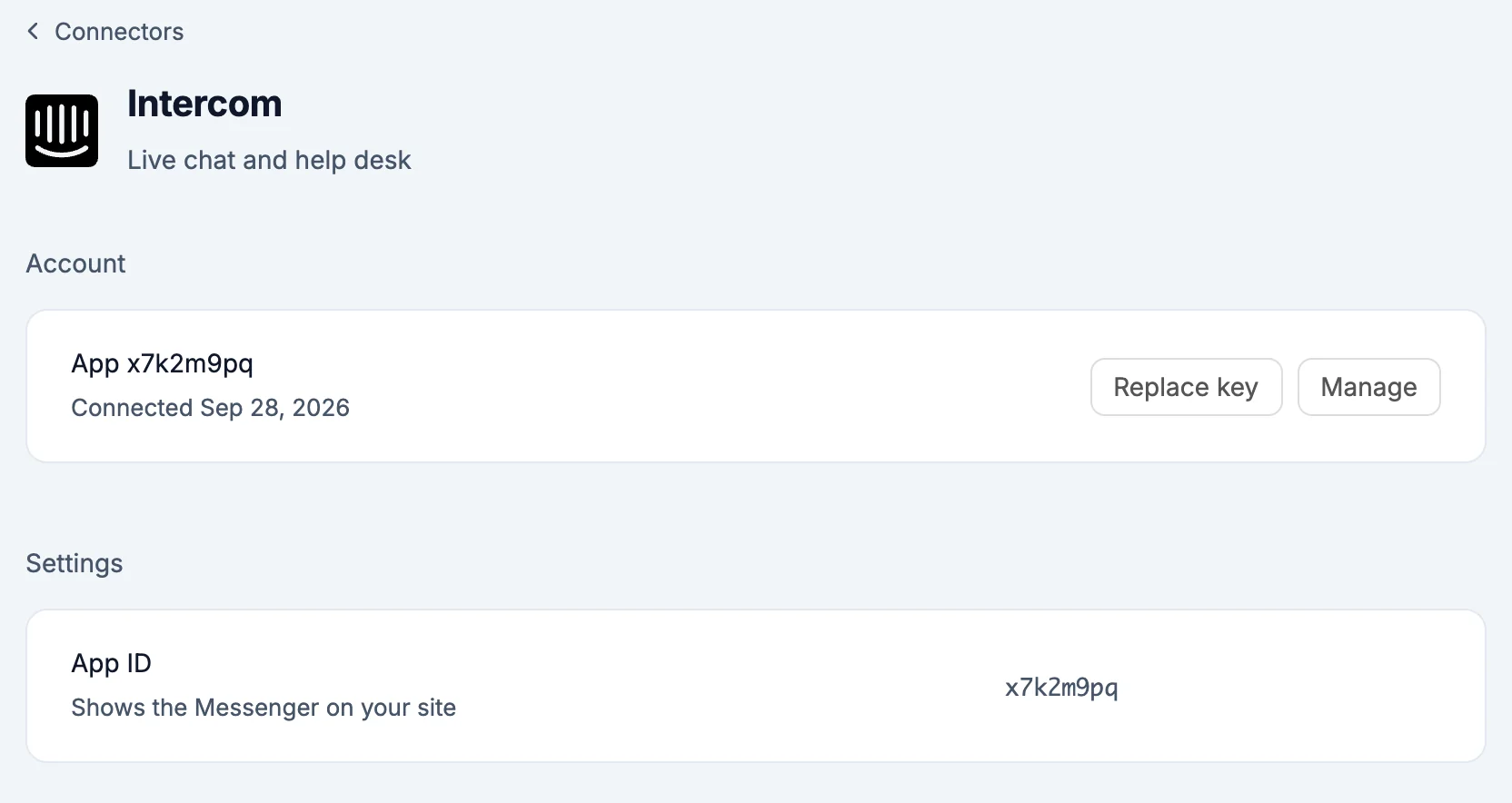
- Account: the App ID, with Replace key to change it.
- Settings: App ID, which shows the Messenger on your site.
There's no overview for Intercom yet.
What the AI can do
The AI builds the Messenger into your site with your App ID. It can't read your conversations: an App ID gives no access to your Intercom inbox.
Environment variables
NEXT_PUBLIC_INTERCOM_APP_ID: your Intercom App ID, used by the Messenger in the browser
Good to know
- Intercom connects with an App ID only for now. Signing in to Intercom, which would bring your inbox into the builder and the chat, isn't available yet.
- Removing Intercom from a project takes
NEXT_PUBLIC_INTERCOM_APP_IDout. Your Intercom workspace and conversations are untouched.