Workspaces and members
A workspace holds a set of sites and the people who work on them. Each workspace has its own plan and its own credits. Members are unlimited on every plan, with no charge per person.
Every account has one personal workspace, the one made when you signed up. You can invite people into it, but you can't delete it or transfer it.
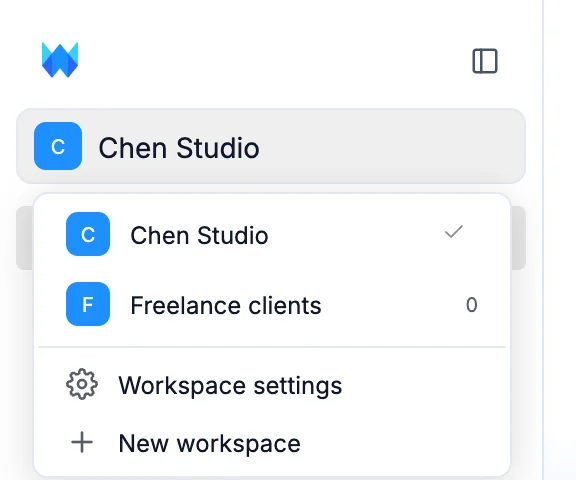
Open the workspace menu at the top of the dashboard sidebar and click Workspace settings or Members. Both open Settings, where the workspace's pages are under its name: General, Members, Plan and Usage.
Roles
Everyone in a workspace has one role:
| Role | What they can do |
|---|---|
| Owner | Everything. Only the owner can buy or change the plan, buy credits, turn on auto top-up, delete the workspace or hand it to someone else. There is one owner. |
| Admin | Invites and removes people, changes roles and credit limits, and builds, publishes, moves and deletes every site. Sees and changes secrets, and connects or disconnects services, including payment accounts. |
| Editor | Builds, edits and publishes sites, and creates new ones. Deletes only the sites they made. Doesn't see secrets, and can't connect payment accounts or disconnect services. |
| Viewer | Opens sites in the builder without changing them. |
A viewer sees the builder in Browse mode. The chat, Publish, undo and the code editor's typing are turned off, and a note says who can give them edit access.
Invite people
- Go to Members.
- Under Invite, enter one or more email addresses, separated by a space or a comma.
- Pick a Role and click Send invites.
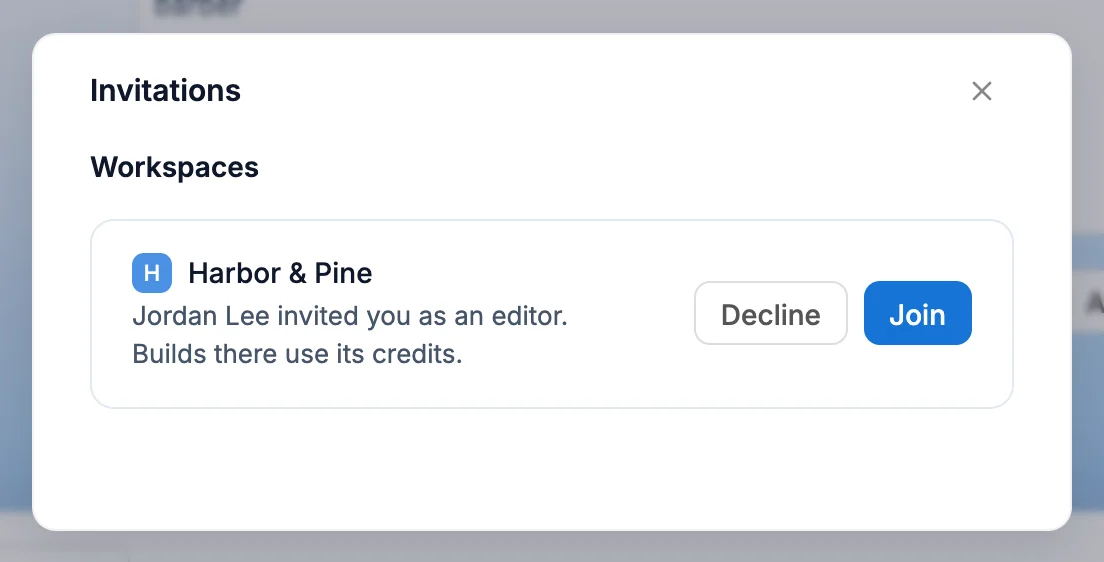
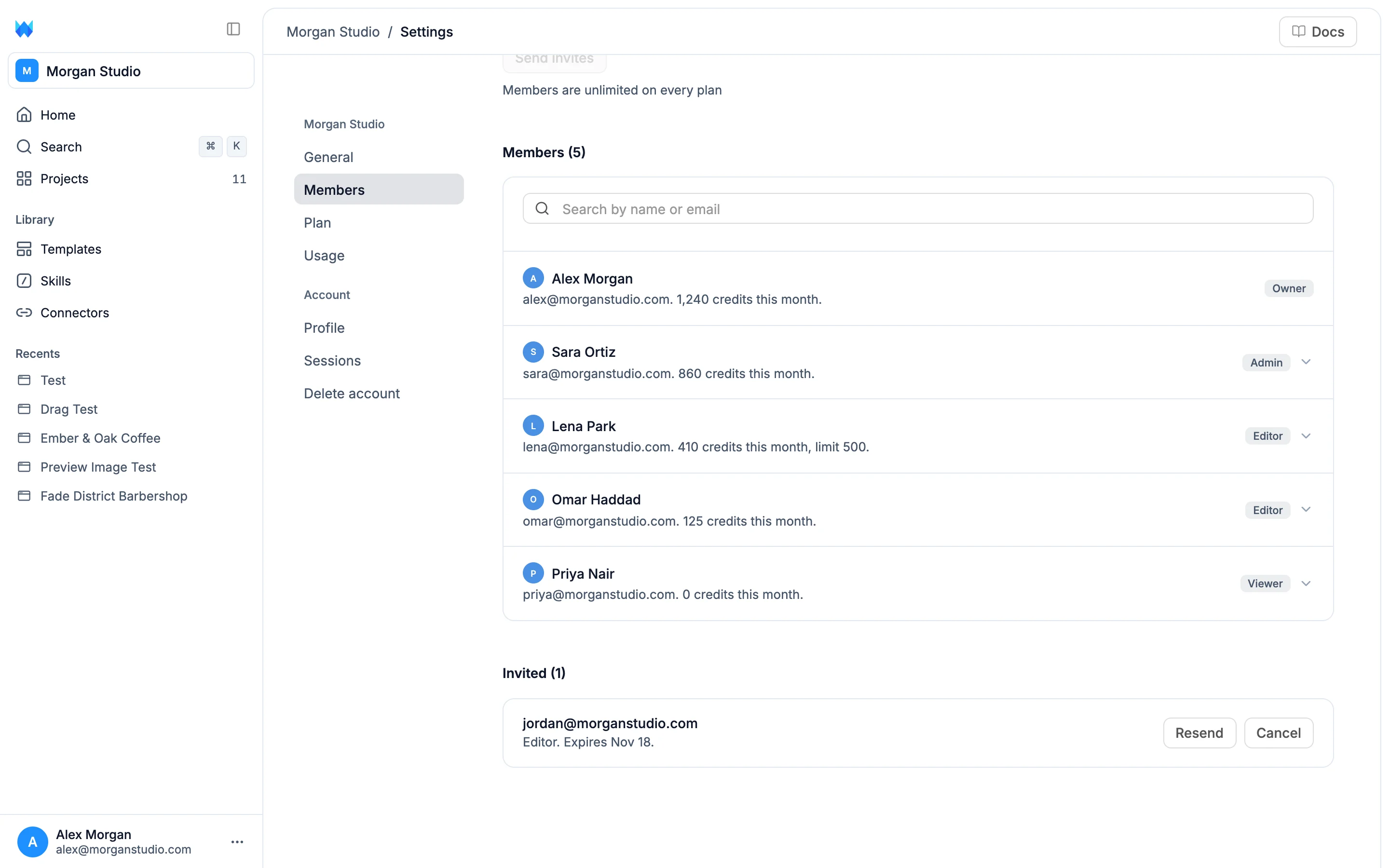
Each person gets an email with a link. The invite lasts 7 days. Until it's accepted it shows under Invited, where you can Resend it or Cancel it.
When someone opens the link:
- If they're signed in with the invited email, the dashboard shows the invite, right away if they already have it open. They click Join or Decline.
- If they have no account yet, they sign up with the invited email filled in, then see the invite.
- If they're signed in with a different account, the dashboard says who the invite was for and offers Switch account. An invite can only be accepted by the email it was sent to.
Pending invites also wait under Invitations in the workspace menu.
Manage members
Members lists everyone in the workspace with their role. Owners and admins also see each person's email and the credits they used this month. Search at the top, and big teams get pages.
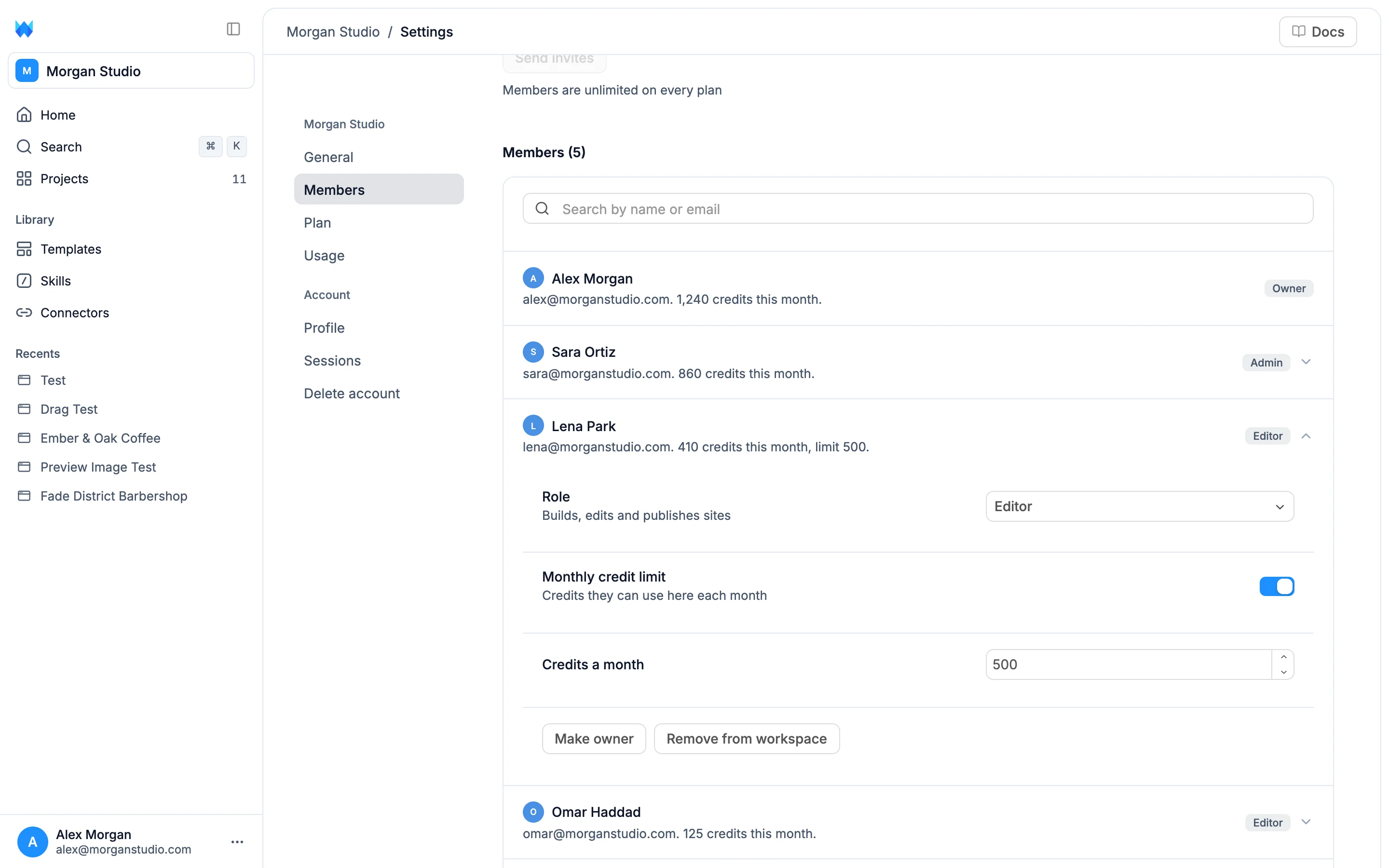
Owners and admins click someone to:
- Change their Role.
- Turn on a Monthly credit limit and set Credits a month. Their builds stop at the limit until the next month or until you raise it.
- Make owner (owner only). See Transfer the workspace.
- Remove from workspace. You confirm first, then they lose access to every site in it right away. Their sites and chats stay.
Role and limit changes wait in a bar at the bottom of the page. Click Save changes to apply them, for several people at once, or Discard.
Changes show up for everyone without reloading: who joined or left, invites, roles and the workspace's name. When someone changes your role or removes you, you see a note. A builder you have open follows: it reloads with your new access, or takes you back to the dashboard.
Owners and admins can't change their own role or remove themselves, and nobody can change the owner's role.
Plan and credits
Every build uses the credits of the workspace the site is in, whoever runs it. Members shows who used how many.
Only your personal workspace gets free credits: 100 when you sign up, then 10 a day, up to 50 a month. A new workspace starts on the free plan with no credits. You can invite people and move sites into it, but building there needs a plan. Until it has one, the chat says This workspace needs a plan, with a Pick a plan button.
The workspace menu shows each workspace's plan as a small label: Free, Standard or Pro. In Settings, Plan and Usage show the workspace you have selected in the sidebar. Switching workspace switches them.
Only the owner can buy or change the plan, buy credits or turn on auto top-up. Everyone else sees the plan and the balance. For them, the Upgrade and Buy credits buttons are turned off, with a note that only the owner can change the plan.
When the workspace runs out of credits, or a member reaches their monthly limit, the chat says so. See Payments and billing for plans and prices.
Build together
Everyone in a site sees who else is there. Their faces appear at the top of the builder. Click them to see each person's role and where they are: the page or file they're on, or the Settings section or Data table they have open. Click someone to go there.
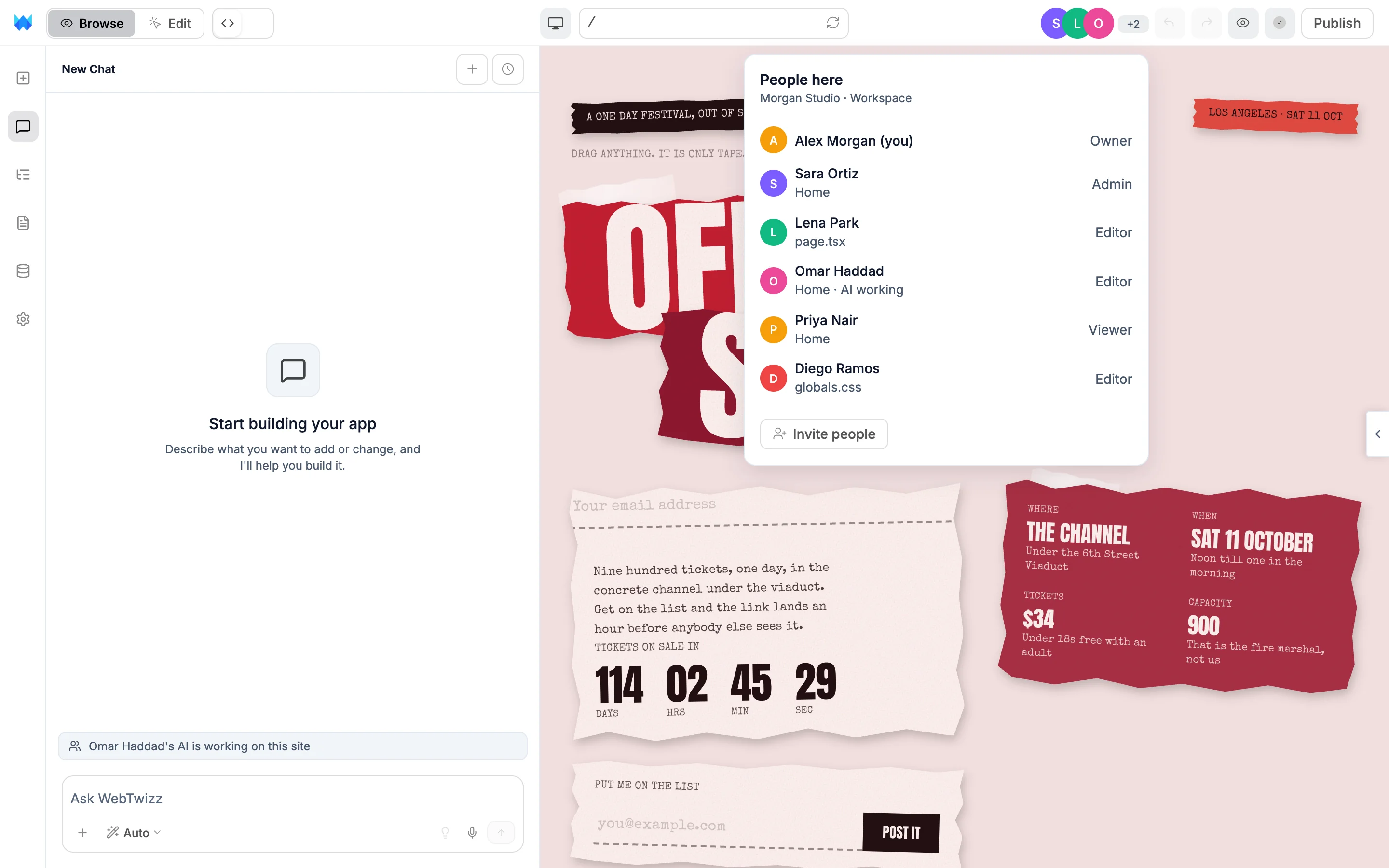
- On the canvas, what a teammate has selected is outlined in their color with their name.
- When a teammate edits the site, by hand or with the AI, your builder updates by itself.
- In the code editor, two people in the same file type together live and see each other's cursors.
- In Pages, Settings and Data, a teammate's face shows next to the page, section or table they have open.
- When a teammate's AI is building, the chat says so, and a message you send waits until it finishes.
Saving is shared too: the unsaved count in the toolbar includes your teammates' changes, and Save saves everyone's.
The AI works for whoever asks
The AI knows who started each build and what their role allows.
- Chats are your own. The AI reads only your chats, never your teammates'.
- Only owners and admins can have the AI connect payment accounts, give refunds or set secret values. For anyone else it explains that an owner or admin does that.
- Builds use the workspace's credits, within the monthly limit of the person who started them.
Transfer a site
Owners and admins can move a site. On the project card, open the ⋯ menu and click Transfer ownership:
- To another workspace moves it right away into a workspace where you can edit.
- To someone else sends it by email. They pick one of their workspaces when they accept, and it leaves yours. The offer lasts 7 days.
The site then runs on its new workspace's plan. If that plan can't hold it, because the site has a custom domain or private access, or the free plan's one published site is already taken, the move asks for an upgrade first.
Transfer the workspace
Only the owner can do this, and a personal workspace can't be transferred. Go to Workspace settings, and under Ownership click Transfer ownership, then pick someone already in the workspace.
Nothing changes until they accept. Until then their row in Members says Asked to become the owner, and Workspace settings shows Waiting for their name, with Cancel. Once they accept, the workspace keeps its plan and credits, they take over its billing, and you stay on as an admin. Your subscription runs to the end of the period you paid for. After that, the new owner picks a plan.
Leave or delete a workspace
- Leave workspace removes you from a workspace you don't own. You lose access to its sites.
- Delete workspace (owner only) permanently deletes the workspace and every site in it, including published ones. You can't delete your personal workspace.
Both ask you to confirm first. To delete a workspace, you type its name.
You can't delete your account while other people share a workspace you own. Transfer it, or remove them, first.