Data & CMS
The Data panel holds your site's content and data. Open it with the Data icon in the left sidebar. It has two tabs:
- Content: collections stored in your site's code. Every site has them, with no setup. Use them for content you edit yourself, like menus, team members, FAQs or blog posts.
- Data source: tables in a database or spreadsheet you connect. Use one when your site needs to save what visitors send, like sign-ups, orders, bookings or user accounts. Once connected, the tab shows the source's name.
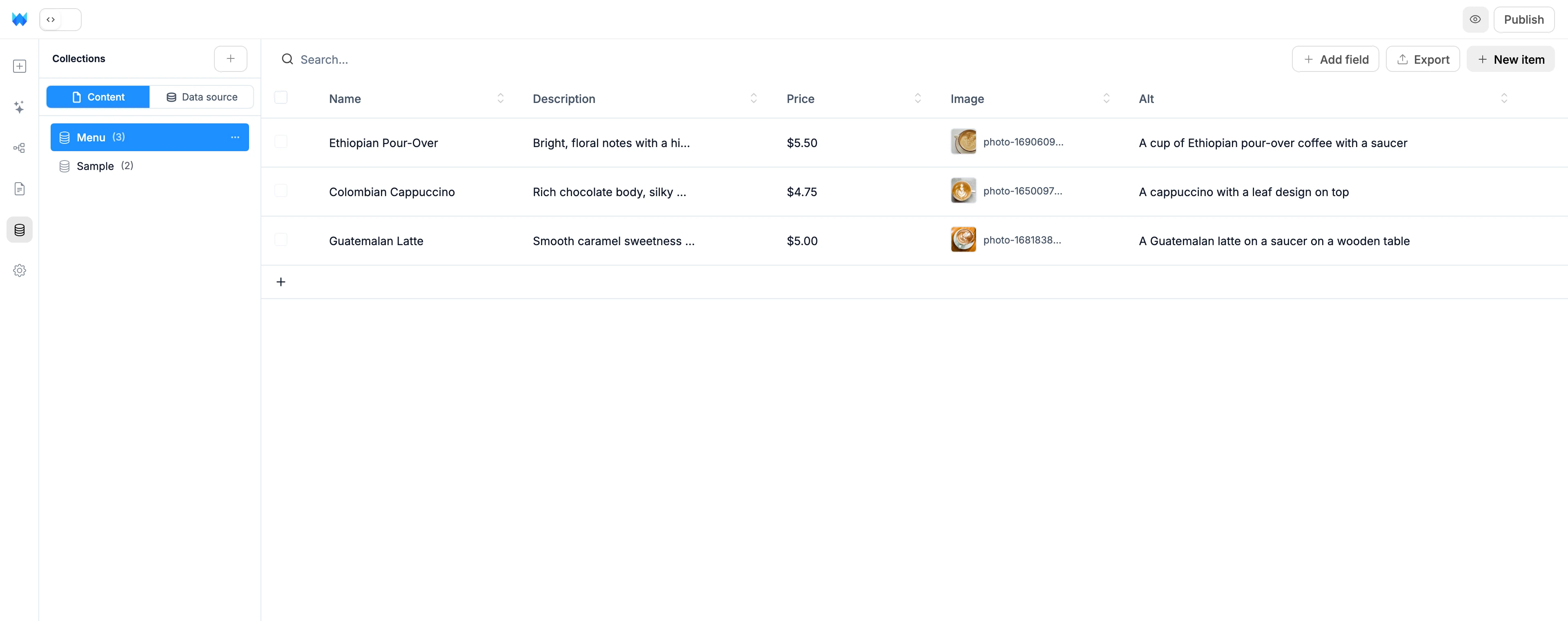
If your content is written straight into a page, ask the AI to move it into a collection: "move my menu into a collection so I can edit it myself".
Content collections
Each collection is a file in your site's src/data folder. Changes show in your preview right away and reach your live site when you publish.
Create a collection
Click + at the top of the panel, type a name and click Create. The window shows the file it will create, like /src/data/blog.ts.
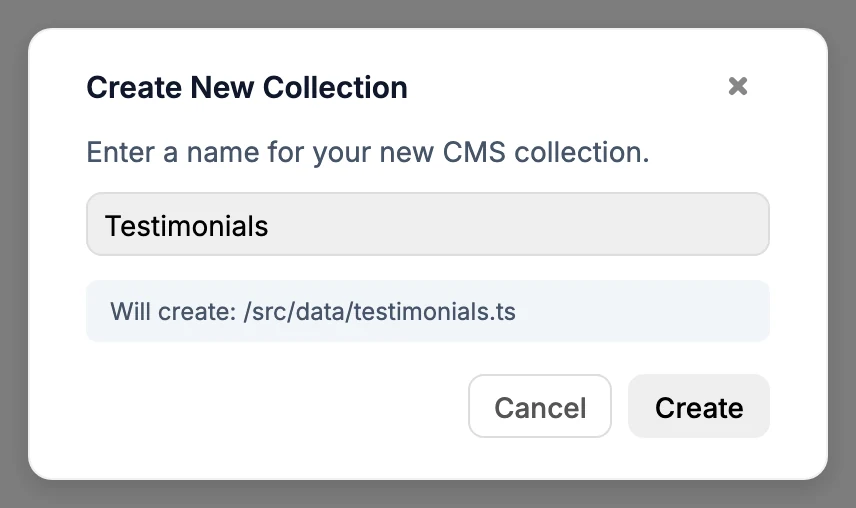
A new collection starts empty. Click Add Field to decide what it stores (see Fields and columns).
Rename, duplicate or delete
Hover a collection and click ⋯, or right-click it, then choose Rename, Duplicate or Delete. You can also double-click a name to rename it. Renaming updates every file in your site that uses the collection. Deleting can't be undone.
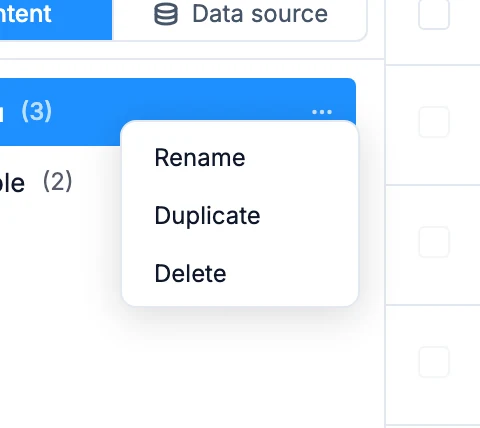
When you have more than five collections, a Filter collections... box appears above the list.
Connect a data source
A site has one data source at a time. Click the Data source tab and pick one.
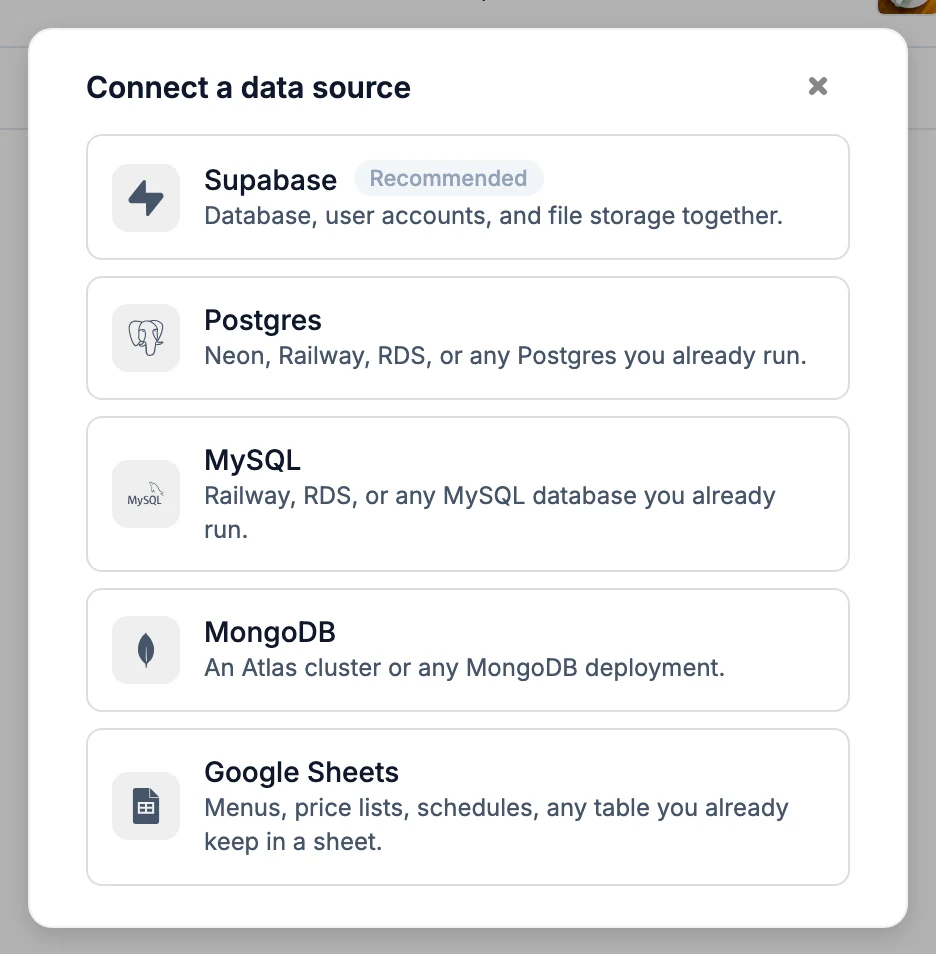
| Source | Good for |
|---|---|
| Supabase (Recommended) | Database, user accounts and file storage together |
| Postgres | Neon, Railway, RDS, or any Postgres you already run |
| MySQL | Railway, RDS, or any MySQL database you already run |
| MongoDB | An Atlas cluster or any MongoDB deployment |
| Google Sheets | Menus, price lists, schedules, any table you already keep in a sheet |
Each source saves its connection details to Settings > Environment Variables, under From connected services.
Supabase and Google Sheets are also connectors. Once connected, your account is saved for your other projects, and Settings > Connectors shows the project's tables, sign-in settings or spreadsheet tabs. See Supabase and Google Sheets.
Supabase
- Choose Supabase and click Connect with Supabase.
- Sign in to Supabase and approve access. You come back to the same window.
- Pick a project from the list, or choose + Create new project.
- Click Connect.
- If your Supabase account is already linked, you go straight to the project list.
- + Create new project makes a new project in your first Supabase organization and connects it. It needs the Connect with Supabase sign-in and takes about two minutes, so keep the window open.
- A paused project can't be connected. Restore it in your Supabase dashboard first.
- Rather use a token? Click Paste an access token instead, generate one at supabase.com/dashboard/account/tokens, paste it and click Next.
- Disconnect Supabase account, under the project list, unlinks your Supabase account from WebTwizz, so you can sign in with a different one.
Supabase adds NEXT_PUBLIC_SUPABASE_URL, NEXT_PUBLIC_SUPABASE_PUBLISHABLE_KEY, SUPABASE_SERVICE_ROLE_KEY and SUPABASE_ACCESS_TOKEN.
Postgres and MySQL
- Choose Postgres or MySQL.
- Paste your Connection string. It starts with
postgres://orpostgresql://for Postgres, andmysql://for MySQL. - WebTwizz tries the connection as you type and shows Connected when it works, or the reason it didn't.
- Click Connect.
No connection string? Click No connection string? Enter host, user, and password separately and fill in Host, Database, Port, User and Password.
- Postgres: use a pooled connection string if your provider offers one.
- MySQL: use a user that can create and alter tables. WebTwizz needs MySQL 8.0.13 or newer.
The connection is saved as DATABASE_URL.
MongoDB
Choose MongoDB and paste your Connection string (mongodb:// or mongodb+srv://). WebTwizz tries it as you type, like Postgres. When it shows Connected, click Connect. In Atlas, you'll find the string under Database > Connect > Drivers.
The string must include your database name, like mongodb+srv://user:pass@cluster.mongodb.net/mydb. It's saved as MONGODB_URI.
Google Sheets
- Choose Google Sheets and click Continue with Google.
- Sign in and allow access.
- Pick one spreadsheet.
Only the spreadsheet you pick is shared with WebTwizz, and it stays private. Each tab shows as a table, and the tab's first row holds the column names.
From the chat
When you ask the AI for something that saves data, it may show a Connect a data source card. Clicking it opens the same window right in the chat, starting on Supabase. Click All sources to pick a different one. Click Build with sample data first (or Not now) to connect later.
Change or disconnect
Click ⋯ on the data source tab, or right-click the tab. The menu shows what's connected, plus Change data source..., Open Supabase dashboard (Supabase only) and Disconnect.
- Connecting a different source replaces the current one. Your data stays where it is, but your site stops using it.
- Disconnect asks you to confirm. Your site stops reading and writing through that source. Nothing is deleted on the provider's side.
- There's no reconnect button. If a source stops working, for example after you change its password, disconnect it and connect it again.
Tables, collections and tabs
Once a source is connected, the list on the left shows its tables. MongoDB calls them collections and Google Sheets calls them tabs, and the panel uses the same words.
- Click + to create one. The window shows the final name before you create it.
- Hover one and click ⋯, or right-click it, for Rename, Duplicate and Delete. Deleting removes the table and all its data from the source, and can't be undone.
- Supabase, Postgres and MySQL names become lowercase with underscores, so "Blog posts" becomes
blog_posts. MongoDB and Google Sheets keep the name as you type it.
With Supabase, the list also shows Auth Users, marked Read-only: the people who signed up through your site's login. You can search them here, but they're managed by Supabase Auth.
Work in the grid
Both tabs use the same grid:
- Type in the search box to filter rows.
- Click a column header to sort ascending, again for descending, and a third time to clear the sort.
- Use the controls at the bottom to change pages or rows per page.
- Click a row to edit it. Click ⋯ at the end of a row, or right-click it, for Edit, Duplicate and Delete.
- Click New item, or + below the last row, to add one.
Data source grids also have a refresh button. The grid refreshes on its own when the AI changes your data.
Fields and columns
Content fields
Click Add field, fill in Field name, pick a Type, optionally tick Required and set a Default value, then click Create field.
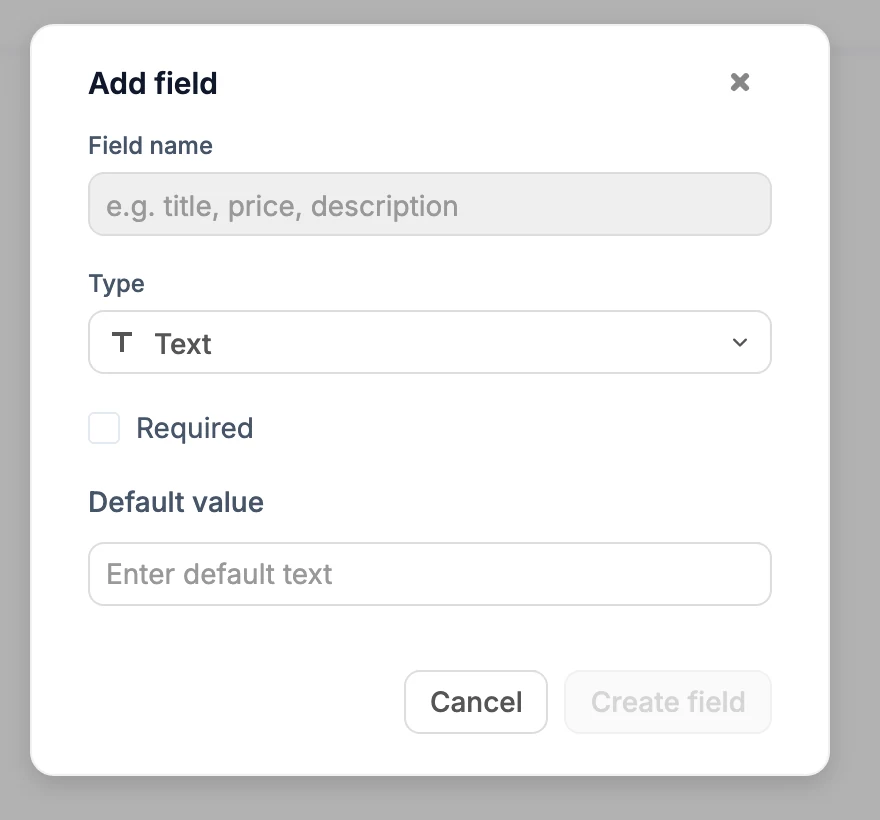
Field types: Text, Textarea, Number, Date, Date & Time, Boolean, Color, Link, Email, Phone, Image, Audio and Video.
Right-click a column header to Edit, Duplicate or Delete the field. Deleting a field removes its value from every item.
Data source columns
Click Add column, fill in Column name, pick a Type, set a Default value if you want one, then click Create column.
- Supabase, Postgres and MySQL: types are Text, Small Integer, Integer, Big Integer, Numeric (Decimal), Float, Date, Time, Timestamp, Boolean, UUID and JSON. Tick Required (NOT NULL) to make a value mandatory. Names use lowercase letters, numbers and underscores, and start with a letter. Date and Timestamp columns can default to Use current date or Use current time.
- Google Sheets: a column is a header cell in the tab's first row. Types are Text, Number, Date, Date & time and Checkbox, and names can have spaces and capitals.
- MongoDB: there's no Add column. Documents can hold different fields, and a field you add to a document shows up as a column.
Right-click a column header to Edit (rename), Duplicate or Delete it. The id column can't be changed.
Edit a row
Click a row, or New item, and the Edit Item or New Item panel slides in with a field for each column. Required fields are marked with *.
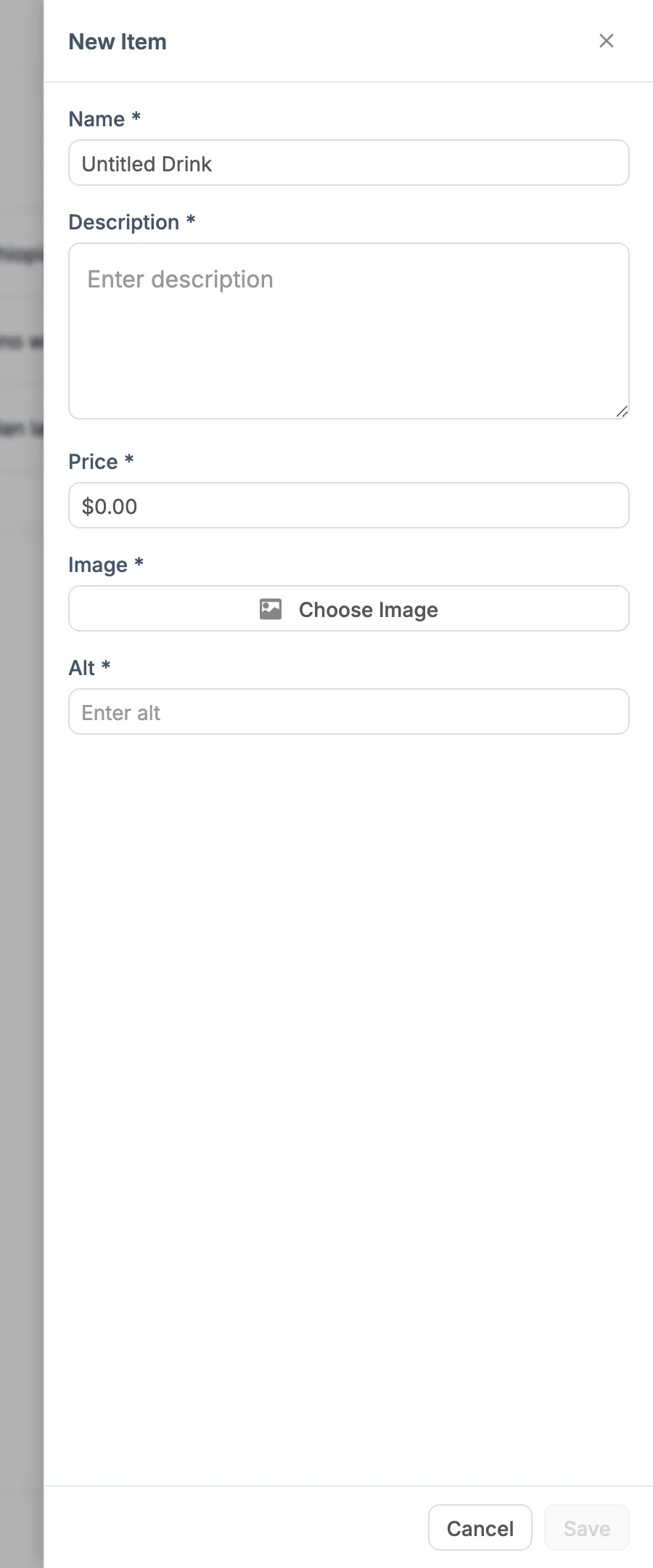
- Click Save or press Enter to save. Press Escape or click Cancel to close without saving.
- In a data source's text fields, Shift+Enter adds a new line.
- In Content collections, image fields open the image picker you use everywhere else in the builder.
- To delete the row, click Delete at the bottom of the panel and confirm.
- If your database rejects a change, the panel explains why in plain words.
- MongoDB: use the two icons at the top of the panel, Fields and Raw JSON, to switch to editing the whole document as JSON. In an empty collection, click Write it as JSON to add your first document.
Rows you save in a data source are written straight to your database.
Select and act on many rows
Tick the checkboxes next to rows to select them. The checkbox in the header selects every row on the page. When a whole page is selected and more rows match, click Select all (it shows the number of matching rows) to select them across all pages, or Clear to undo it.
The selection bar has Duplicate and Delete buttons.
- Actions only touch rows that match your search. Search for "latte", select all and delete, and only the rows matching "latte" go. The confirmation says so.
- Changing the search clears your selection.
- Delete always asks you to confirm. In a data source, duplicating every row asks first too.
- Some database tables can't be duplicated, like a table whose
idmust match a row in another table, such as a user account. Duplicate is turned off there, and hovering it tells you why.
Export
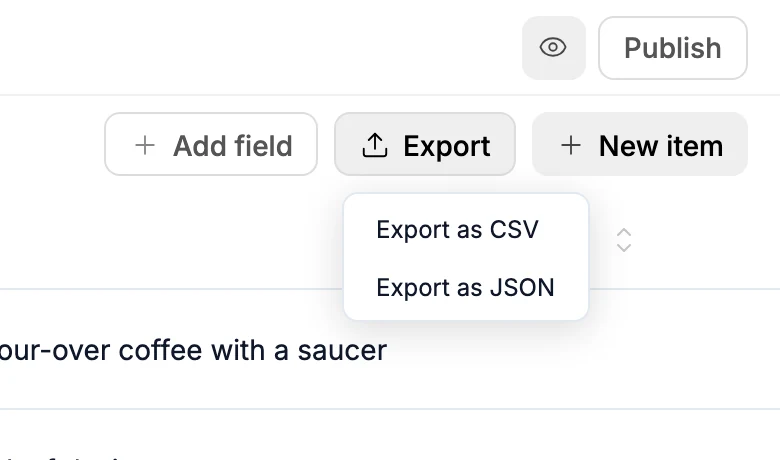
In a Content collection, click Export and choose Export as CSV or Export as JSON to download every item in it.
Let the AI work with your data
Once a data source is connected, the AI builds your site against it and can change it for you. Ask in plain words: "add a bookings table with name, email and date", or "add these 20 products to my products table".
Each change shows as a card in the chat, like Created table or Added data, and the grid updates. Before anything that permanently removes data, like deleting rows or dropping a table, the AI stops and asks. Click Accept to go ahead or Reject to cancel.
How sources differ
| Supabase | Postgres and MySQL | MongoDB | Google Sheets | |
|---|---|---|---|---|
| Listed as | Tables | Tables | Collections | Tabs |
| Names | lowercase_with_underscores | lowercase_with_underscores | As typed | As typed |
| Add columns | Yes | Yes | No, fields come from documents | Yes, as header cells |
| Also has | Auth Users, Open Supabase dashboard | Raw JSON editing | ||
| Saved as | Four SUPABASE variables | DATABASE_URL | MONGODB_URI | GOOGLE_SHEETS_REFRESH_TOKEN |