Explore the dashboard
The dashboard is where you start projects, find the ones you have, and reach your account. The sidebar on the left takes you everywhere, and a bar across the top shows where you are.
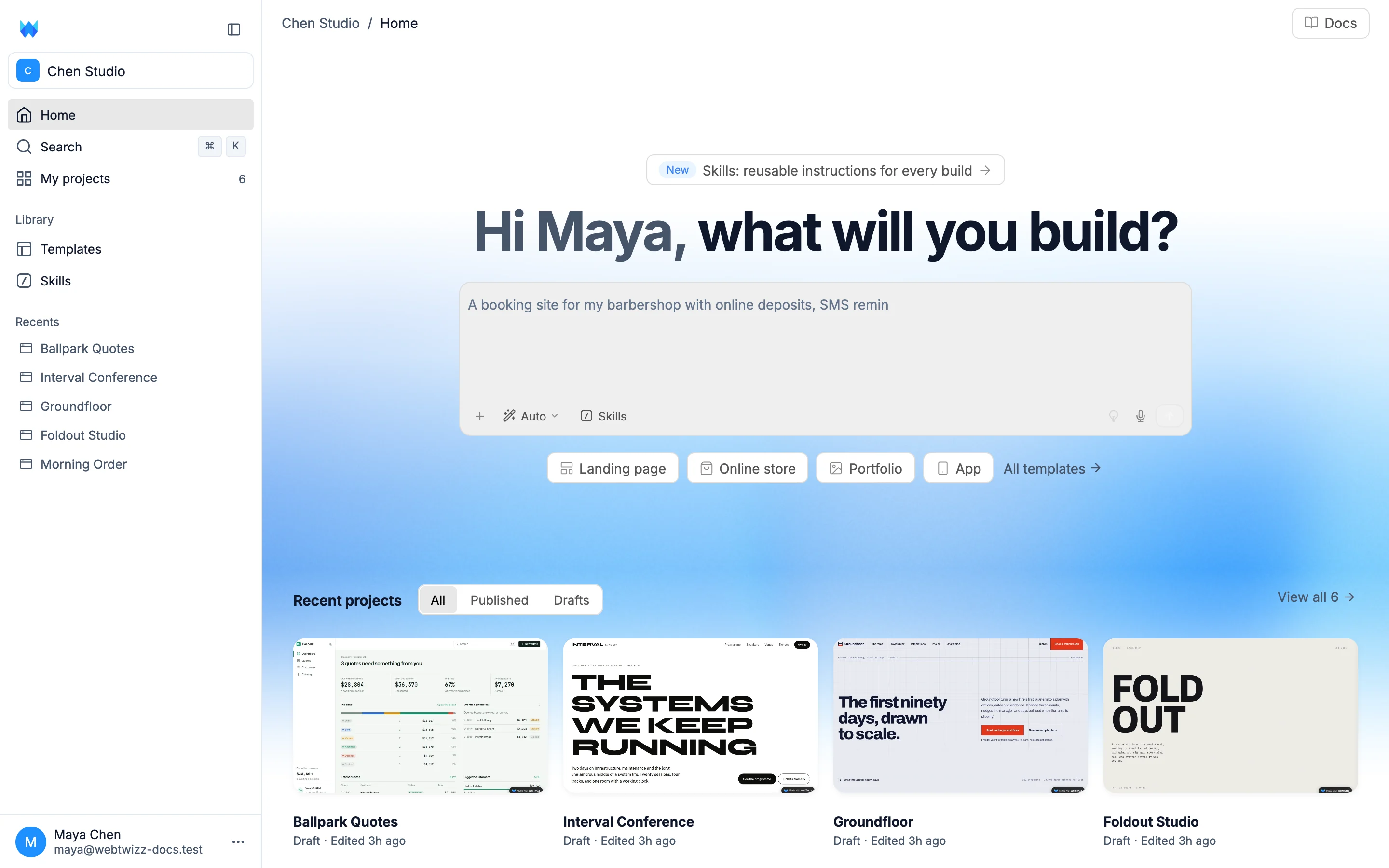
The sidebar
- The workspace selector at the top shows the workspace you're in. See Workspaces.
- Home has the prompt box and your recent projects.
- Search opens the command palette. Press
⌘Kon Mac orCtrl Kon Windows from anywhere in the dashboard. - My projects lists every project in the workspace, with the total beside it.
- Under Library, Templates opens the template gallery, Skills opens the skills library and Connectors opens the services you've connected, like Stripe or GitHub.
- Recents shows the five projects you edited last. Right-click one, or hover it and click ⋯, to Open, Rename or Duplicate it, or open its Settings.
On the free plan, an Upgrade card sits near the bottom and opens your subscription options. Your account row is below it.
To make more room, click the panel icon at the top of the sidebar. It shrinks to a row of icons, and hovering an icon shows its name. Click the logo to expand it again. The dashboard remembers your choice.
The top bar
The bar across the top shows your workspace and the page you're on, like "Chen Studio / Templates". The Docs button on the right opens this documentation.
Home
Home greets you by name above the prompt box. Describe what you want and WebTwizz builds it, or use a quick-start button to begin from a template. See Your first project.
Below the prompt box, Recent projects shows your latest work. Switch between All, Published and Drafts, or click View all to open the full list.
Project cards
Each card shows a picture of the top of your site, its name, whether it's Live or a Draft, and when it was last edited.
- A published site is pictured each time you publish it.
- A draft is pictured from its preview. When you come back to the dashboard after editing, the picture refreshes while the project's preview is still running.
- Until a project has a picture, its card shows the site's social image or favicon if it has one, or a simple sketch of a page.
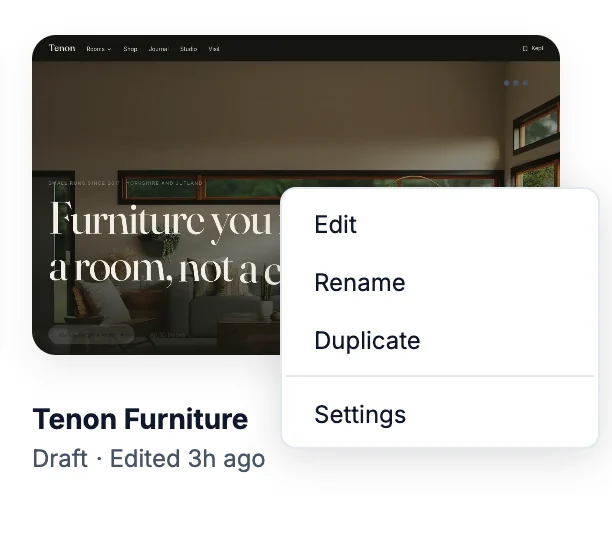
Click a card to open the project in the builder. Right-click the card, or hover it and click ⋯, for more:
- Edit opens the project in the builder.
- Rename lets you type a new name on the card. Press Enter to save or Escape to cancel.
- Duplicate makes a copy of the project.
- Settings opens the project's settings in the builder. Deleting a project lives there, under General > Danger zone.
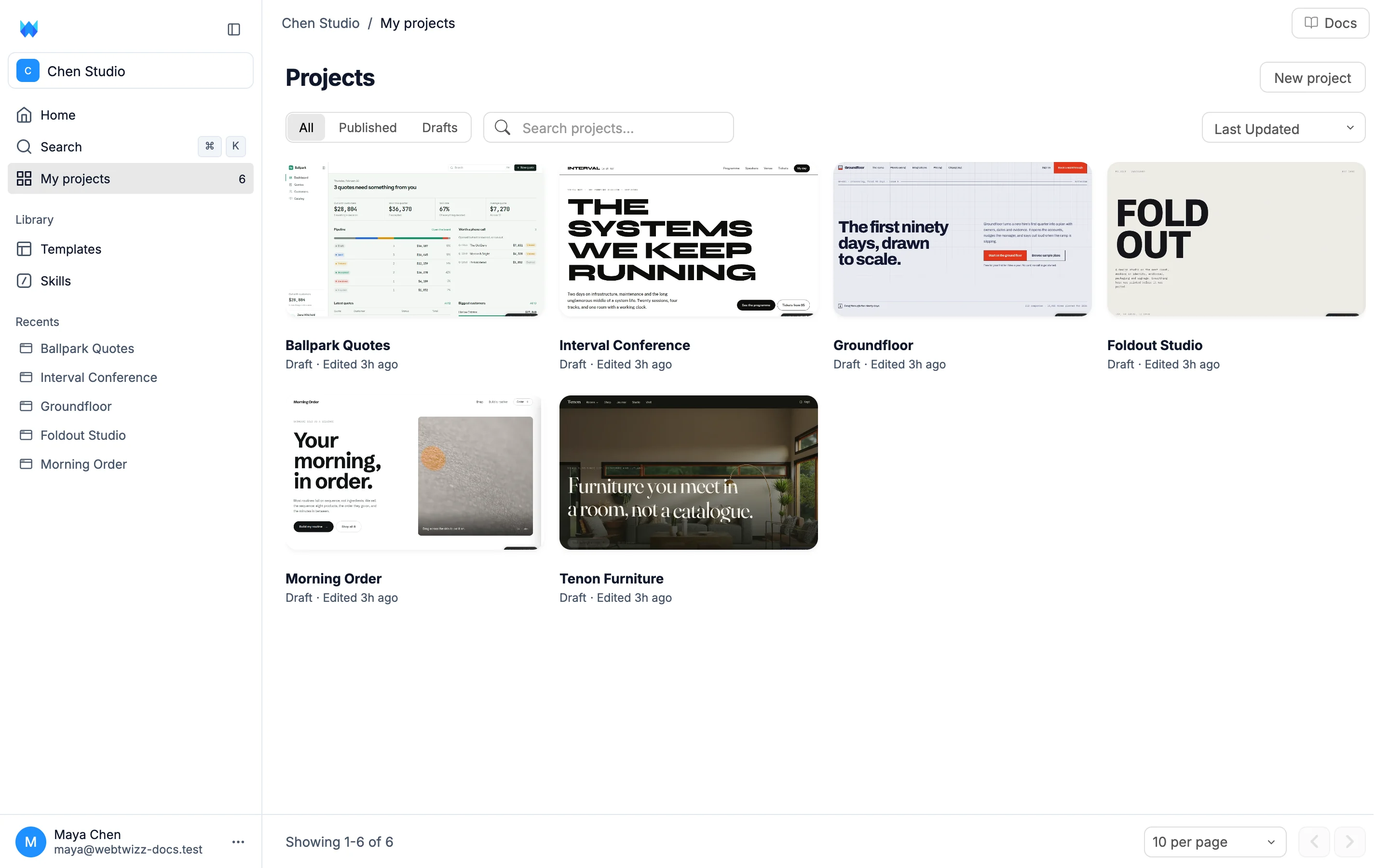
My projects
My projects is the full list, with more ways to find things:
- All, Published and Drafts filters
- A search box to find projects by name
- A sort menu: Last Updated, First Updated, Name A-Z, Name Z-A, Newest First and Oldest First
- Pages at the bottom, with a choice of how many projects to show per page
Click New project in the top right to start a blank project.
Search
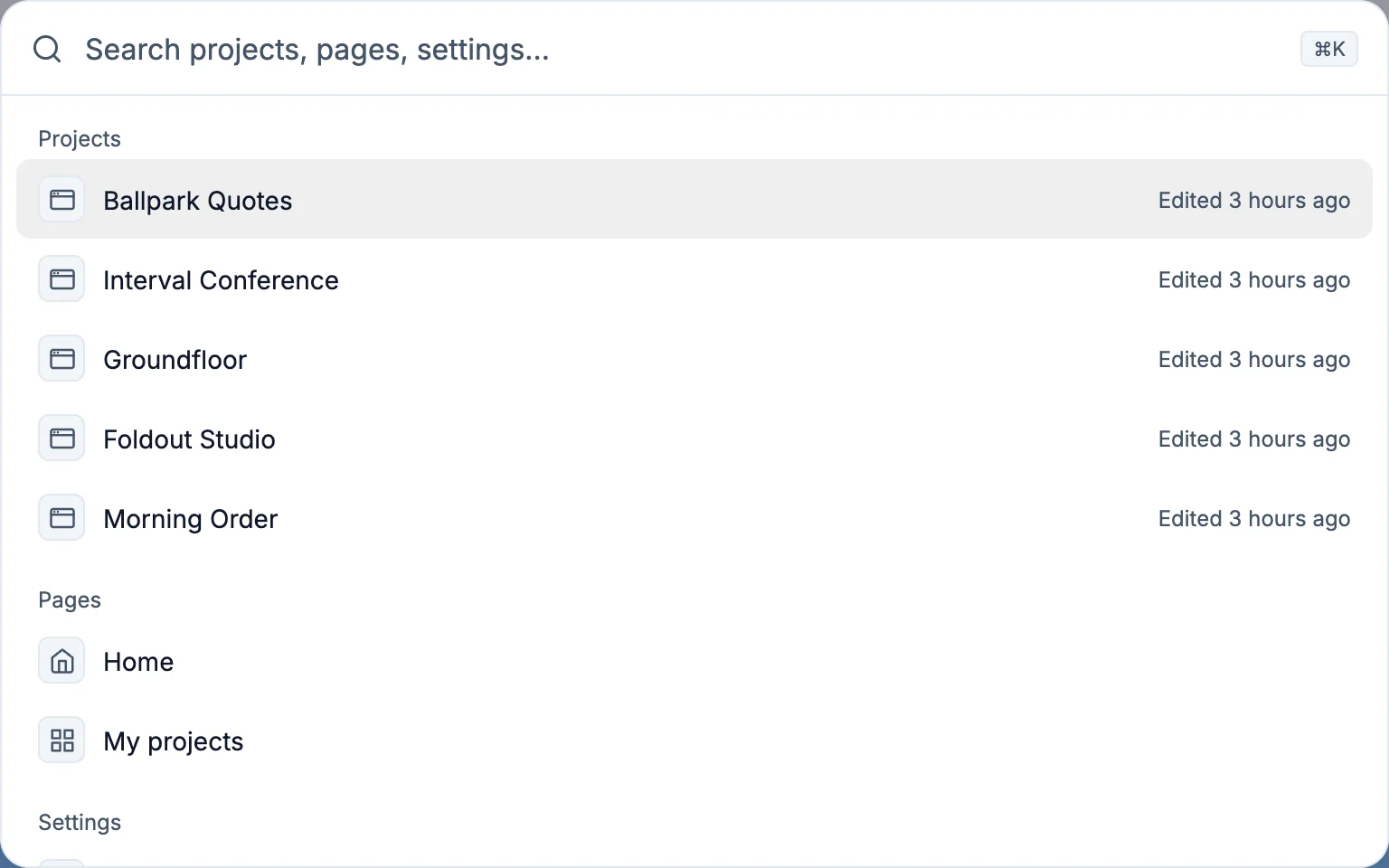
Press ⌘K or Ctrl K, or click Search in the sidebar, to open the command palette.
Before you type, it lists your five most recent projects, the dashboard pages, your account settings (Profile, Subscription, Usage and Sessions), Workspace settings, and help links. Start typing to search every project in the workspace, along with your skills, the template gallery and connectors. Use the arrow keys to move, Enter to open, and Escape to close.
Workspaces
Workspaces keep separate sets of projects apart, which helps if you build for more than one client or brand.
Click the workspace selector at the top of the sidebar to see every workspace you belong to, with a project count beside each and a tick beside the one you're in. Click a workspace to switch to it.
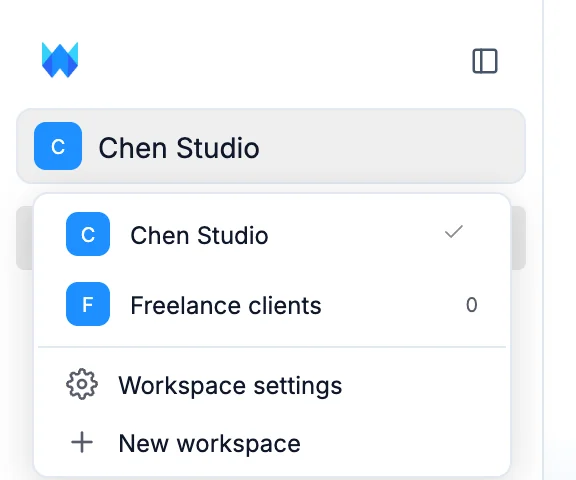
The same menu has two more options:
- Workspace settings lets you rename the workspace, pick its icon color, or delete it. Deleting a workspace permanently deletes all of its sites, including published ones, and asks you to type "delete" to confirm. You can't delete your only workspace.
- New workspace creates a workspace and switches to it.
Your account
Click your account row at the bottom of the sidebar for:
- Settings opens your account settings: profile, subscription, usage, sessions and closing your account.
- Appearance switches between Light, Dark and System.
- Support starts an email to the WebTwizz team.
- Documentation opens these docs.
- Sign out
On a phone
The sidebar is hidden on a phone. Tap the menu icon in the top bar to slide it open. Tap outside it, swipe it to the left, or pick a destination to close it.
Home shows the workspace selector above your projects, and more projects load as you scroll.