Builder overview
The builder is where you design and build your site. Your site runs live in the canvas in the middle. Panels on the left add elements, manage pages and chat with the AI. The edit panel on the right styles whatever you select.
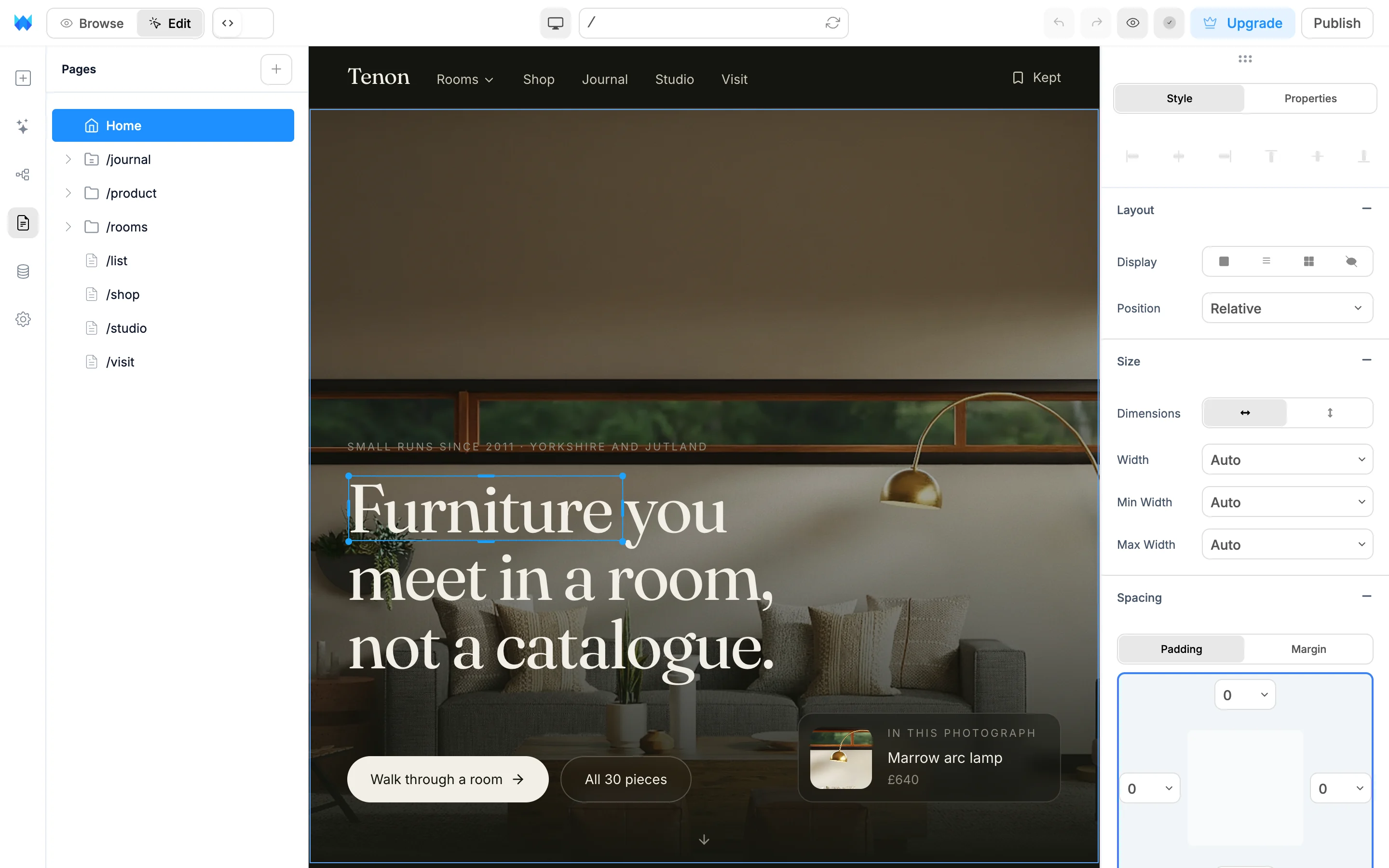
The toolbar

From left to right:
- WebTwizz logo opens the logo menu: Go to Dashboard, File, Edit, Version History, Site Settings, Preferences (light, dark or system theme), Help (documentation and keyboard shortcuts) and Account Settings.
- Browse and Edit switch how the canvas behaves. See Browse and Edit below.
- Code switch (the
<>toggle) opens the code editor. Click it again to come back to the canvas. - Width menu (the device icon) sets the canvas width. See Responsive design.
- Path bar shows the page you're on, like
/or/about. Click it and type to jump to another page. The refresh button inside it reloads the canvas. - Undo and Redo.
- Preview (eye icon) opens your site in a new browser tab. See Preview and publish.
- Save shows whether your work is saved. When everything is saved it shows a check mark, and clicking it opens version history. See Saving your work.
- Upgrade appears on the free plan.
- Publish opens the publish panel.
While Settings or Data is open, the path bar is hidden and the right side of the toolbar only shows Preview, Upgrade and Publish.
The left sidebar
The strip of icons on the left opens a panel each:
- Elements adds elements, layouts and components. See Elements panel.
- AI Assistant opens the AI chat.
- Layers shows every element on the page as a tree. See Layers panel.
- Pages adds, renames and organizes pages. See Pages panel.
- Data manages your collections and data sources. See Data and CMS.
- Settings opens site settings.
Click the open panel's icon again to collapse the sidebar, or press ⌘B / Ctrl+B.
The canvas
The canvas is your real site running live. Changes show up as soon as you make them.
Browse and Edit
Use the Browse and Edit buttons in the toolbar to switch modes.
- Browse lets you use the site like a visitor. Links navigate, buttons and menus work, and forms submit. Nothing gets selected.
- Edit lets you change the page. Hover to highlight an element, click to select it, double-click text to type, right-click for the context menu and drag to move things.
The builder remembers the mode you used last. The first time you open it, it starts in Browse. Opening the Layers panel switches to Edit. The buttons are unavailable while the AI is working, in the code editor and in version history.
The edit panel
When you select an element, the edit panel on the right shows its styles and settings. Press ⌘E / Ctrl+E to show or hide it, or click the arrow on the right edge. See Edit panel.
Quick edits with Edit with AI
Select an element and press ⌘K / Ctrl+K to open the Edit with AI bar under it. Type a change like "bigger" or "navy text" and see it on the page before you pick it. See Edit with AI.
On a phone
On a screen narrower than a tablet, the builder is built for chatting with the AI and checking the result:
- Chat and Preview tabs at the top switch between the AI chat and your site. Tap Preview again to reload it.
- The canvas works like Browse mode. Selecting elements, the edit panel and the code editor need a wider screen.
- The save button sits next to the logo. Your work also saves on its own about 30 seconds after you stop editing.
- The logo menu has a Preview menu to open the preview in a new tab, reload it or restart the preview server. Settings are under Site Settings, and Back to editor returns to your site.
Essential shortcuts
| Action | Mac | Windows |
|---|---|---|
| Undo | ⌘Z | Ctrl+Z |
| Redo | ⌘⇧Z | Ctrl+Shift+Z |
| Save | ⌘S | Ctrl+S |
| Edit with AI (element selected) | ⌘K | Ctrl+K |
| Delete element | ⌫ | Backspace or Delete |
| Deselect | Esc | Esc |
| Show or hide the edit panel | ⌘E | Ctrl+E |
| Show or hide the sidebar | ⌘B | Ctrl+B |
| Version history | ⌘H | Ctrl+H |
See Context menu and shortcuts for the full list.