Context menu and keyboard shortcuts
Context menu
In Edit mode, right-click any element on the canvas to open its context menu. The menu acts on the element you right-clicked.
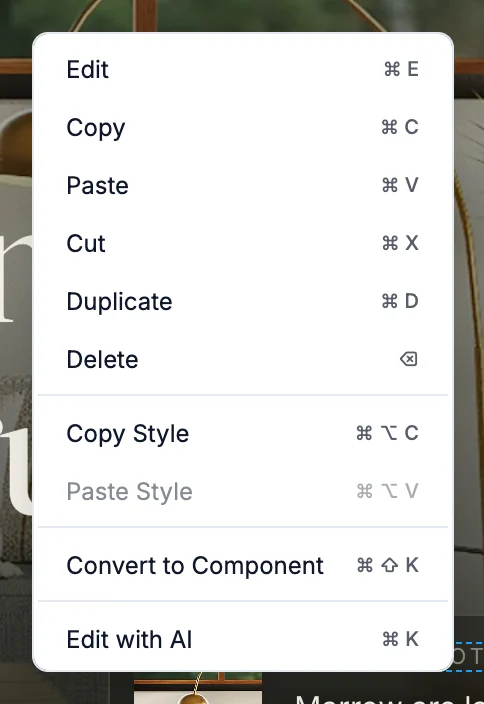
| Item | What it does | Mac | Windows |
|---|---|---|---|
| Edit | Opens the edit panel for the element | ⌘E | Ctrl+E |
| Copy | Copies the element | ⌘C | Ctrl+C |
| Paste | Pastes what you copied into the element | ⌘V | Ctrl+V |
| Cut | Copies the element and removes it | ⌘X | Ctrl+X |
| Duplicate | Adds a copy right after it | ⌘D | Ctrl+D |
| Delete | Removes the element | ⌫ | Backspace or Delete |
| Copy Style | Copies the element's styles | ⌘⌥C | Ctrl+Alt+C |
| Paste Style | Applies copied styles to this element | ⌘⌥V | Ctrl+Alt+V |
| Convert to Component | Turns the element into a reusable component | ⌘⇧K | Ctrl+Shift+K |
| Edit with AI | Opens the Edit with AI bar | ⌘K | Ctrl+K |
Convert to Component doesn't appear on elements that are already a component. While the AI is working, every item is greyed out.
Logo menu
Click the WebTwizz logo in the top left to open the main menu.
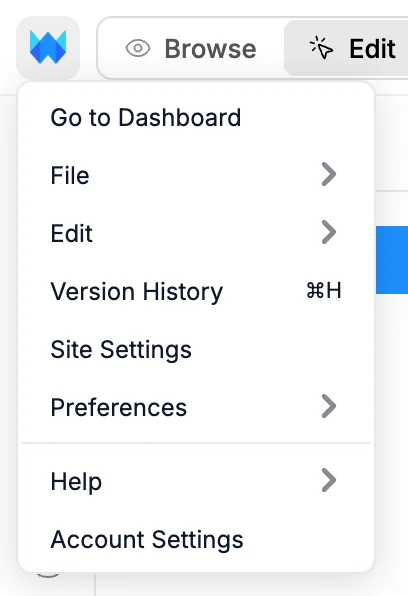
- Go to Dashboard returns to your projects.
- File has New Page, New Folder, Save, Publish Site and Domains.
- Edit has Undo and Redo.
- Version History opens version history.
- Site Settings opens settings for this site.
- Preferences switches between Light Mode, Dark Mode and System Settings.
- Help has Documentation and Keyboard Shortcuts.
- Account Settings opens your account.
Keyboard shortcuts
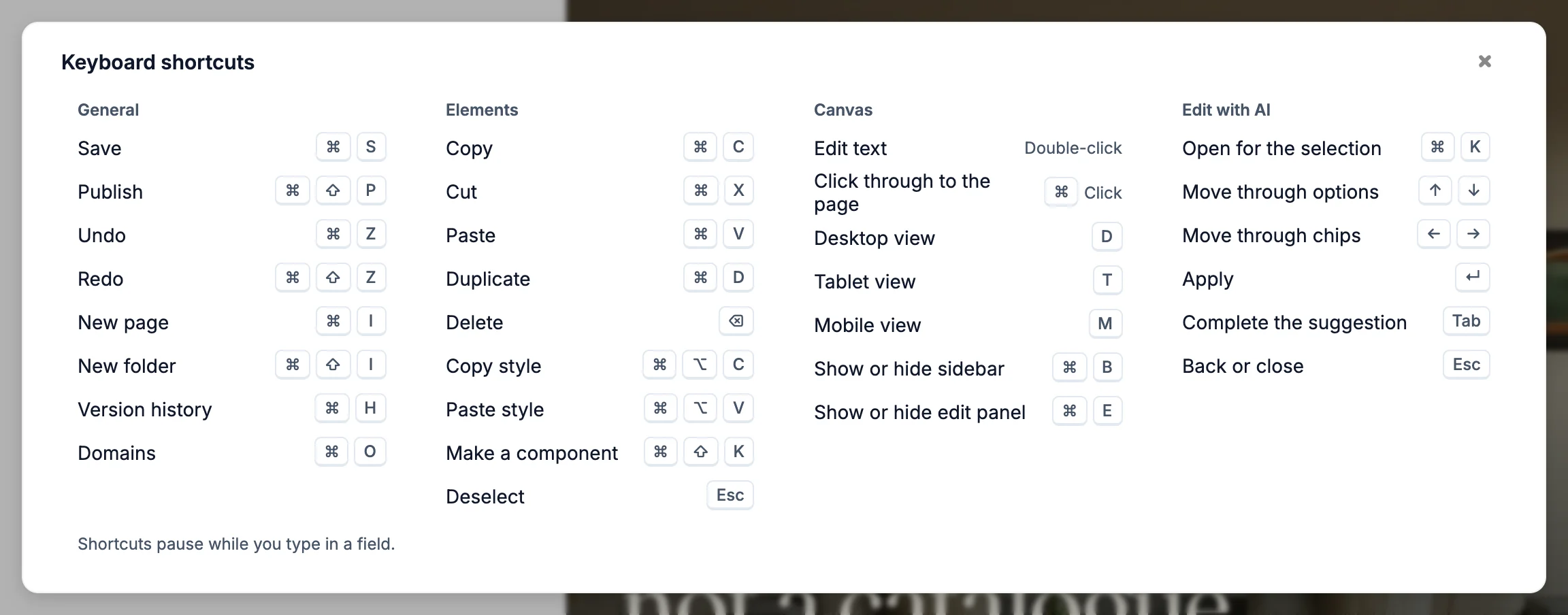
Shortcuts don't fire while you're typing in a field. On a Mac, ⌘ is Command, ⌥ is Option and ⇧ is Shift.
General
| Action | Mac | Windows |
|---|---|---|
| Save | ⌘S | Ctrl+S |
| Publish | ⌘⇧P | Ctrl+Shift+P |
| Undo | ⌘Z | Ctrl+Z |
| Redo | ⌘⇧Z | Ctrl+Shift+Z |
| New page | ⌘I | Ctrl+I |
| New folder | ⌘⇧I | Ctrl+Shift+I |
| Version history (open or close) | ⌘H | Ctrl+H |
| Domains | ⌘O | Ctrl+O |
On a Mac, Control+H also opens version history.
Elements
| Action | Mac | Windows |
|---|---|---|
| Copy | ⌘C | Ctrl+C |
| Cut | ⌘X | Ctrl+X |
| Paste | ⌘V | Ctrl+V |
| Duplicate | ⌘D | Ctrl+D |
| Delete | ⌫ | Backspace or Delete |
| Copy style | ⌘⌥C | Ctrl+Alt+C |
| Paste style | ⌘⌥V | Ctrl+Alt+V |
| Convert to component | ⌘⇧K | Ctrl+Shift+K |
| Select the first child | Enter | Enter |
| Select the parent | ⇧Enter | Shift+Enter |
| Deselect | Esc | Esc |
Canvas
| Action | Mac | Windows |
|---|---|---|
| Edit text | Double-click | Double-click |
| Click through to your site | ⌘-click | Ctrl-click |
| Desktop width | D | D |
| Tablet width | T | T |
| Mobile width | M | M |
| Show or hide the sidebar | ⌘B | Ctrl+B |
| Show or hide the edit panel | ⌘E | Ctrl+E |
Edit with AI
| Action | Mac | Windows |
|---|---|---|
| Open Edit with AI for the selection | ⌘K | Ctrl+K |
| Open the AI chat (nothing selected) | ⌘K | Ctrl+K |
| Move through options | ↑ ↓ | ↑ ↓ |
| Move through chips | ← → | ← → |
| Apply | Enter | Enter |
| Accept the grey completion | Tab | Tab |
| Go back or close | Esc | Esc |
Shortcuts window
To see the shortcuts inside the builder, open the logo menu and choose Help > Keyboard Shortcuts.