Responsive design
Your site should look good on every screen. The builder lets you check your pages at phone, tablet and desktop widths, and style elements differently per screen size.
Check other screen widths
Click the width menu (the device icon left of the path bar) and pick a width. The canvas resizes so you can see how the page looks on that screen.
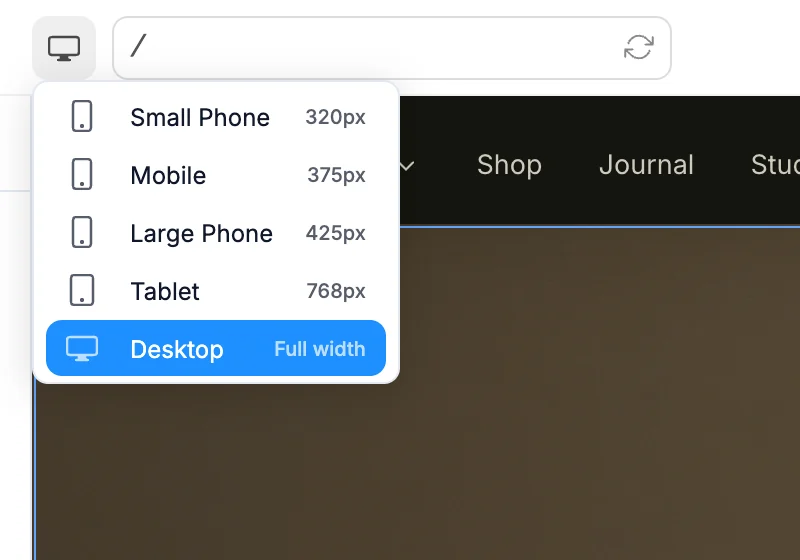
| Option | Width |
|---|---|
| Small Phone | 320px |
| Mobile | 375px |
| Large Phone | 425px |
| Tablet | 768px |
| Desktop | Full width |
You can also press D for desktop, T for tablet (768px) or M for mobile (375px) while you're not typing.
Changing the width doesn't change any styles. It only resizes the canvas.
Style per screen size
A style can carry a screen-size prefix, so it only applies from that width up.
| Prefix | Applies at |
|---|---|
sm: | 640px and up |
md: | 768px and up |
lg: | 1024px and up |
xl: | 1280px and up |
For example, text-2xl md:text-4xl gives a heading smaller text on phones and larger text from tablets up.
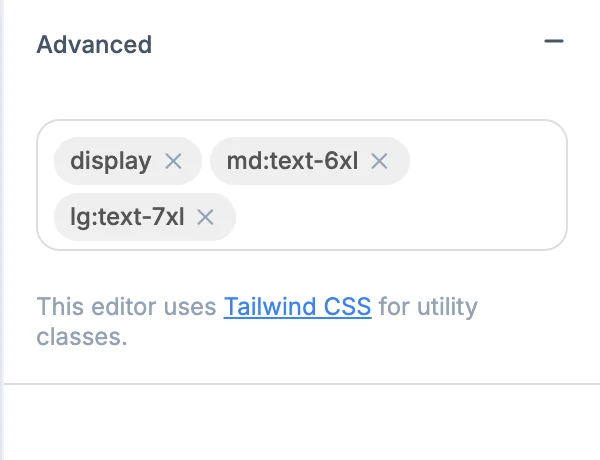
To add one, select the element and open the Advanced section of the edit panel. Type the class in the Type a class and press Enter... field and press Enter. Then switch widths to check the result.
You can also ask for it in words. Select the element, press ⌘K / Ctrl+K and type something like "hide on mobile" or "stack on mobile". See Edit with AI.
Hide elements on some screens
Add hidden to hide an element everywhere, then add a breakpoint class to show it from that width up:
hidden md:blockhides it on phones and shows it from tablets up.md:hiddenshows it on phones and hides it from tablets up.