Version history
Version history keeps earlier versions of your whole site. You can look at any of them on the canvas, see which files changed, name the ones that matter, and bring one back.
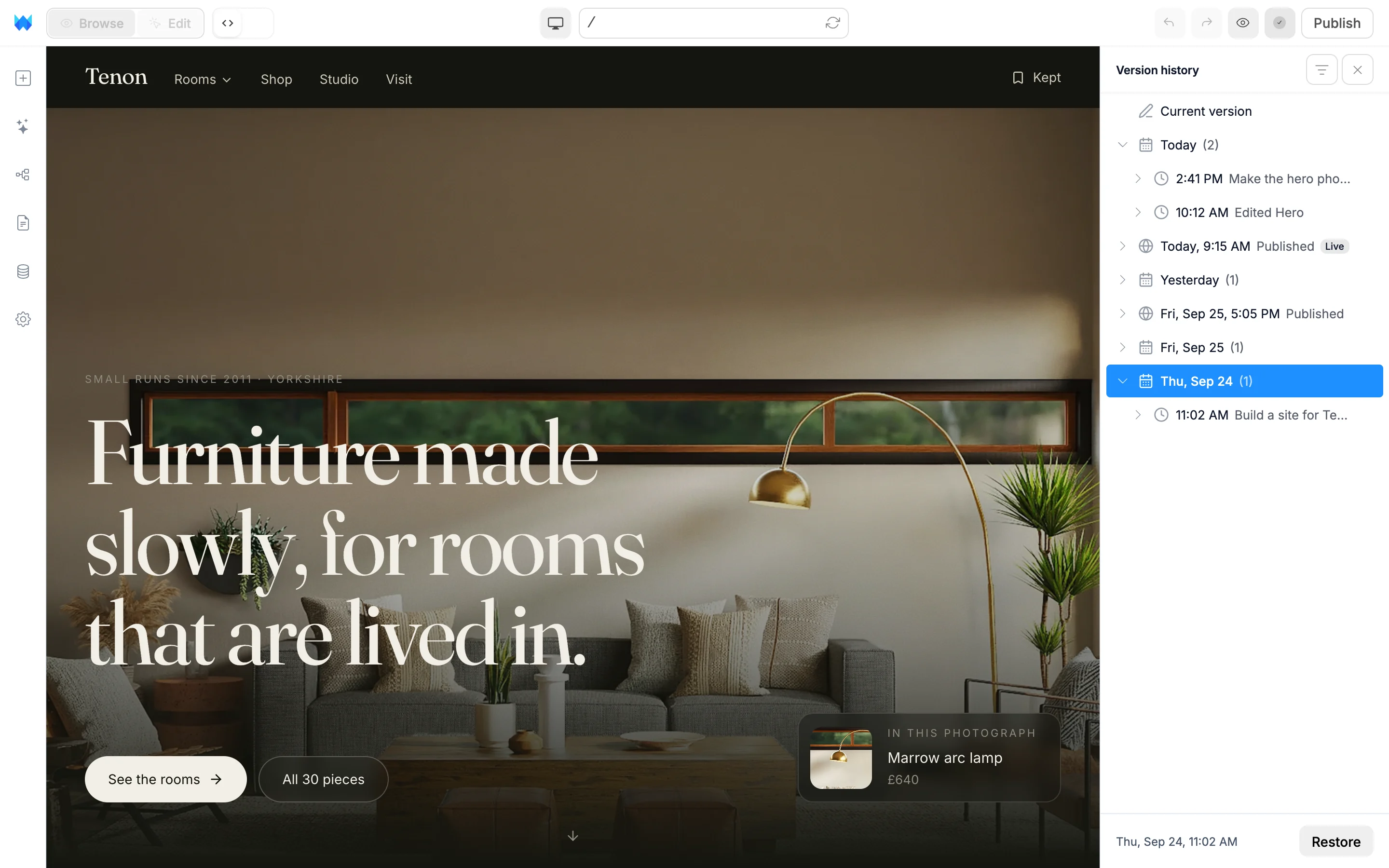
Open version history
- Open the logo menu and choose Version History.
- When everything is saved, click the check mark on the save button.
- Press
⌘H(Mac) orCtrl+H(Windows). On a Mac,Control+Hworks too.
Opening it saves any pending changes first, so the newest version includes them. It can't open while the AI is working.
While version history is open, the panel sits on the right and the canvas shows the version you picked. You can click through pages and links, but you can't edit. The sidebar and edit panel are tucked away until you close it.
How versions are listed
The newest is at the top.
- Current version is your site as it is now.
- Publishes each get their own row, with a globe icon and Published. The one visitors see right now has a Live tag.
- Days group the rest of your versions: a row per day for the last 30 days (Today, Yesterday, then dates), and a row per week before that (Week of a date). The number next to it is how many versions are inside. Click the arrow to expand a day.
A version is one stretch of work. A new one starts after 30 minutes without changes, after an hour of nonstop work, and at every publish or restore. Versions made by the AI are titled with what you asked for. Others say what changed, like "Edited Home page" or "Changed Header and Global styles".
To see only publishes and named versions, click the filter button at the top of the panel and choose Published and named. Choose All versions to see everything again.
Look at a version
Click a version, or a day, to show it on the canvas. Use ↑ and ↓ to step through versions. The bottom of the panel shows when the selected version is from.
See what changed
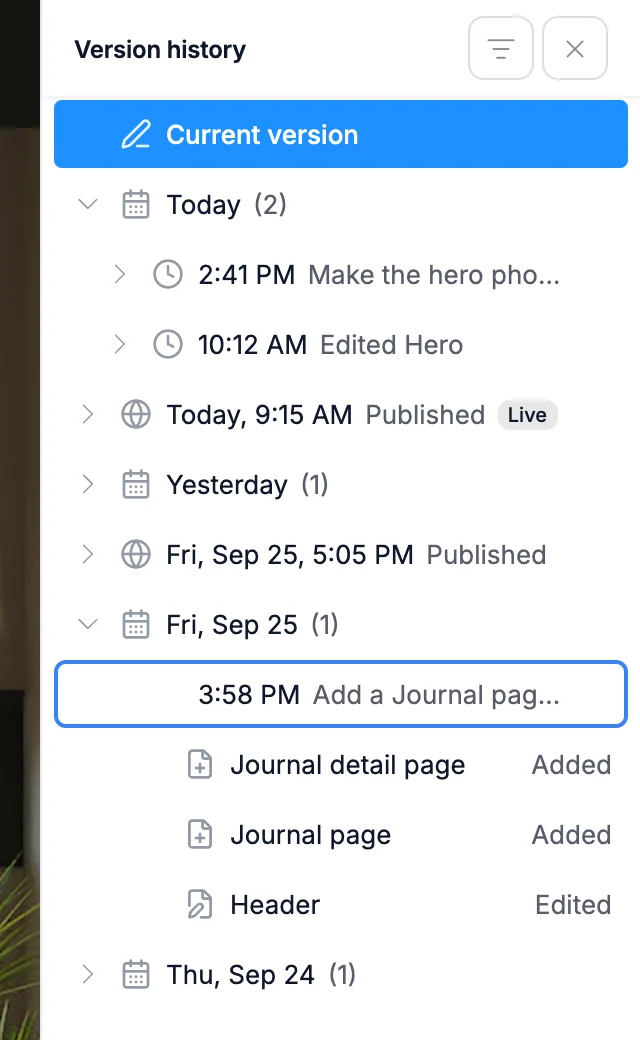
Click the arrow next to a version to list the files it changed. Each file is marked Added, Edited or Removed, with friendly names like "Home page" or "Global styles".
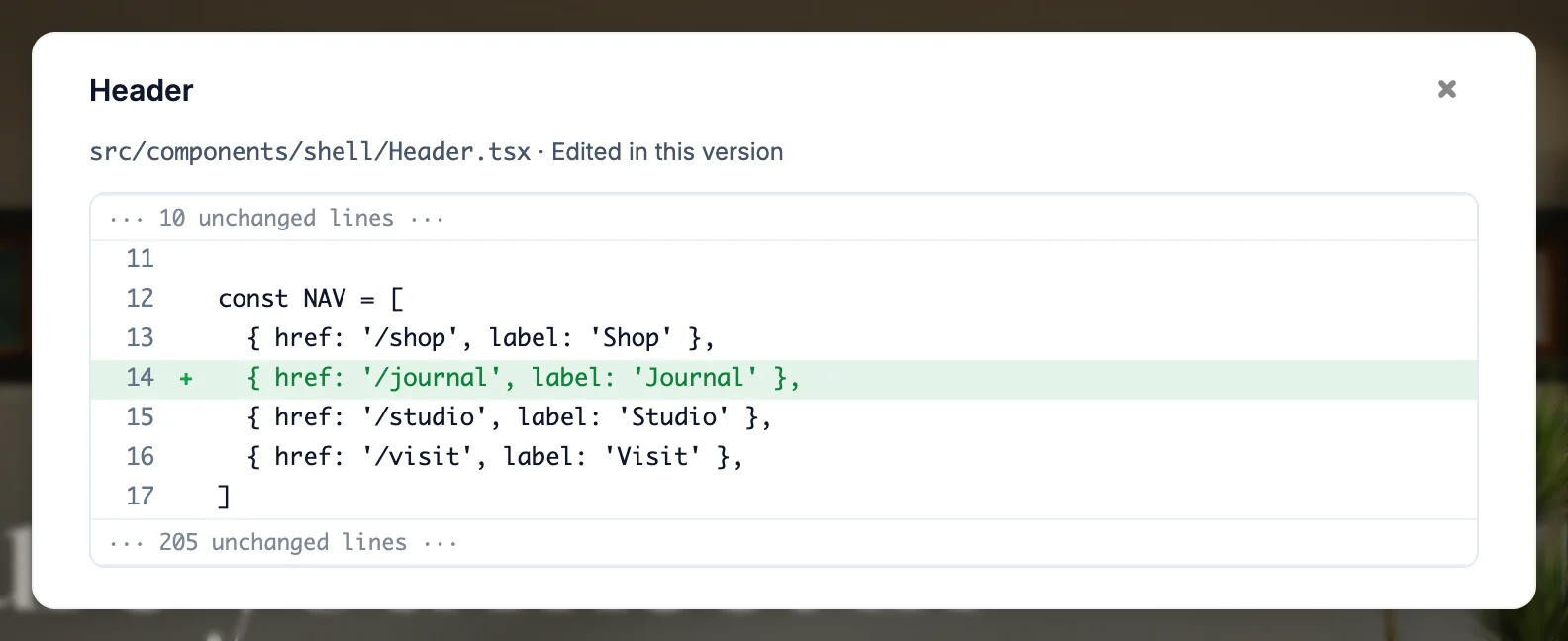
Click a file to see its changes line by line. Images and other binary files can't be shown as text.
Name a version
Click ⋯ on a version (or right-click it) and choose Name this version, or double-click the version. Type a name and press Enter.
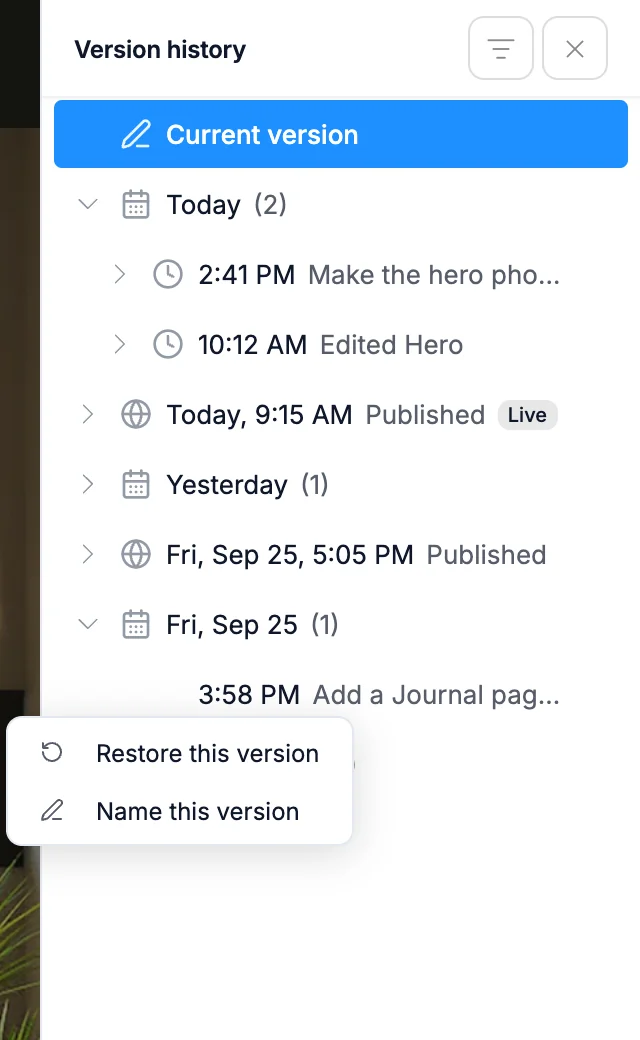
Named versions show a bookmark icon and are always kept. To change a name, choose Rename. To remove it, clear the name and press Enter.
Restore a version
Select a version and click Restore at the bottom of the panel, or choose Restore this version from its ⋯ menu.
- Your pending changes, including ones in other open tabs, are saved first. If they can't be saved, nothing is restored.
- The builder reloads with the restored version. A message offers Undo for a few seconds.
- The restore is added to the top of the list as a new version. Nothing after it is lost, so you can go back to any later version too.
- Restoring changes your project, not your live site. Publish to put it live.
You can't restore while your site is publishing. Wait for the publish to finish.
Close version history
Click the × at the top of the panel, click the save button again, press Esc, press ⌘H / Ctrl+H again, or click any icon in the left sidebar. The builder goes back to the mode and panels you had before.
How long history is kept
| Plan | What you can open |
|---|---|
| Free | The last 30 days, plus every publish |
| Paid | All of your history |
On the free plan, older days show a lock. Clicking one offers an upgrade. See Payments and billing.
After 30 days, history keeps the last version of each day, every publish and every named version.
On a phone
Open version history from the logo menu, or tap the save button next to the logo when everything is saved. The list fills the screen. Tap a version to see it, use the arrows to step to older or newer versions, and tap All versions to go back to the list or Restore to bring it back.
One file at a time
To bring back a single file instead of the whole site, use File versions in the code editor.