AI chat
The AI chat builds and changes your site from a conversation. Describe what you want, and the AI reads your code, makes the changes and updates the canvas as it goes.
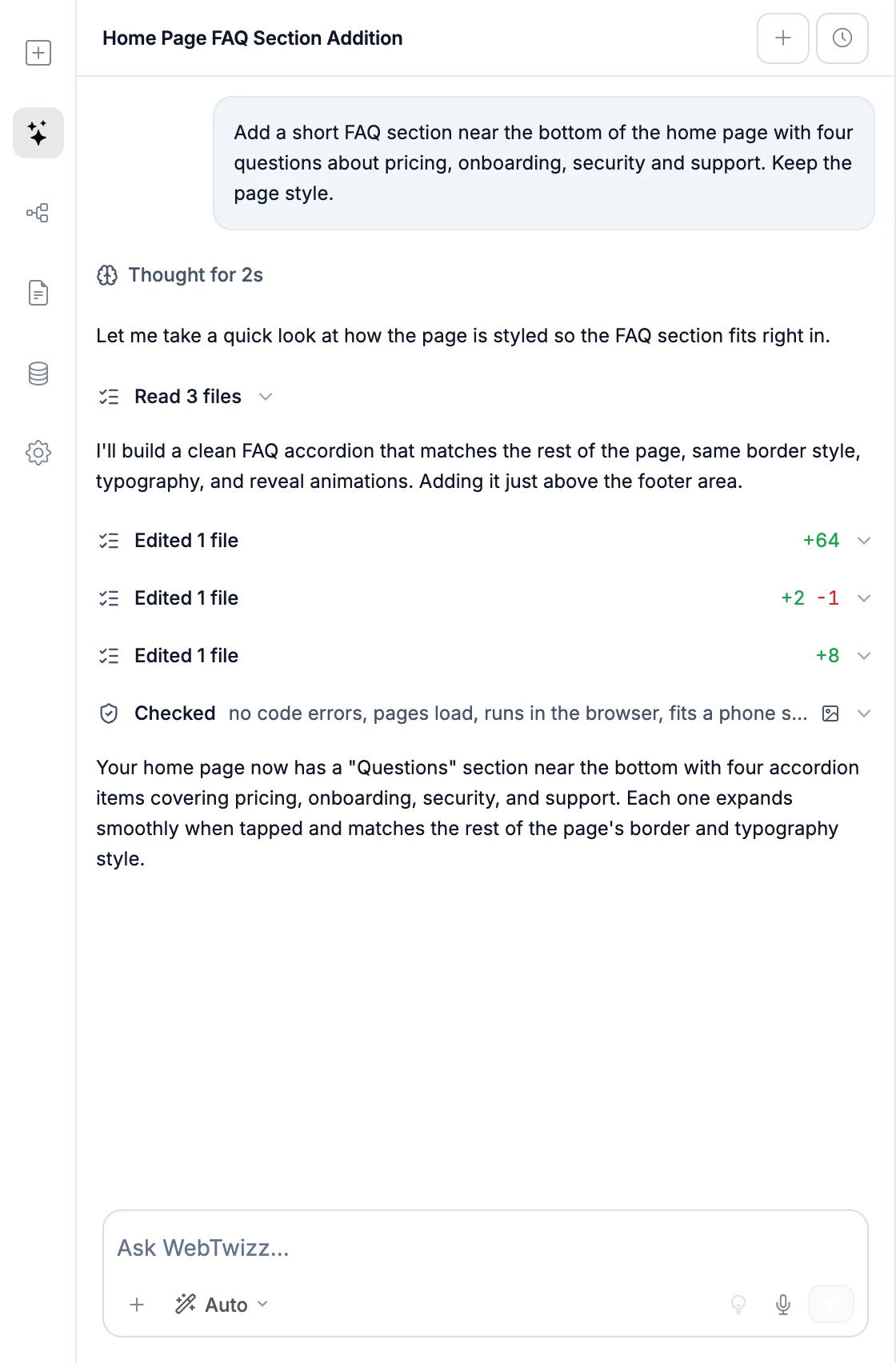
Opening the chat
- Click AI Assistant in the left sidebar.
- Press
⌘K/Ctrl+Kwith nothing selected. - With an element selected,
⌘K/Ctrl+Kopens the Edit with AI bar instead. Pick its Ask AI row to send your request to the chat with that element attached.
Sending a message
Type in the Ask WebTwizz... box and press Enter to send. Press Shift+Enter for a new line.
While the AI works, the send button turns into a Stop button. Click it to stop the run, and the chat notes Response stopped.
After a reply, a few suggested follow-ups can appear above the box. Click one to put it in the box, then edit it or send it as is.
Modes
The mode button next to + sets how the AI works on your next message.
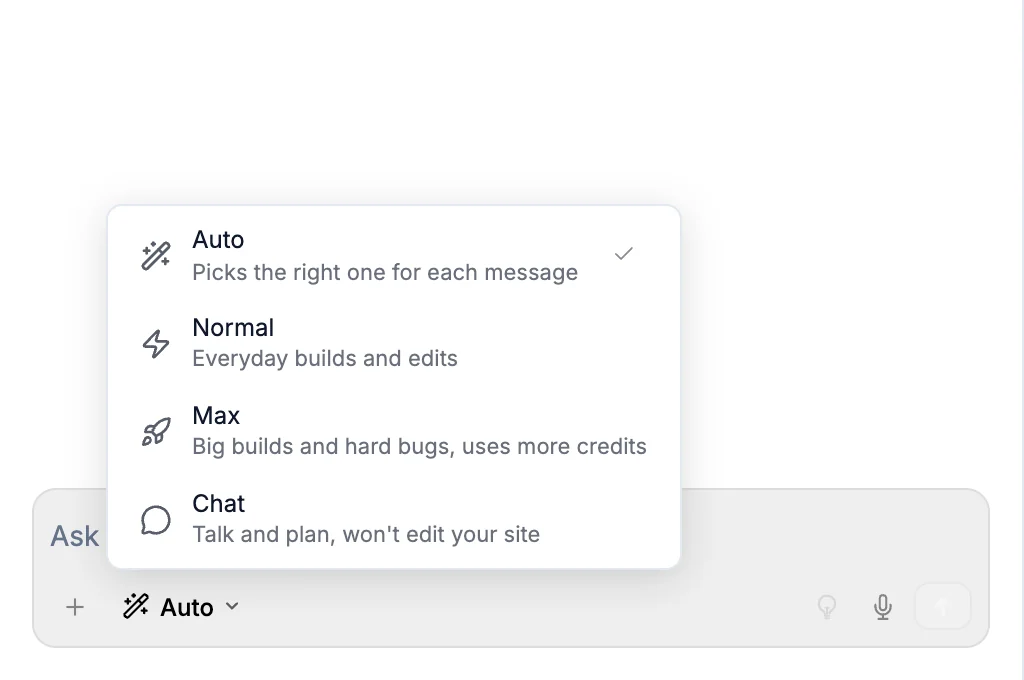
| Mode | What it does |
|---|---|
| Auto | The default. Picks the engine for each message. A new site's first build usually gets the deeper engine, and so do big features and fixes for something broken. Everyday edits get the standard one. A plain question is answered without changing anything. |
| Normal | Builds and edits your site with the standard engine. |
| Max | The deeper engine on every message. It thinks harder, handles big builds and hard bugs, and uses more credits than Normal. |
| Chat | Talk and plan. The AI reads your code, takes screenshots, checks for errors and searches the web, but it can't change your site. Chat answers use fewer credits than building. |
You only pay for the engine that actually ran, so an Auto message that used the standard engine costs the standard rate.
In Chat mode, once you've agreed on a plan, switch to Auto, Normal or Max and ask the AI to build it. The mode you pick is remembered for each site in your browser. The prompt box on the dashboard offers Auto, Normal and Max for a new site's first build.
Skills
Type / in the box to pick from your skills: reusable instructions for a kind of job, like building a dashboard or writing better copy. Keep typing to filter, then pick one and it drops into your message as a pill. You can attach up to 4 skills to a message. See Skills.
Attachments
Click + to attach something:
- Upload Image: a screenshot, a design to match, or an image such as your logo for the AI to put on your site.
- Upload File: code, documents, spreadsheets and PDFs up to 20MB, or a
.zipup to 100MB. - Select Element: point at something on the canvas (see below).
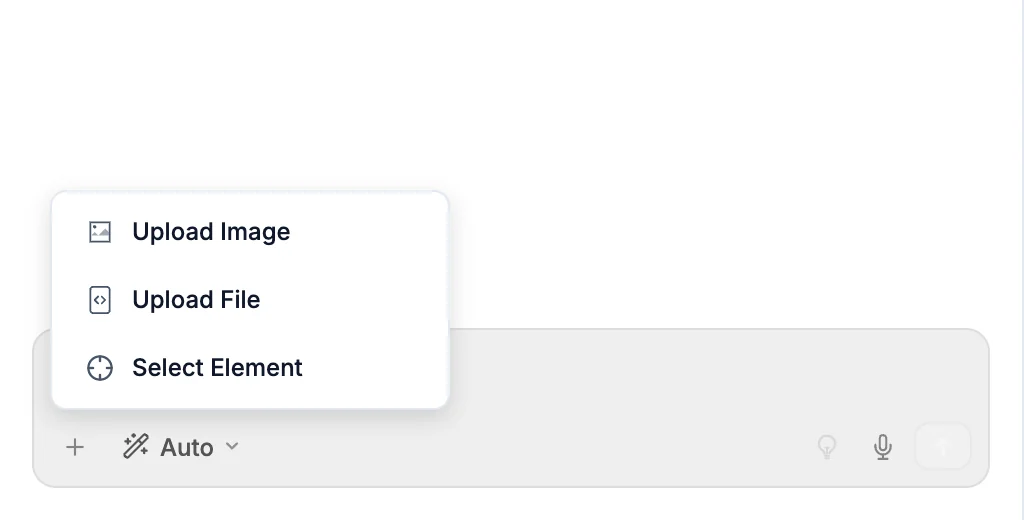
You can also drag files into the box, or paste an image.
Pointing at an element
Choose Select Element, then click an element on the canvas. A pill in the box shows the file and line numbers, so the AI knows exactly what you mean. Click × on the pill to remove it.
Enhance and dictate
- The lightbulb (Enhance prompt) rewrites your message to be more detailed before you send it.
- The microphone (Voice input) lets you speak instead of type. Click it again to stop. It shows in browsers that support speech input.
Following the work
The canvas updates live while the AI works, and the chat shows what it's doing in plain rows.
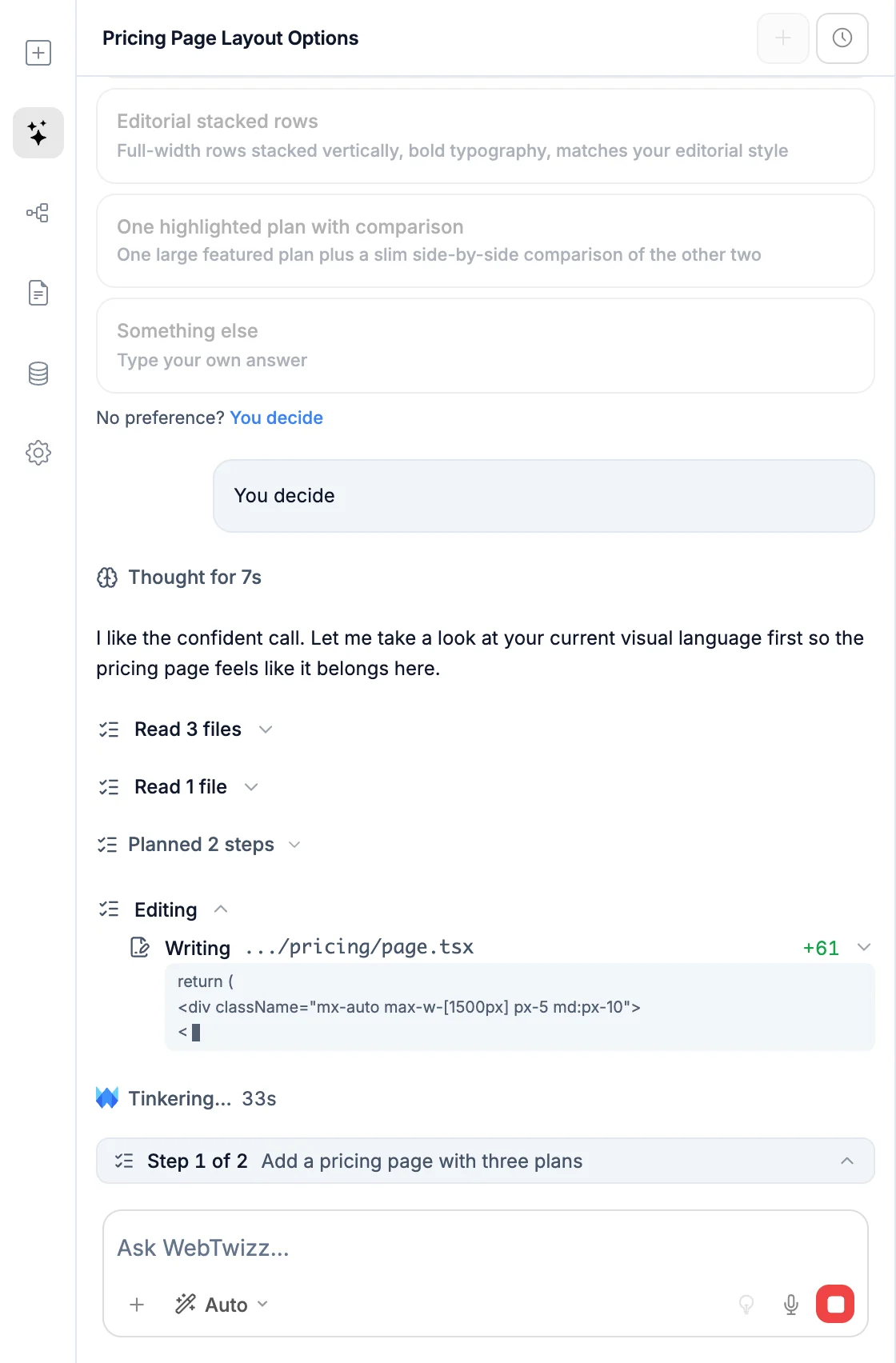
- Each step has its own panel. While it runs you see rows like "Reading page.tsx" or "Writing Hero.tsx". When the step is done, it folds into one line such as "Edited 3 files · read 5 files · ran 1 command" with the lines added and removed. Click the line to open it again.
- File rows say Created or Edited, the file name and the lines added and removed, like
+24 -3. While a file is being written, its latest line streams underneath. Click a row to see the changes. - Command rows say what ran in plain words. Click one to see the output.
- The plan. For bigger jobs, the AI posts a plan and a bar above the box shows the step it's on, like Step 2 of 5. Click the bar to see the whole plan.
- The status line tells you what's happening in between, like Getting your project ready... or Checking everything works....
When the AI asks you something
Sometimes the AI needs a decision, like which look you prefer or which service to use. It shows the question with options to click.
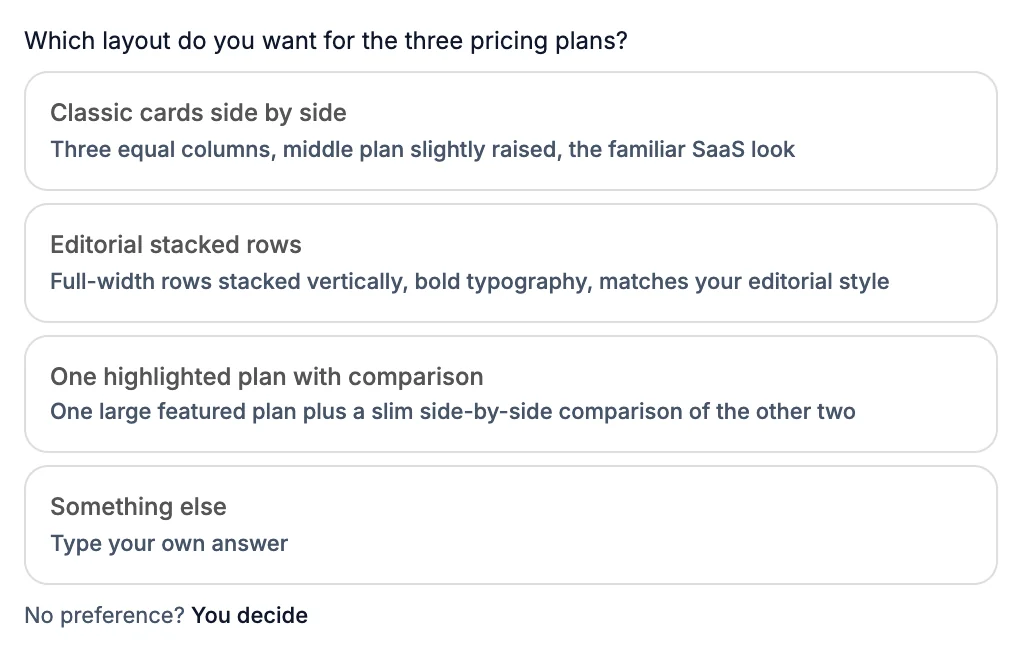
- Click an option to answer.
- Click Something else to type your own answer.
- Click No preference? You decide to let the AI choose.
Approving actions
A few actions wait for your OK: publishing your site (Publish website?), commands that do more than a normal build, like deleting or moving files or downloading something, database changes that delete data or tables, and deleting a skill. A card explains what the AI wants to do. Nothing happens until you click Accept. Click Reject to skip it.

Links, keys and connect buttons
Replies can include buttons that take you to the right place in the builder:
- Place links, like Settings / Domains or Page / Home settings, open that part of the builder. A link to version history opens version history.
- Connect cards, like Connect Resend, connect that service right from the chat. If you already connected an account for it in another project, the card offers that account. See Connectors in the chat.
- Live cards show a connected service's numbers, like revenue from Stripe or visitors from Google Analytics, with Settings and Open links. The numbers come straight from the service.
- Key names, like
RESEND_API_KEY, are clickable. Click one to open Environment variables at that key, ready for you to type the value. - Connect a data source appears when your site needs a database. It opens the connect window right in the chat. Build with sample data first (or Not now) lets the AI carry on without one, and you can connect later from the Data panel.
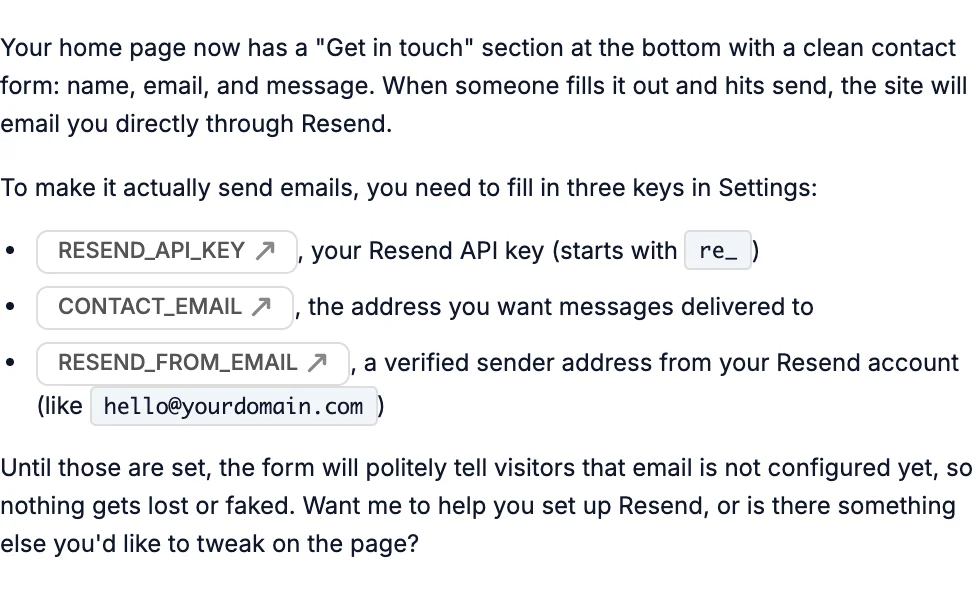
Replies can also show color swatches, code with a Copy button, and live previews of a component.
Images and files
- Stock photos: the AI can find photos from Unsplash on any plan.
- Generated images: the AI can create images on paid plans. On the free plan it offers a stock photo or another option instead.
- Files for you: the AI can make documents, data exports like CSV or JSON, and images for you to keep. They show as a card with Open, which opens the file in a new tab. Files stay available for 90 days after their last update. Downloading code files needs a paid plan.
Drag any photo or generated image from the chat onto the canvas to use it.
What the AI can do
- Build and change pages, components, styles and content.
- Install packages and run commands in your project.
- Check its own work: take screenshots, read error logs and look for problems.
- Search and read the web.
- Work with your connected database: create tables and add, update, remove or look up data.
- Read your connectors, like the errors in Sentry or your visitors in Google Analytics, and ask before changing anything there.
- Work with your Stripe account: products, prices, payment links and discount codes.
- Commit, push, pull, branch and open pull requests once you've connected GitHub.
- Look at earlier saved versions of a file and bring one back.
- Read your other chats on the same site when you mention them.
- Create and update your skills.
- Publish your site, after you approve.
It follows your AI instructions on every message.
What the AI can't do
- Change anything in Chat mode.
- Know your secret keys. It names each key it needs, and you type the value.
- Connect accounts for you. It gives you the connect button, and you finish the connection.
- Generate images on the free plan.
- Publish, delete data or run risky commands without your approval.
Credits
Each message uses credits from your plan. The chat tells you when they run short:
- Credits running low appears when you've used 90% of your credits. Get more credits opens your subscription settings.
- Out of credits for today or Out of free credits this month means the free credits are used up and your build is paused. Keep building shows the plans you can upgrade to, and See my usage opens your usage.
- This month's credits are spent appears on a paid plan. Buy credits lets you top up.
- Don't stop here appears when you're out of credits entirely. Keep building shows the plans.
If a message fails, Try again sends it again. If a long run stops partway, Continue picks it back up. Both note that they use credits. See Payments and billing for plans, daily credits and top-ups.
Runs keep going
If you close the tab or reload while the AI is working, the run keeps going. When you come back, the chat picks up the live run and shows what happened while you were away. While a run is in progress, your screen stays awake.
The other panels pause while the AI works so your edits can't collide with its edits. They unlock as soon as it finishes.
Chat history
The panel header shows the current chat's name. Click + (New chat) to start a fresh conversation, or the clock (History) to see past chats.
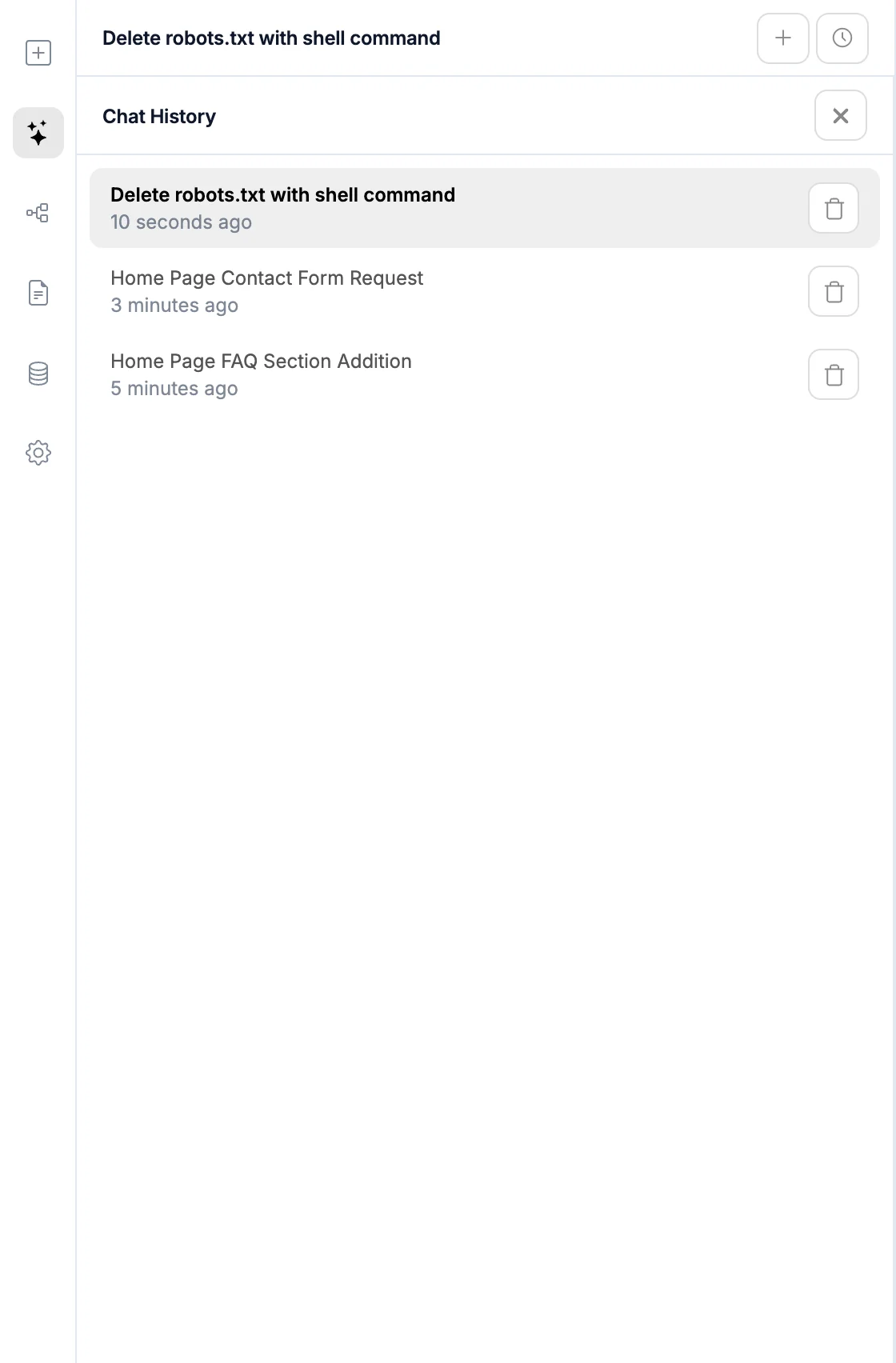
Chat History lists every chat on this site with its date. Click one to continue it. The trash button deletes a chat right away, without asking.
Undoing AI changes
The AI edits your real project files and saves its work when a run ends. To take a change back, press ⌘Z / Ctrl+Z, or open version history to go back to an earlier version of your site. You can also ask the AI to put something back the way it was.