Environment variables
Settings > Environment Variables holds the API keys and settings your site's code reads. Values are encrypted and stay hidden until you reveal them.
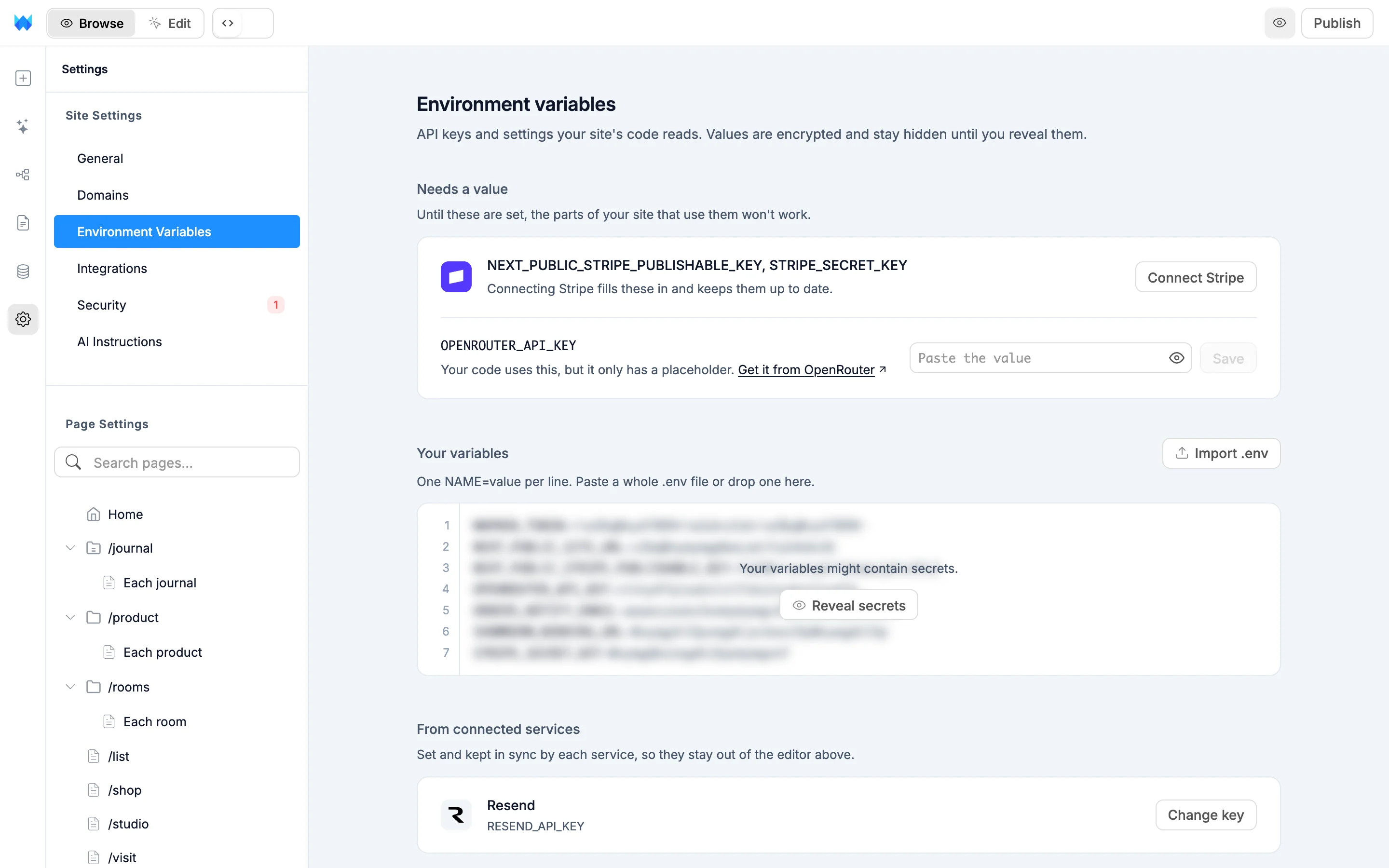
The page has up to three sections: Needs a value, Your variables and From connected services.
Needs a value
When the AI writes code that uses a key you haven't given it yet, it adds the name with a placeholder value. Those names show up here with the note "Until these are set, the parts of your site that use them won't work."
There are two kinds of rows:
- Connect rows: keys that a service fills in for you, such as Stripe, Supabase, Resend or OpenAI keys. The row lists the key names and a Connect button, for example Connect Stripe. Connecting the service fills them in and keeps them up to date. Databases connect in the Data panel, everything else in Connectors.
- Paste rows: any other key. Paste the value into the field and click Save or press Enter. For common services the row links to where you get the key, for example Get it from OpenAI.
A row also appears if a saved value can no longer be read. Set it again to fix it.
When the AI links you to a key in chat, this page opens on that row and highlights it.
Your variables
This is one editor for all the variables you manage yourself, with one NAME=value per line.
The editor is hidden at first because your variables might contain secrets. Click Reveal secrets to show and edit them, and Hide secrets to cover them again once your changes are saved or discarded. If you don't have any variables yet, the editor opens straight away.
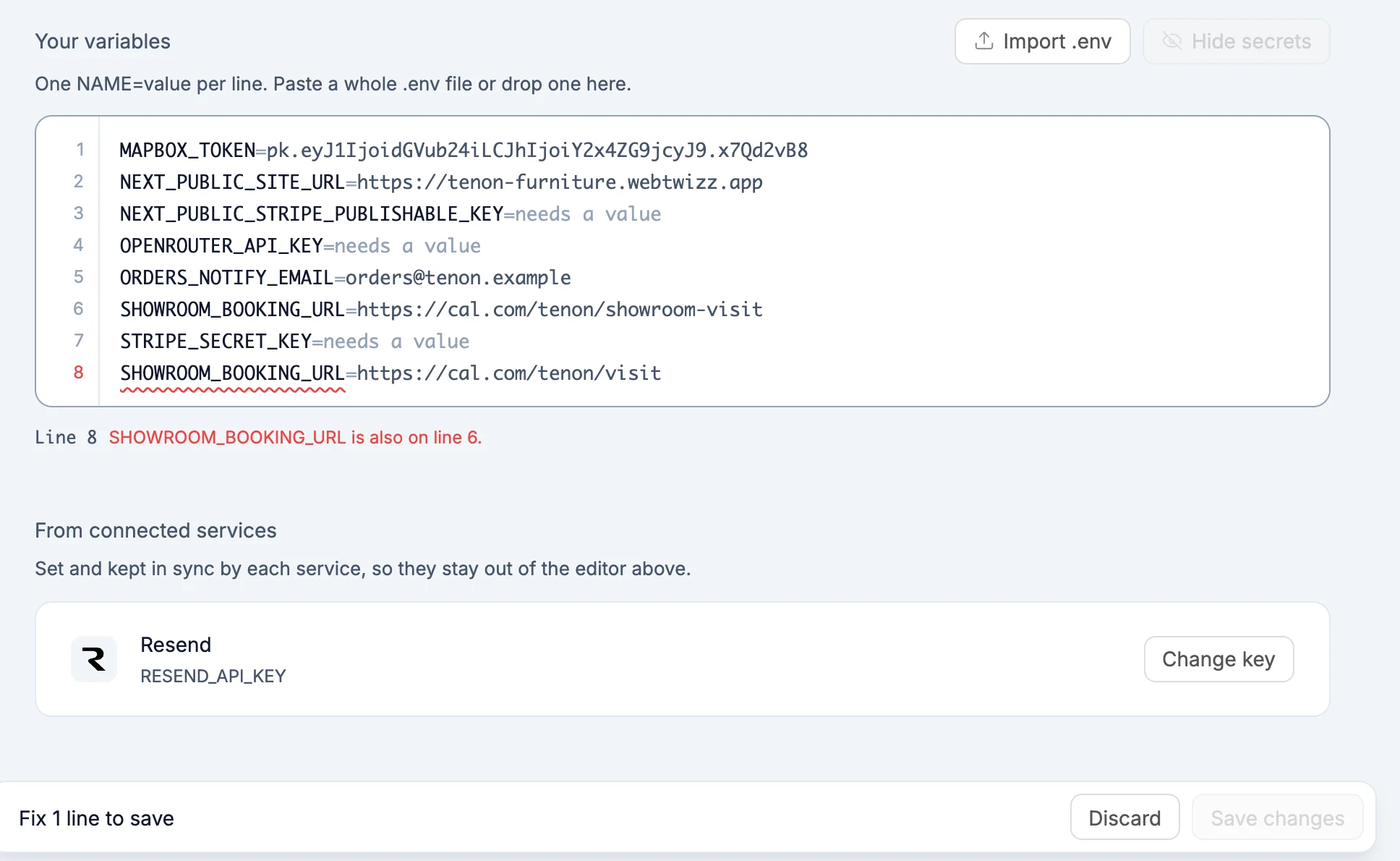
Editing
- Type or paste lines like
OPENROUTER_API_KEY=sk-or-.... Lines are numbered. - Names use letters, numbers and
_, and can't start with a number. - Lines starting with
#and blank lines are fine, but they aren't kept when you save. - A name with nothing after
=shows needs a value and appears under Needs a value once saved. - To remove a variable, delete its line.
Line errors
Problems are marked on the line and listed under the editor, for example:
- Add =value after NAME. The line has no
=. - A name can't start with a number.
- NAME is set by WebTwizz. A few names are reserved, such as
NODE_ENV,PORTand anything starting withWEBTWIZZ_. - NAME comes from Stripe. Remove this line. A connected service already manages that key.
- NAME is also on line 4. Each name can only appear once.
A warning appears when a NEXT_PUBLIC_ variable holds something that looks like a secret, because anyone who opens your site can read it. It doesn't stop you from saving.
Importing a .env file
Click Import .env to pick a file, or drag a .env file onto the editor. You can also paste a whole file into the editor. Names that already exist get the new value, and new names are added at the end. A message tells you how many were new and how many were replaced. Nothing is saved until you review and save.
Saving
As soon as something changes, a bar at the bottom sums it up, for example 2 added, 1 changed. Click Save changes (or press ⌘S / Ctrl+S in the editor) to save, or Discard to go back. While any line has an error, the bar reads Fix 1 line to save instead.
If your variables changed somewhere else after you revealed them, for example in another tab, the bar reads These changed somewhere else since you opened them. Click Load latest to load the current values, then make your change again.
From connected services
Keys set by a connector or a database connection are listed by service, for example Stripe's keys under Stripe. Each service sets them and keeps them in sync, so they stay out of the editor.
To change them, use the button on the row. Change key (for services you connect with a key) and Open Connectors (for the others) open that service in Settings > Connectors, where Replace key swaps the key. Change connection opens the database connection in the Data panel. To remove a service's keys, remove it from the project under Remove from this project.
Public variables
Names starting with NEXT_PUBLIC_ also reach the browser, so anyone who opens your site can read them. Use them for values that are safe to share, like a site URL or a publishable key. Keep secret keys in names without the prefix.
Preview and live site
Changes reach your preview right away. Your live site keeps the values from your last publish. When they differ, the top of the page says "Your preview already uses the new values. Your live site still has the ones from your last publish." Click Publish there to update the live site.
Reading values in code
Read a variable with process.env.NAME:
// Server code: API routes, server components and server actions can read every variable
const apiKey = process.env.OPENROUTER_API_KEY;

// Browser code can only read NEXT_PUBLIC_ variables
const siteUrl = process.env.NEXT_PUBLIC_SITE_URL;