Site settings
Click Settings in the builder's left sidebar. From the dashboard, you can also right-click a project and choose Settings. The General tab opens first and holds your site's identity, visibility, images and search setup. The other tabs are Domains, Environment Variables, Connectors, Security and AI Instructions. Each page of your site also has its own page settings.
When you edit a field, a bar appears at the bottom reading You have unsaved changes. Click Save changes to write your edits into the site, or Discard to drop them. Visibility is the exception: it saves as soon as you pick an option. Changes you make to your site in the builder save automatically within 5 minutes; see Saving your work.
Website
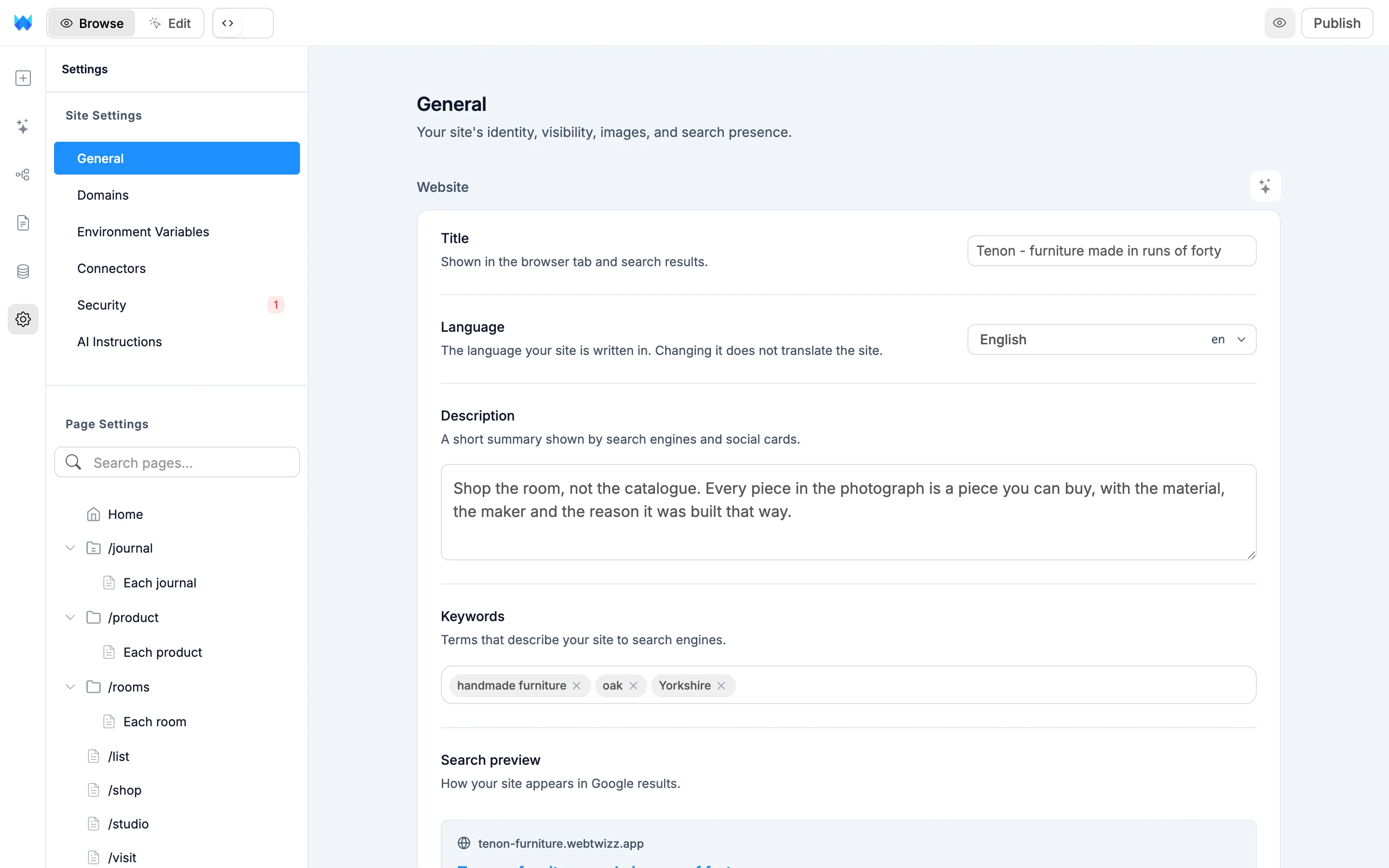
- Title: shown in the browser tab and in search results.
- Language: the language your site is written in, such as English (United Kingdom). Browsers and search engines use it. Changing it does not translate the site.
- Description: a short summary used by search engines and social cards.
- Keywords: type a keyword and press Enter to add it.
- Search preview: shows how your site looks in a Google result as you type.
- Show "Made with WebTwizz" badge: a small badge at the bottom of your published site. On the free plan the badge always shows. Paid plans can turn it off.
- Reduce motion: turns off animations and transitions on your site.
The Improve SEO with AI button next to the Website heading rewrites your title, description and keywords. It needs a title or a description to start from. Review the result, then save.
Visibility
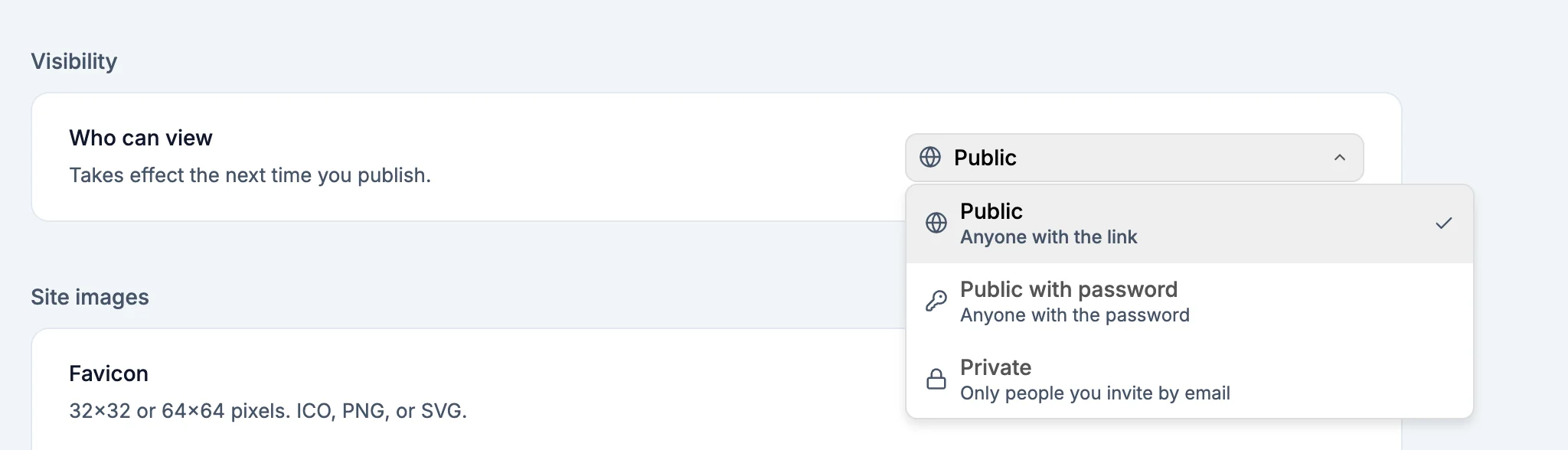
Who can view controls who can open your published site:
- Public: anyone with the link.
- Public with password: visitors enter a password first. Type one of at least 4 characters and click Set (or Update to change it).
- Private: only people you invite by email. Click Manage access to add or remove people. Each person gets an email with a link to the site. If the site isn't published yet, the emails go out when you publish. Private sites need a paid plan.
A visibility change takes effect the next time you publish. Until then the card shows Publish for this to take effect. Private and password-protected sites are also kept out of search results.
Site images
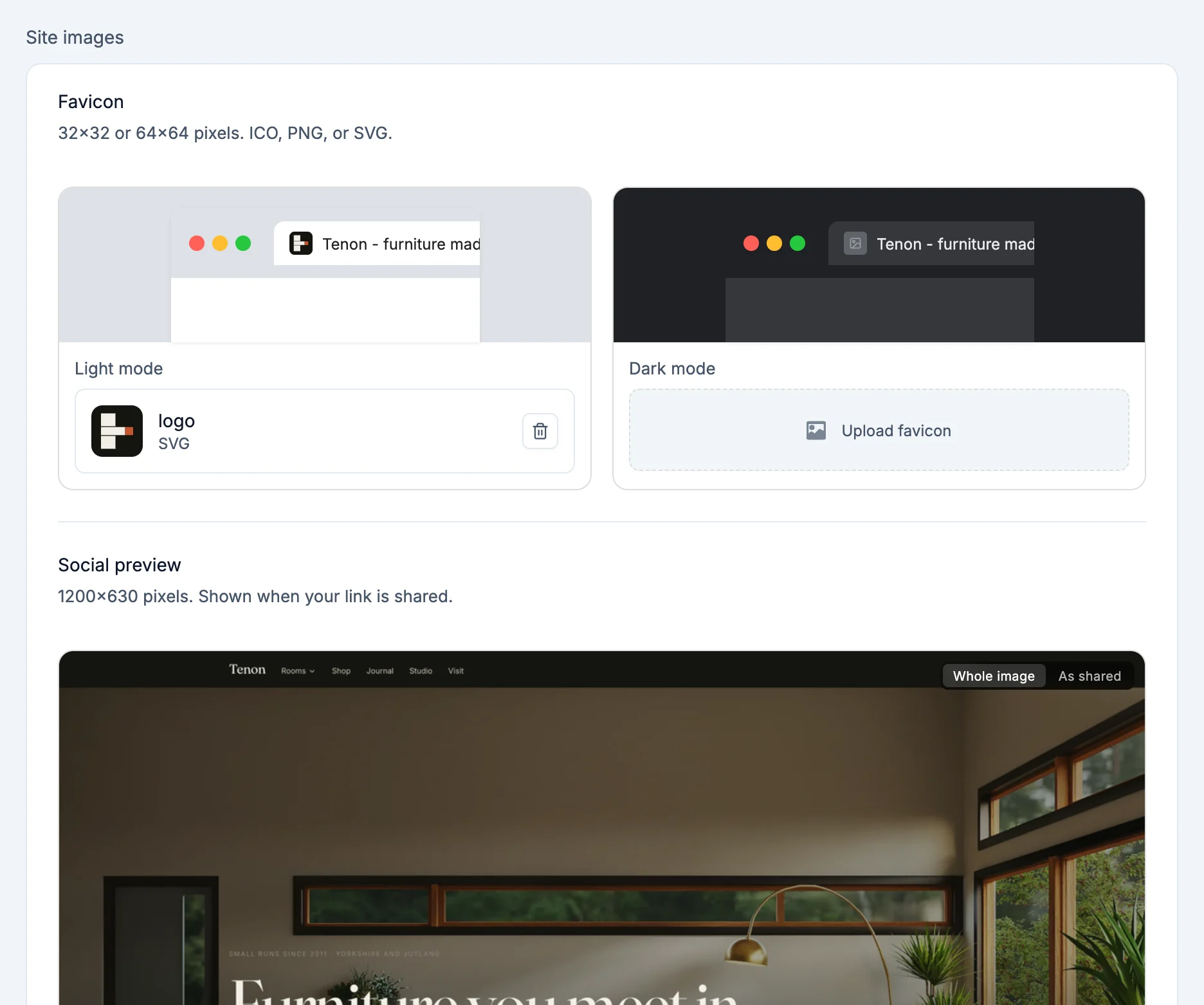
- Favicon: the small icon in the browser tab. Upload one for Light mode and one for Dark mode. Use 32x32 or 64x64 pixels in ICO, PNG or SVG.
- Social preview: the image shown when someone shares your link. Use 1200x630 pixels. Switch between Whole image and As shared to see what gets cropped. If your image has a different shape, a note tells you which edges are trimmed.
Uploaded images are saved into your project's public folder, so they travel with your site. Keep each one under 2 MB.
Search engines
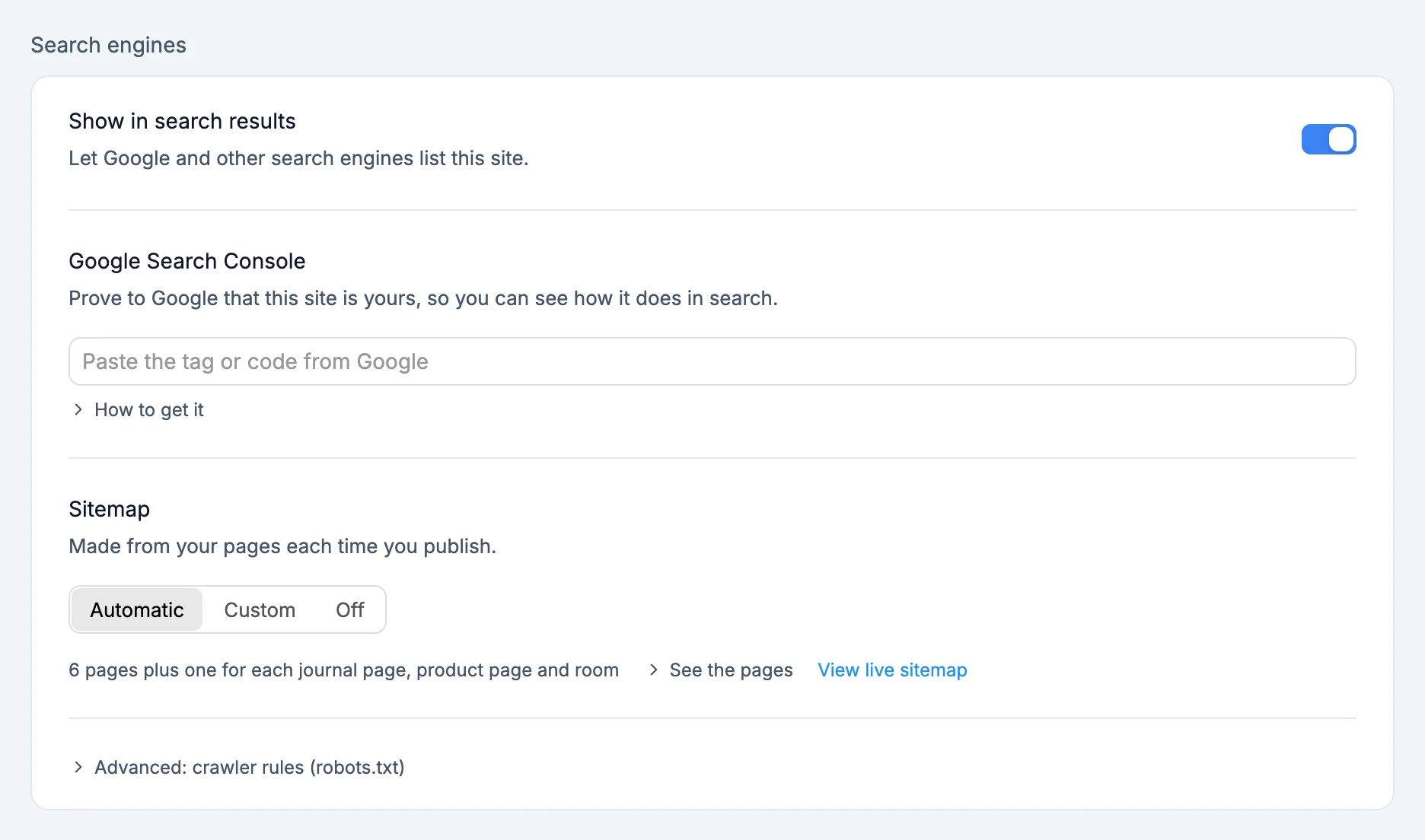
Everything here takes effect when you publish.
- Show in search results: lets Google and other search engines list your site. Turn it off to keep the site out of search while anyone with the link can still open it.
- Google Search Console: proves to Google that the site is yours, so you can see how it does in search. Paste the tag or just the code Google gives you. Click How to get it for the steps.
- Sitemap: the list of pages search engines read.
- Automatic: made from your pages each time you publish.
- Custom: write your own. It starts from the automatic one and is published exactly as written.
- Off: no sitemap. Google can still find your pages through links.
- Advanced: crawler rules (robots.txt): Automatic allows all search engines and points them to your sitemap. Custom publishes your own rules exactly as written.
To track visitors, connect Google Analytics under Settings > Connectors.
What the automatic sitemap lists
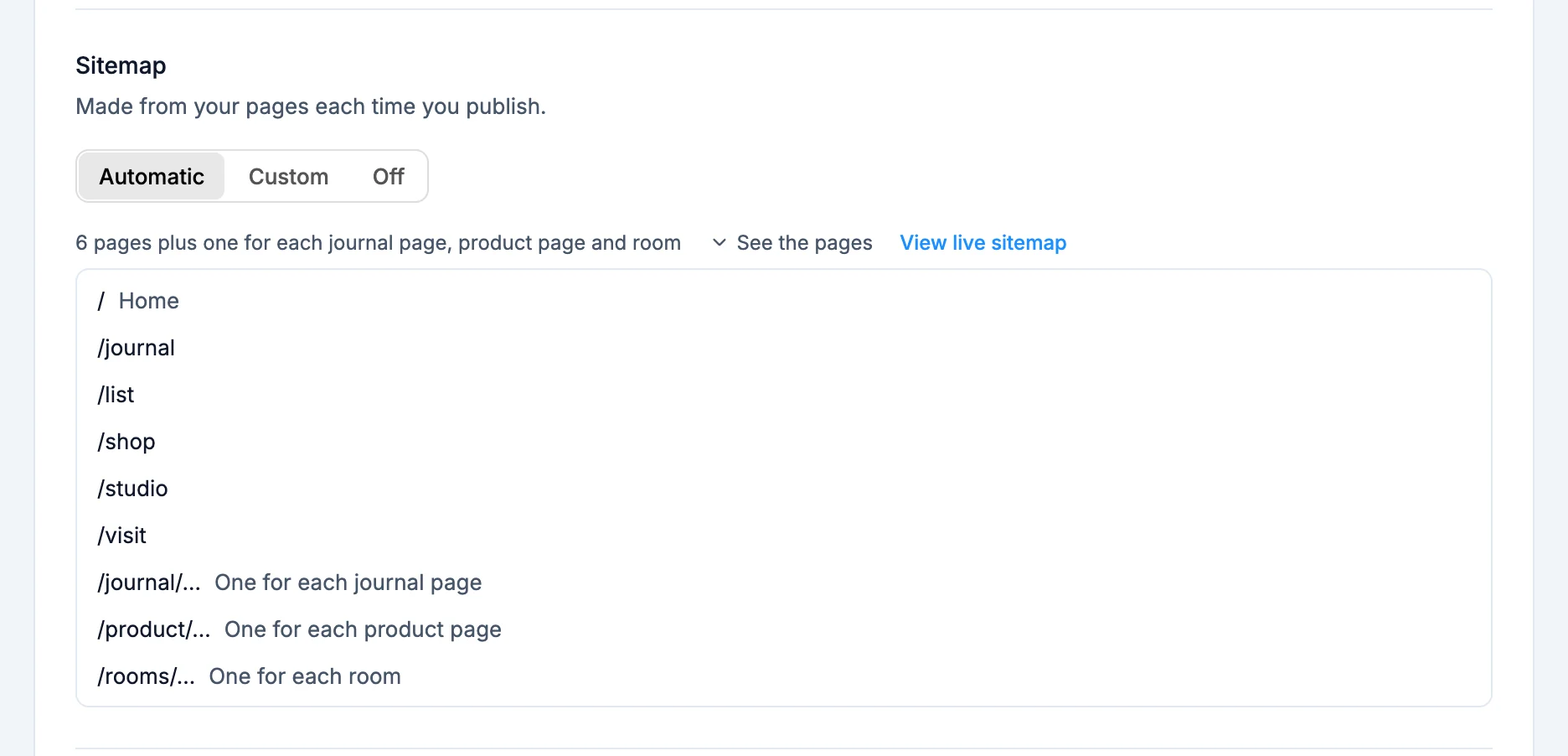
- Every page of your site, on your main address: your custom domain once it's live, otherwise your
webtwizz.appaddress. - One entry for each item on pages made from a list, such as each blog post or product.
- Pages hidden in page settings, pages that redirect elsewhere and the not-found page are left out.
Click See the pages to check the list, or View live sitemap to open the published one. A list longer than 10 scrolls and gets a search box. If your site's code makes its own sitemap, the row says Made by your site's code and WebTwizz leaves it as it is. Choose Custom or Off to replace it.
When an address changes
- New domain or new webtwizz.app name: the sitemap and search tags switch to it the next time you publish. Until then the card tells you which address your live site still uses.
- Renamed or moved page: after you publish, the page's old address forwards to the new one, so old links and search results keep working. The Sitemap row lists these moved pages. A forward is dropped if you put a page back at the old address or delete the new page.
Danger zone
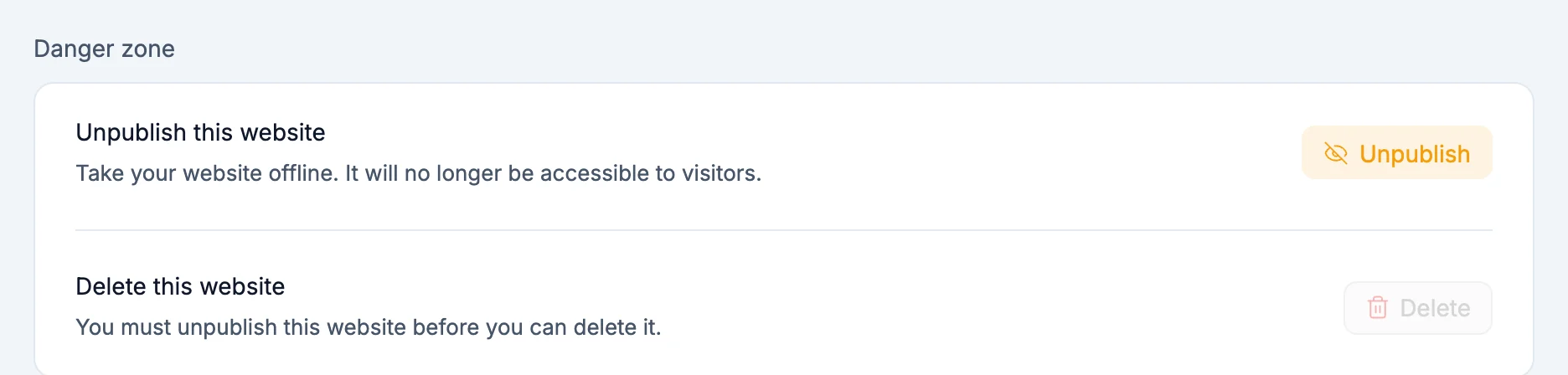
- Unpublish: takes your site offline so visitors can no longer reach it. It is available only while the site is published.
- Delete: permanently removes the website and all its data. Unpublish the site first, then type
deleteto confirm.