Layers panel
The Layers panel shows every element on the current page as a nested tree. Click Layers in the left sidebar to open it. It's the easiest way to reach elements that are small, hidden behind others or deeply nested.
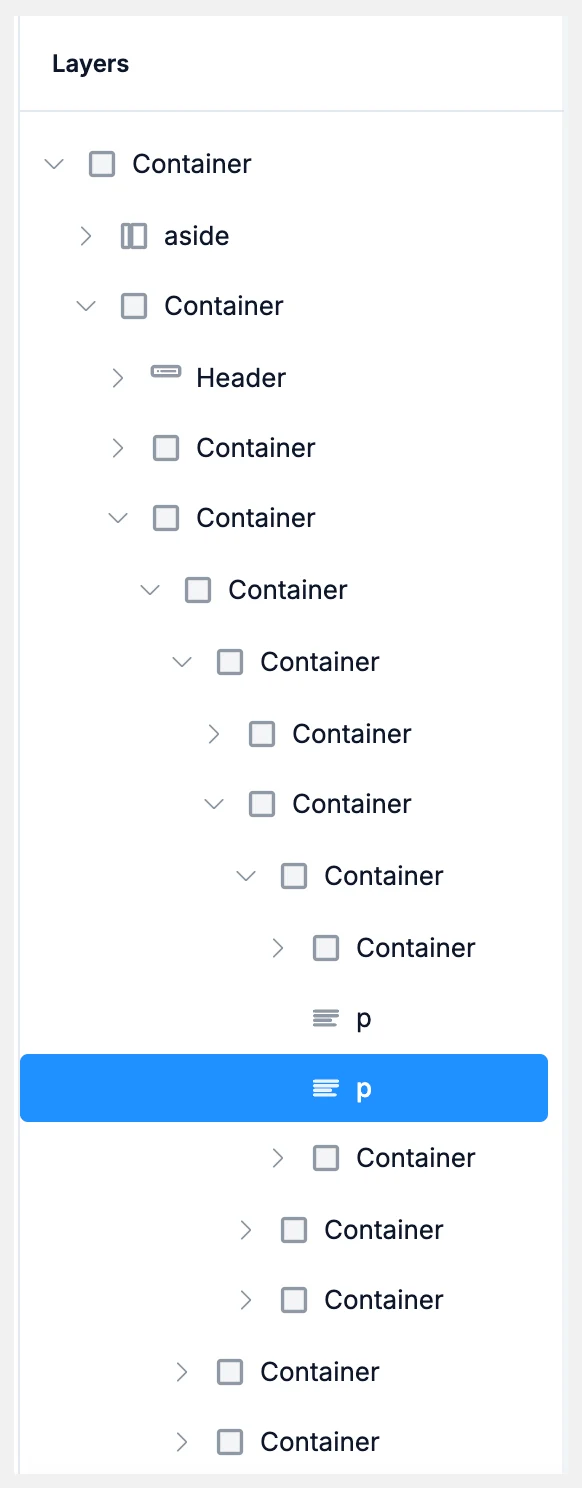
Opening Layers switches the canvas to Edit, since the tree is built from the page you're editing. The panel isn't available in the code editor.
Finding and selecting elements
Each row shows the element's type, or a component's name. Click the arrow next to a row to expand or collapse it.
- Click a row to select that element. The canvas scrolls to it and the edit panel shows its settings.
- Select on the canvas, and the tree opens up to that element's row.
- Hover a row to highlight the element on the canvas. Hovering an element on the canvas outlines its row.
- Click empty space in the panel to clear the selection.
You can also move through the tree with the keyboard. Up and Down move between rows, Right expands a row and Left collapses it, and Enter or Space selects. Shortcuts like Delete, ⌘C, ⌘V, ⌘X, ⌘D and ⌘Z (Ctrl on Windows) work on the selected element, and ⌘K / Ctrl+K opens the Edit with AI bar under the row.
Reordering elements
Drag a row up or down to change the element's order. Rows move among their siblings, inside the same parent. The canvas updates as soon as you drop.
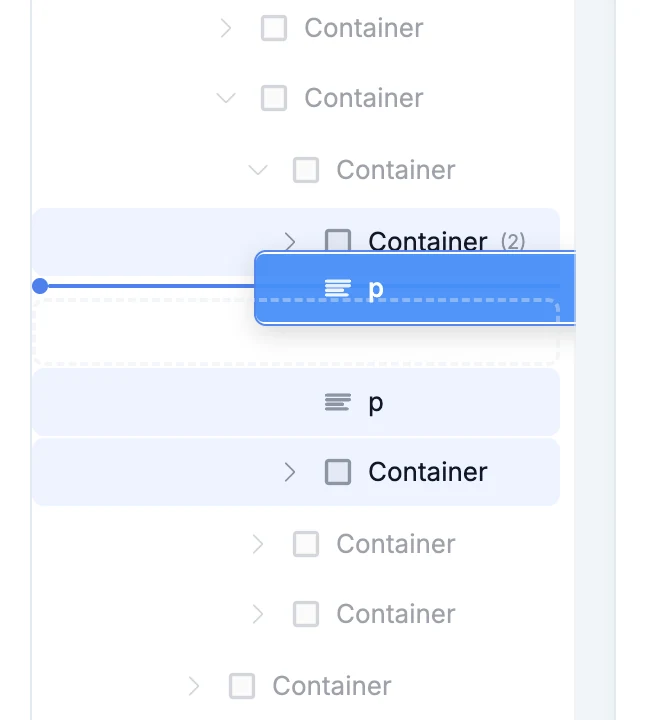
A few rows can't be dragged because WebTwizz can't find them in your code. Hovering one tells you so.
Right-click menu
Right-click a row for the same menu you get on the canvas.
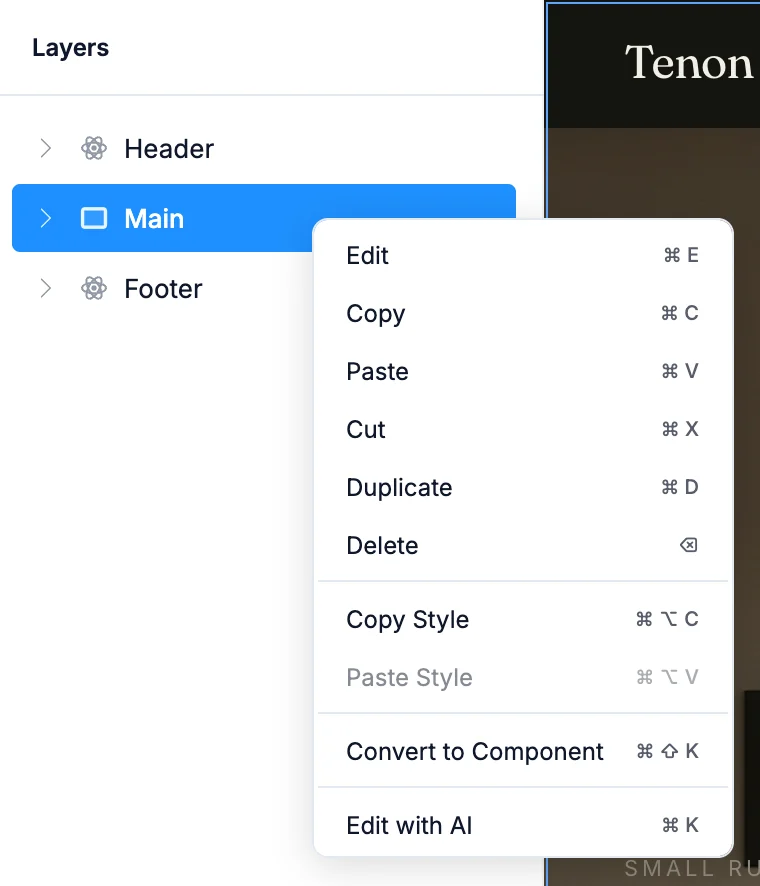
| Item | Shortcut | What it does |
|---|---|---|
| Edit | ⌘E | Selects the element and opens the edit panel |
| Copy, Paste, Cut | ⌘C, ⌘V, ⌘X | Copy, paste and cut elements |
| Duplicate | ⌘D | Makes a copy of it |
| Delete | ⌫ | Removes it |
| Copy Style, Paste Style | ⌘⌥C, ⌘⌥V | Copy one element's style and paste it onto another |
| Convert to Component | ⌘⇧K | Turns it into a reusable component |
| Edit with AI | ⌘K | Opens the Edit with AI bar for it |
On Windows, use Ctrl for ⌘ and Alt for ⌥.
While the AI is working
While the AI edits your site, you can't drag rows and every item in the right-click menu is greyed out. Everything unlocks when the AI finishes.