Pages panel
The Pages panel shows your site's pages and folders as a tree. Click Pages in the left sidebar to open it.
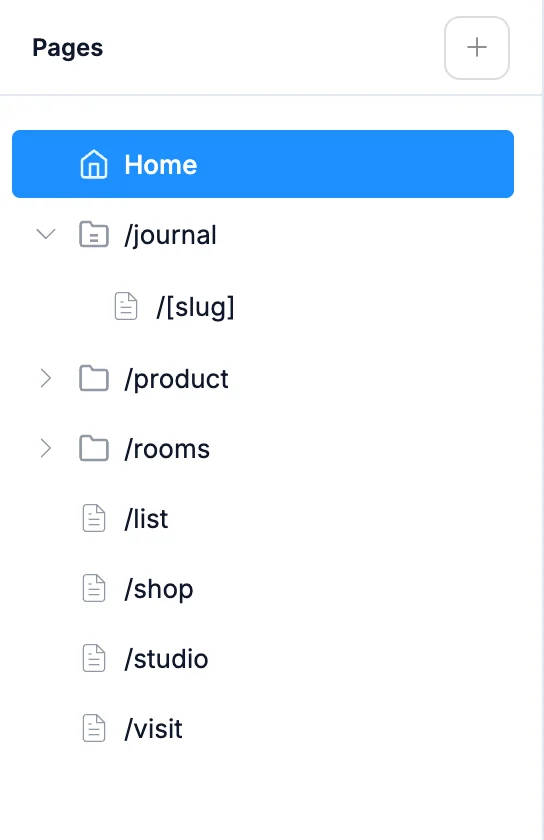
Click a page to open it on the canvas. The page you're on is highlighted, including when you get there by following a link in the preview. Home is your / page, and every other page shows its address, like /about.
On a big site, a Filter pages... field appears at the top so you can find a page by name.
Adding pages and folders
Click + (Add page) at the top of the panel.

- New Page adds a page with a starter name. Rename it to set its address.
- New 404 Page adds the page visitors see when an address doesn't exist. It only shows up if you don't have one yet.
- New Folder adds a folder. Folders become part of the address: a page named
pricinginside aplansfolder lives at/plans/pricing.
You can also press ⌘I / Ctrl+I for a new page and ⌘⇧I / Ctrl+Shift+I for a new folder.
Page menu
Hover a page and click ..., or right-click it.
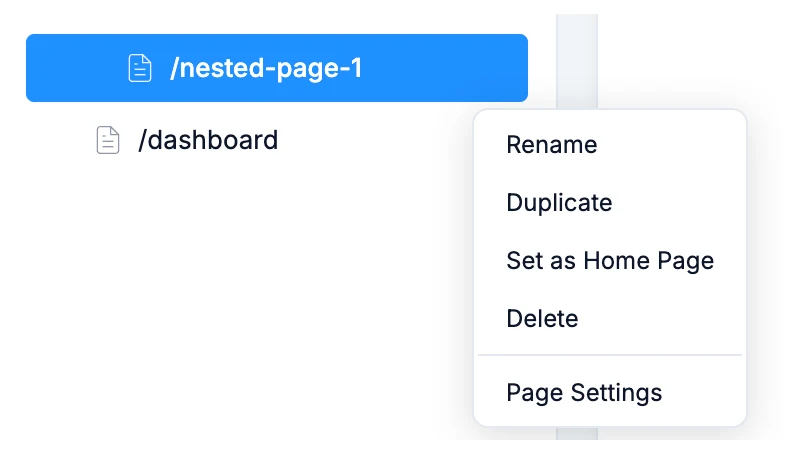
- Rename changes the page's name and address. Home and the 404 page can't be renamed.
- Duplicate makes a copy of the page with all its content.
- Set as Home Page makes this page your
/page. The old home page is kept under a new name like/old-home-1, so nothing is lost. - Delete removes the page after you confirm in the Delete Page dialog. This can't be undone. Home can't be deleted.
- Page Settings opens the page's title, description and search settings. See Page settings.
A folder's menu also has New Page and New Folder for adding inside it, and Convert to Page, which gives the folder a page of its own at the folder's address. Revert to Folder takes that page away again.
Renaming a page
Choose Rename from the menu, or double-click the name of the page you're on. Type the new name and press Enter, or press Escape to cancel.

The name is the address, so renaming about to about-us moves the page from /about to /about-us. If another page already uses the name, you'll see A page with this name already exists and the rename won't save until you pick another.
Moving pages
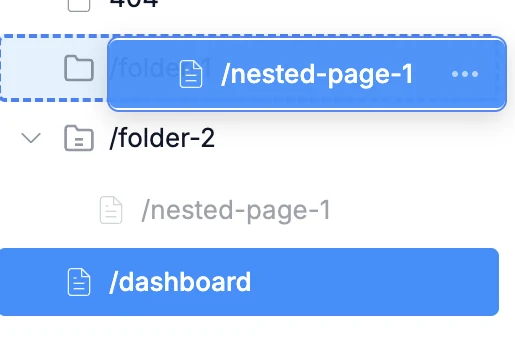
Drag a page onto a folder to move it inside. Drag a page out of a folder and drop it on empty space in the panel to move it back to the top level. Its address changes to match where it lands.
Pages that show one item each
Some pages are a single template for many items, like one page per blog post. Their name is in brackets, for example /[slug] inside a blog folder, and each post gets its own address like /blog/first-post. When you're looking at one of those items, the panel highlights the template page.
Its page settings can give every item its own title and description in search results.
While the AI is working
The page menus and the Add page menu are greyed out while the AI edits your site. They come back when it finishes.