Edit with AI
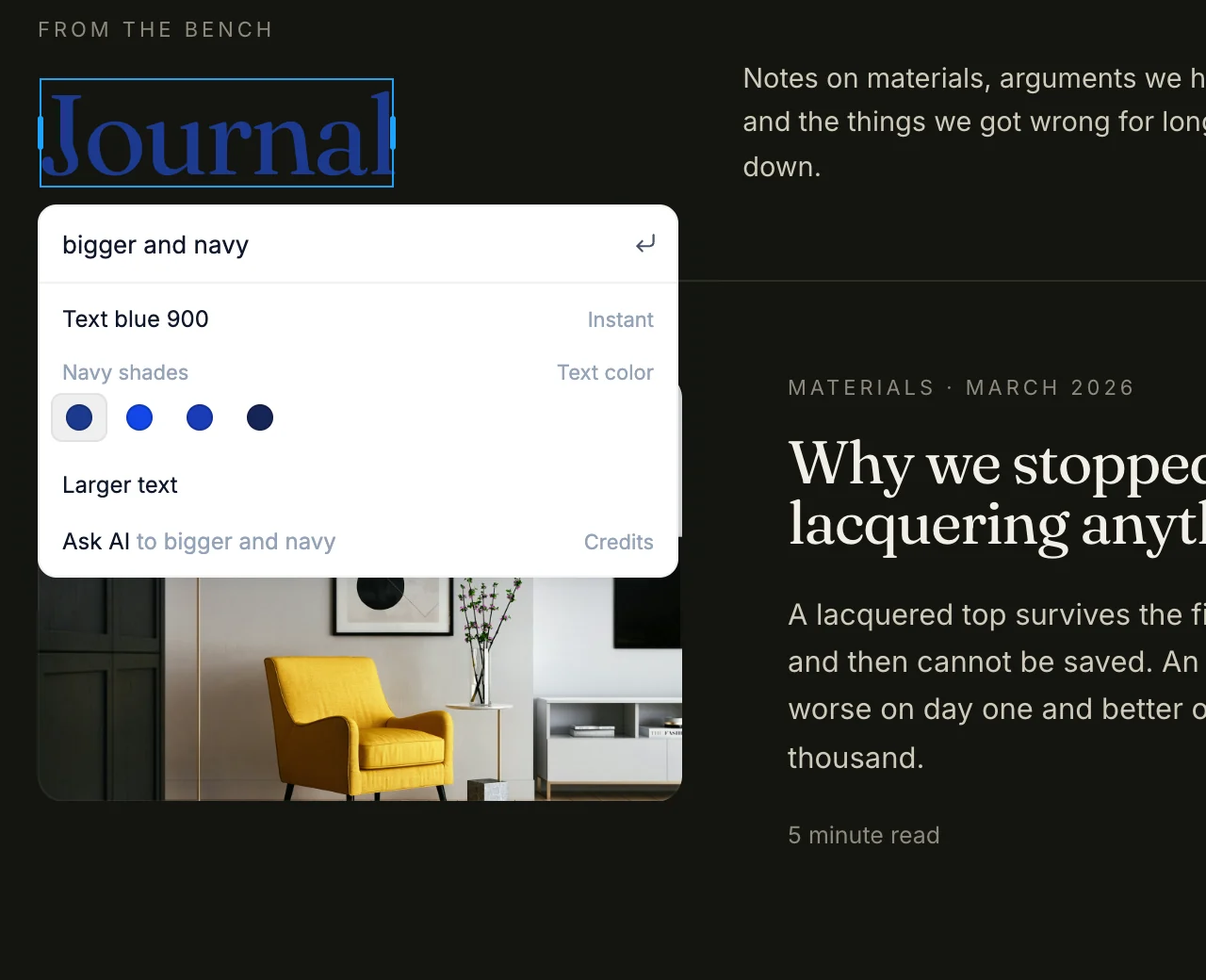
Edit with AI is a small bar that opens right under the element you selected. Type the change you want, and the page shows each option before you pick it. Most changes apply instantly, without a chat.
Open the bar
Select an element in Edit mode, then:
- press
⌘K(Mac) orCtrl+K(Windows), or - right-click the element and choose Edit with AI.
You can also press ⌘K / Ctrl+K with a layer selected in the Layers panel. With nothing selected, ⌘K / Ctrl+K opens the AI chat instead.
Make a change
- Type what you want, like "bigger", "navy text", "rounded corners" or "hide on mobile".
- Use
↑and↓to move through the options. The page shows the highlighted option live. - Press
Enteror click an option to apply it.
Press Tab to accept the grey completion as you type. Press Esc to close the bar. Anything you only previewed goes back to how it was. To take back an applied change, press ⌘Z / Ctrl+Z.
Before you type, the bar lists options that suit the element, like Text color or Button style for a button, or photos for an image. Some rows open a set of choices. Press Esc or Backspace to go back.
Rewrite text
On text, choose Rewrite this, or click Rewrite in the text toolbar while editing text. The bar shows a few new wordings, and the page previews each one.
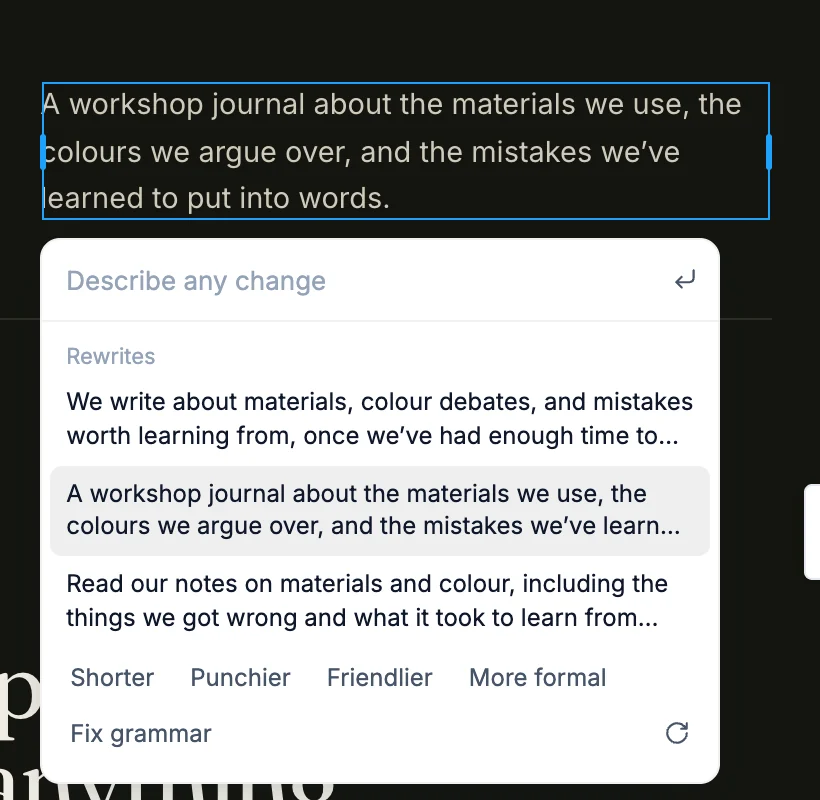
- Click Shorter, Punchier, Friendlier, More formal or Fix grammar to steer the options.
- Click the refresh icon for new options.
- Type to describe any other change.
Swap photos and icons
- Images: the bar shows matching photos. Type a subject, like "beach at sunset", to search. More photos or upload opens the Choose image dialog. On paid plans, Generate creates a new image from your words and uses credits.
- Icons: the bar shows related icons, plus Brands, Colors and Style (fill, size and line weight). Type a name to search, or choose More icons for the full picker.
Hand it to the AI
When a request needs more than a quick edit, choose Ask AI. Your request goes to the AI chat with the element attached, and the AI takes it from there.
Credits
Changes you pick in the bar, including rewrites and photo swaps, don't use credits. Ask AI and Generate use credits, and the bar marks them with Credits.