Selecting elements
Everything on your page is an element: headings, images, buttons, sections. To change one, select it first.
Selecting needs Edit mode. If hovering over the canvas does nothing, click Edit in the toolbar. See Browse and Edit.
Select an element
- Move your mouse over the canvas. Elements highlight as you hover.
- Click an element to select it. A blue outline appears around it.
- The edit panel on the right shows its styles and settings.
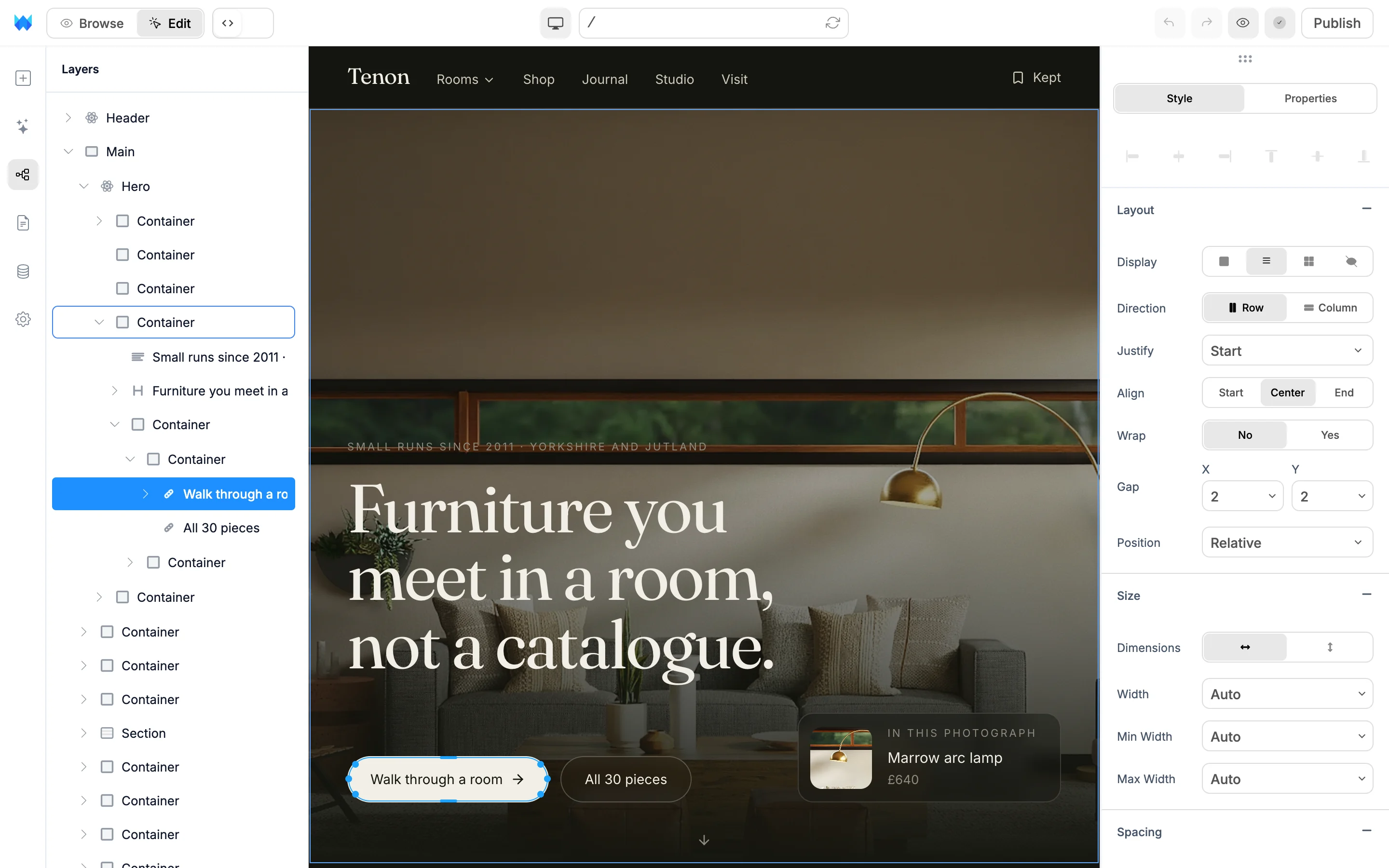
For small or overlapping elements, click them in the Layers panel instead.
With an element selected on the canvas, press Enter to select its first child, or Shift+Enter to select its parent.
Resize an element
Many elements show small handles on their edges when selected. Drag a handle to resize.
- Sizes snap to 4px steps. Hold
Option(Mac) orAlt(Windows) for exact pixels. - Images keep their proportions when you drag a corner. Hold
Shiftto change them freely.
The new size is saved the same way as setting it in the edit panel.
Edit text
- Double-click any text on the canvas.
- Type your changes. A text toolbar appears with font size, B, I, U, alignment, text color and Rewrite.
- Press
Escor click outside the text to finish.
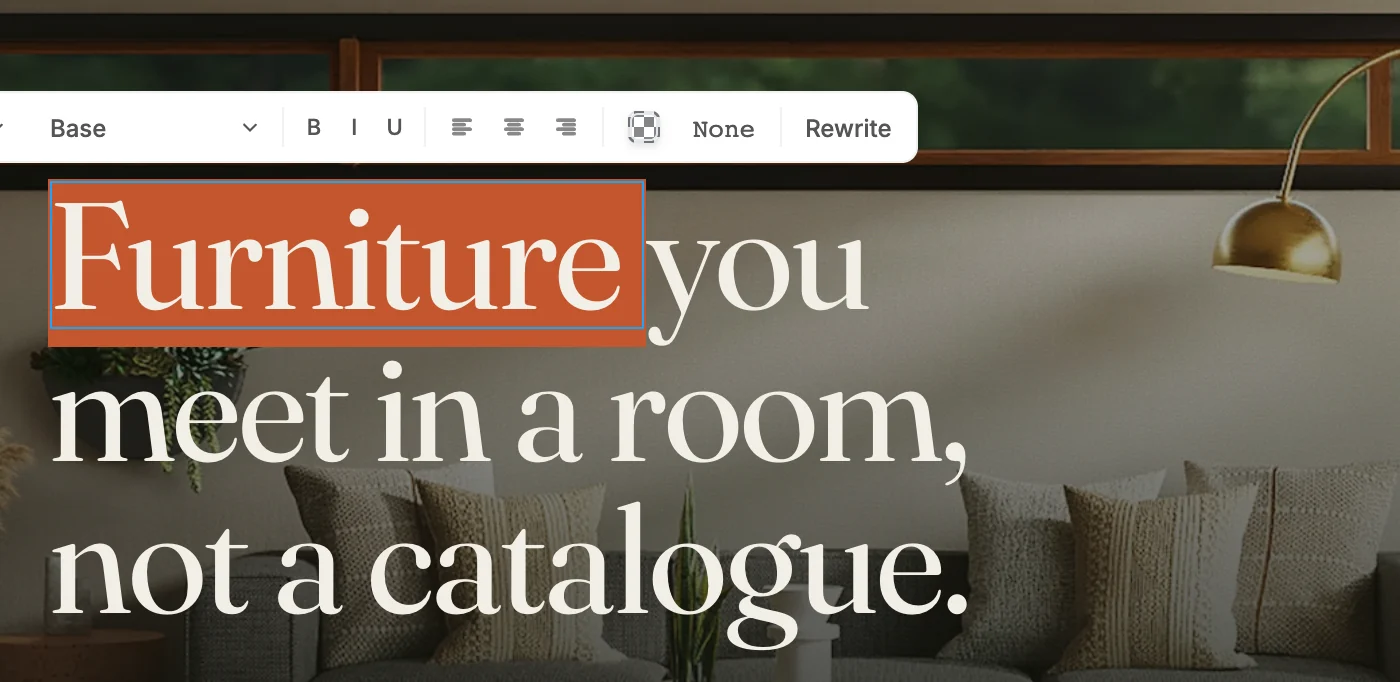
Rewrite opens the Edit with AI bar with new wordings to pick from.
Replace images, videos, audio and icons
Double-click a media element to open its picker.
| Element | Dialog | Tabs |
|---|---|---|
| Image | Choose image | Upload, Library, Unsplash, Link, Generate |
| Video | Choose video | Upload, Library, Link |
| Audio | Choose Audio | Upload, Library, URL |
| Icon | Choose icon | Icons, Paste SVG |
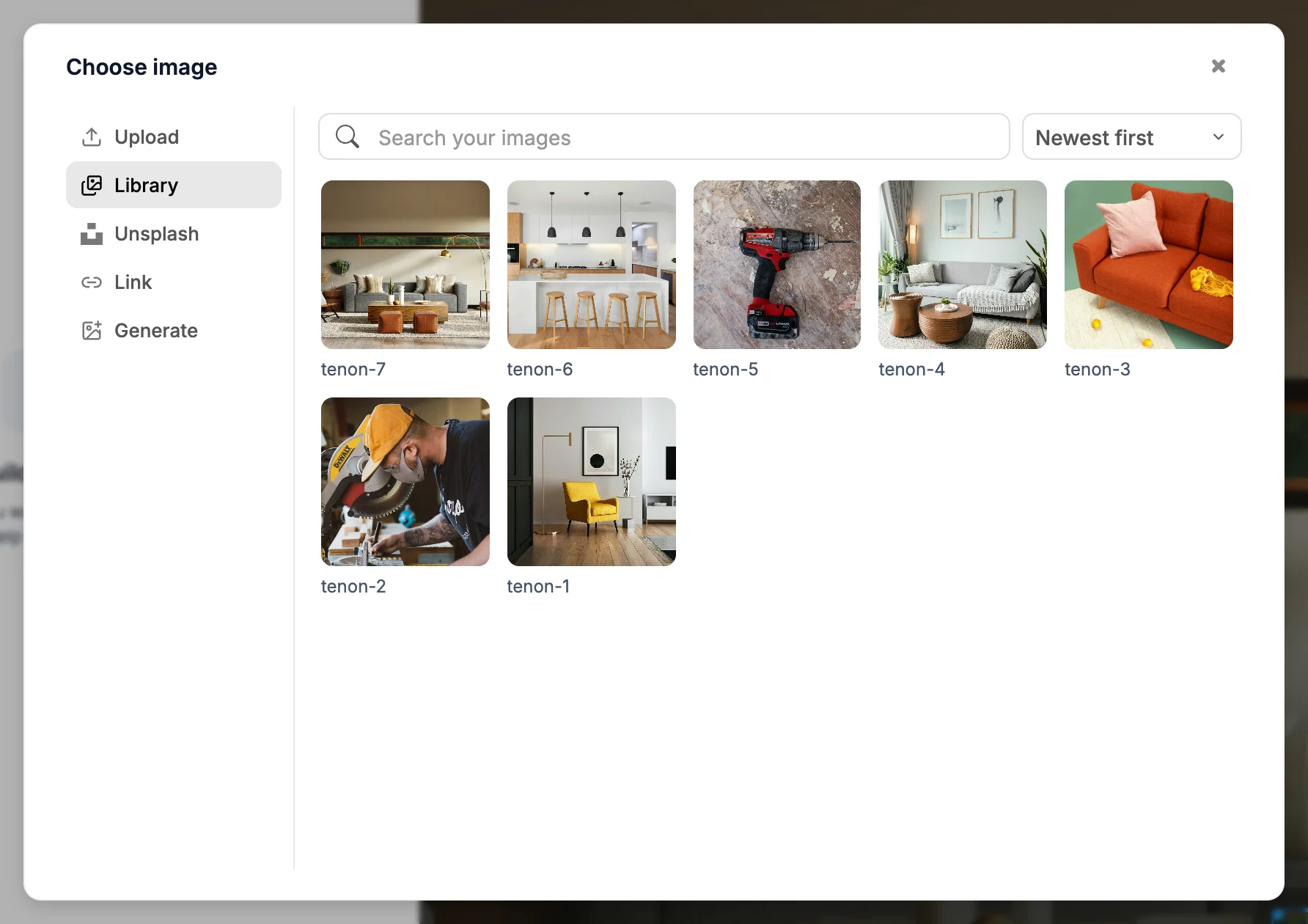
- Upload takes JPG, PNG, GIF or WebP images up to 10MB, MP4, WebM or MOV videos up to 100MB, and MP3, WAV, OGG or AAC audio up to 50MB.
- Library shows files you've already uploaded to this project.
- Unsplash searches free photos.
- Link (or URL for audio) uses a file from a web address.
- Generate creates an image from a description. Pick a style (Realistic, Cartoon, Minimal or Abstract) and a shape (Square, Landscape or Portrait). Image generation is on paid plans and uses credits.
Deselect
Press Esc, or click an empty area of the canvas.
Click through to your site
To use a link or button without leaving Edit mode, hold ⌘ (Mac) or Ctrl (Windows) and click it. The click reaches your site as a normal click.