GitHub
Keep your site's code in your own GitHub repository. Push it whenever you like or on every save, work on it in your own editor, and let the AI commit, branch, pull and open pull requests for you.
Connect
- Open Settings > Connectors, click GitHub, then Connect.
- GitHub opens. Approve access for WebTwizz.
- Under Finish connecting, pick the Repository this project's code goes to.
No tokens to paste, no setup on the GitHub side.
Connecting from a chat card opens a Connect GitHub window instead. Search your repositories and pick one, or type a new name and choose Create private repo to start a fresh one. Names can use letters, numbers, dashes, underscores and periods.
What you see
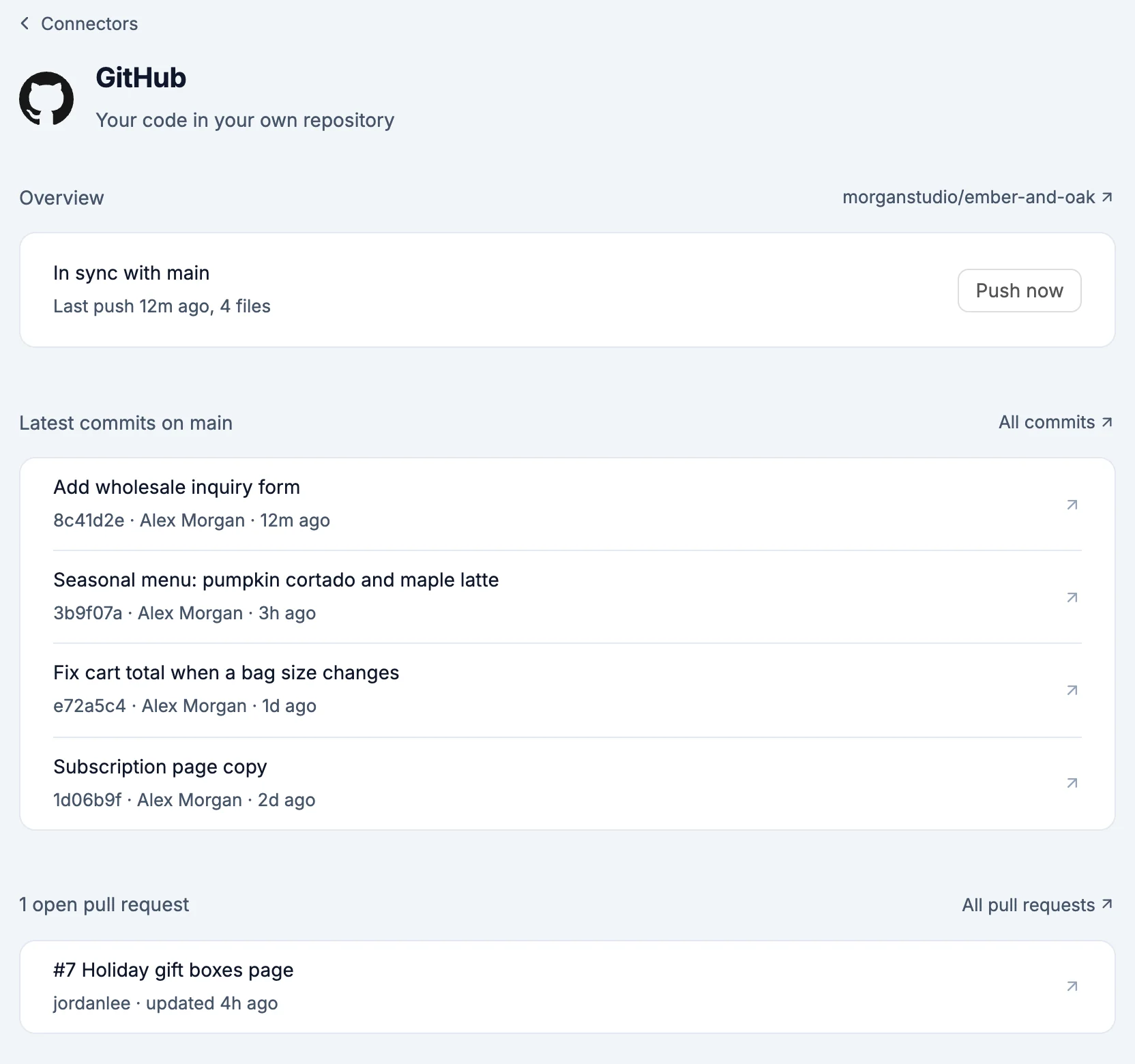
- Overview: where things stand, with Push now.
- In sync with your branch, and when the last push was.
- Not pushed yet, before the first push.
- GitHub is a number of commits ahead: someone pushed to GitHub. Ask the AI to pull them in before your next push.
- GitHub and WebTwizz both changed: your changes went to a branch called
webtwizz-syncinstead. Open pull request to merge them, or ask the AI to pull GitHub's changes first. - The last push did not go through, with GitHub's reason.
- Latest commits on your branch, and your open pull requests. Each opens on GitHub.
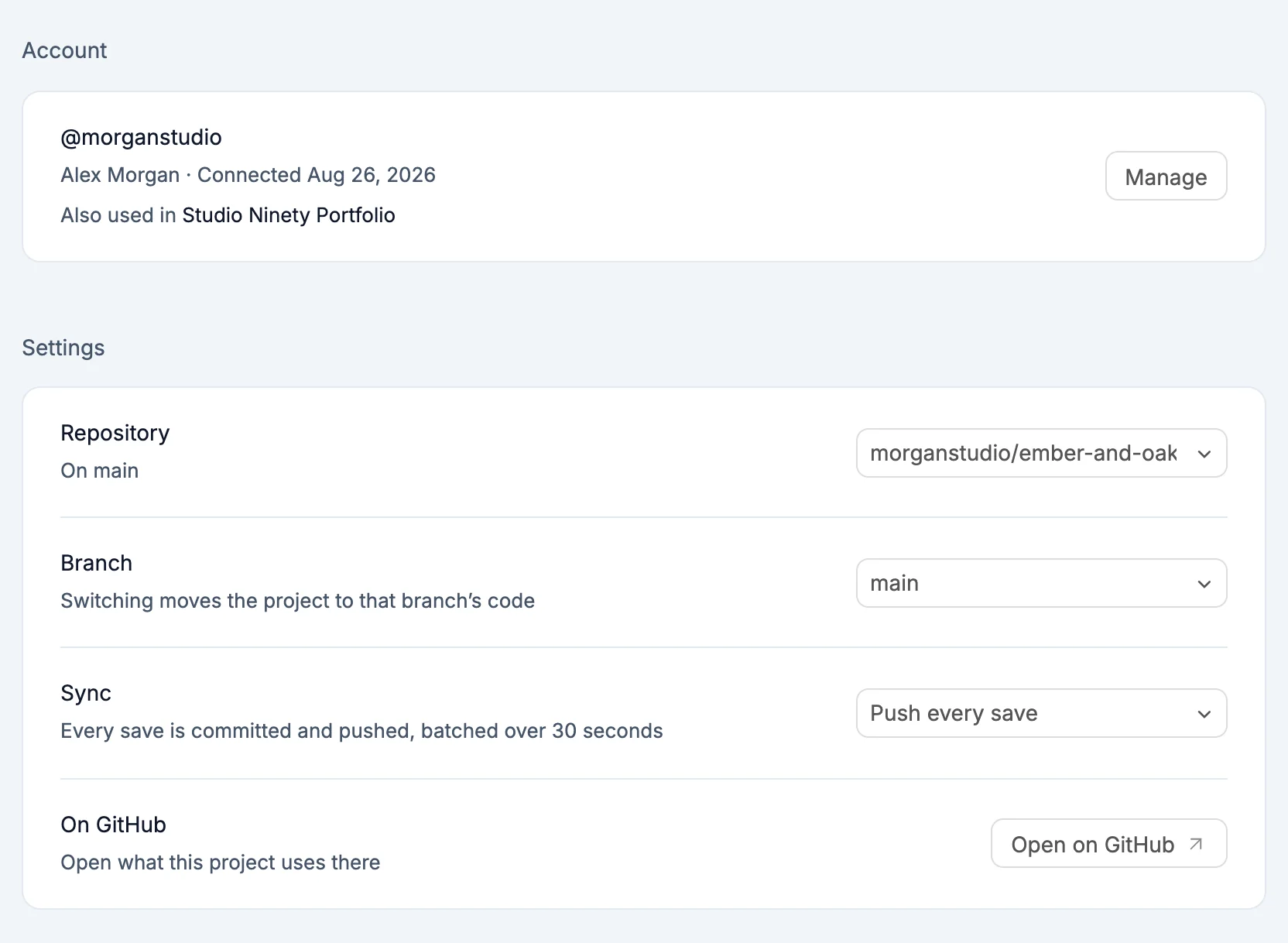
- Settings:
- Repository: where this project's code is pushed.
- Branch: switching moves the project to that branch's code.
- Sync: When I push pushes only when you or the AI push. Push every save commits and pushes every save, batched over 30 seconds.
- Open on GitHub opens the repository.
If the repository already has code on that branch, the first Push now asks before it pushes: this project's files go on top as one commit, and files that only exist in the repository stay where they are.
What the AI can do
Tell the AI what you want in the chat. It runs git on your project's code, and every step shows in the chat.
| You say | What happens |
|---|---|
| "Push my code to GitHub" | Commits your changes and pushes them to the current branch |
| "Push this to a new branch called redesign" | Creates the branch, switches to it and pushes |
| "Pull the latest from GitHub" | Merges GitHub's version of the branch into your site |
| "Open a pull request for this branch" | Pushes the branch and opens a pull request |
| "Is the pull request passing?" | Reads the pull request's checks |
| "Merge pull request 12" | Merges it on GitHub |
| "Show the last 10 commits" | Lists the history |
The AI only pushes, pulls, switches branches and opens or merges pull requests when you ask. It never force pushes unless you ask it to overwrite GitHub.
If you changed the same file on both sides, a pull stops and the AI asks which version to keep: your site's or GitHub's.
Work on your code elsewhere
- Push your site to GitHub.
- Clone the repository and edit it in your own editor or coding tool.
- Push your changes to GitHub.
- Back in WebTwizz, ask the AI to pull the latest from GitHub.
What gets pushed
Your site's source code. Dependency folders, lock files, .env files and WebTwizz's builder files stay out. What lands on GitHub is a standard Next.js project you can run anywhere.
Environment variables
GitHub doesn't add any.
Good to know
- Push every save starts after the project's first push. Until then the setting reads Starts after the first push. Click Push now or ask the AI to push once.
- Removing GitHub from a project leaves the repository and everything in it as it is.