Google Sheets
Use a spreadsheet you already keep, like a menu, a price list or a class schedule, as your site's data. Each tab is a collection, and the tab's first row holds the column names.
Connect
Google Sheets is a data source, so it connects through the Data panel. A project has one data source at a time.
- Open Settings > Connectors, click Google Sheets, then Connect. The Data panel opens on Google Sheets.
- Click Continue with Google, sign in and allow access.
- Pick one spreadsheet.
Only the spreadsheet you pick is shared with WebTwizz, and it stays private.
One Google account can serve both Google Sheets and Google Analytics, but each asks for its own permission the first time. If you signed in for Analytics first, the dashboard's Google Sheets page shows the account as Not allowed yet, with Allow Google Sheets.
What you see
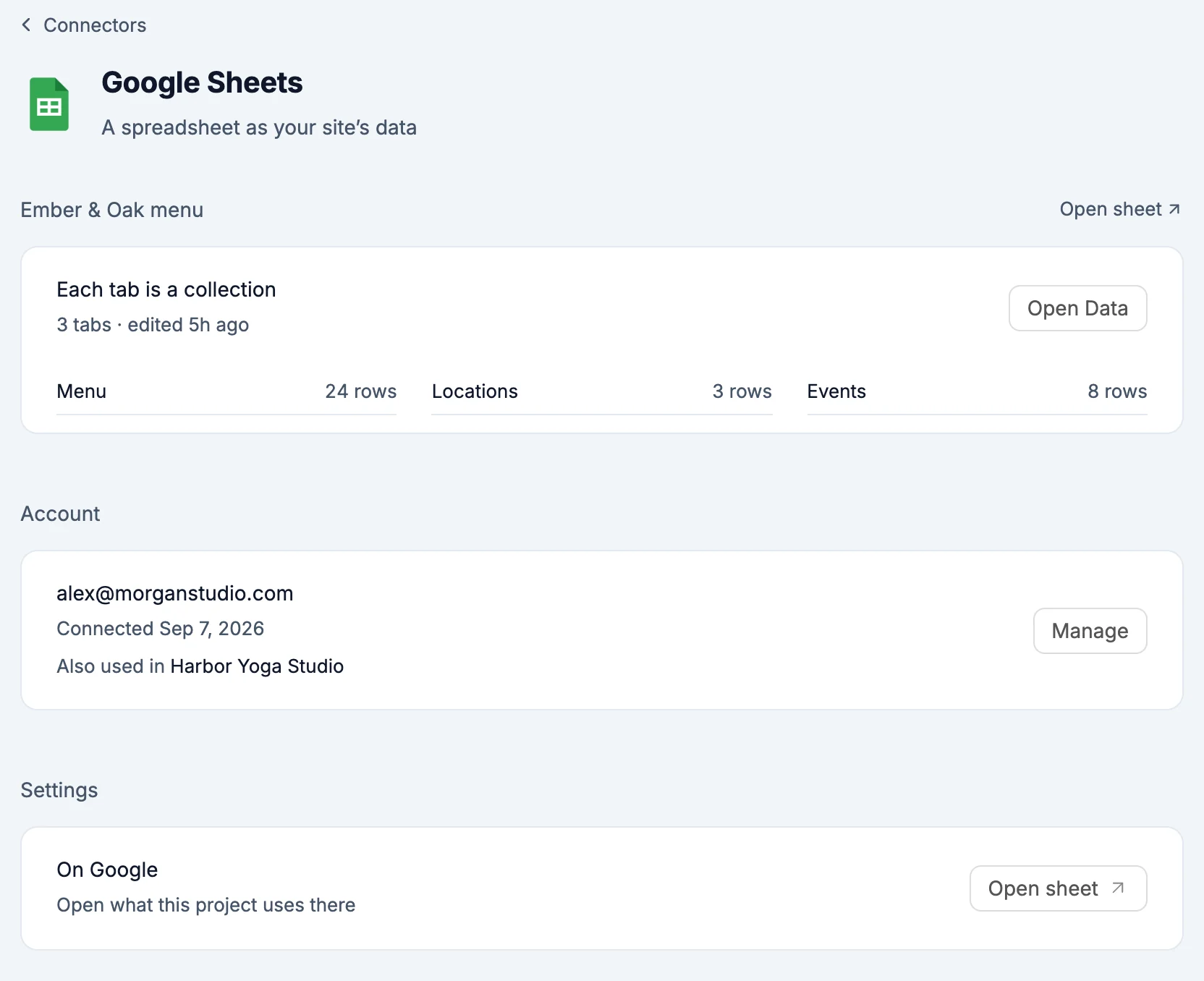
- Overview: the spreadsheet's name, Each tab is a collection with the number of tabs and when it was last edited, and every tab with its row count. Tabs open in the Data panel. Open Data opens the panel, Open sheet opens the spreadsheet in Google Sheets.
- Settings: Open sheet.
What the AI can do
The AI treats your tabs like any other data: it builds pages from them and reads and writes rows through the Data panel's tools. Adding a column adds a header cell to the tab's first row.
Environment variables
GOOGLE_SHEETS_REFRESH_TOKEN: lets your site read and write the spreadsheet, server-side only
Good to know
- Connecting another data source replaces Google Sheets in this project. Your spreadsheet stays as it is.
- Removing Google Sheets from a project stops the site using the spreadsheet. Nothing in Google Drive is deleted.