Supabase
Supabase gives your site a Postgres database, user sign-in and file storage, all in your own Supabase account. It's the data source we recommend for anything that saves data or has accounts.
Connect
Supabase is a data source, so it connects through the Data panel. A project has one data source at a time.
- Open Settings > Connectors, click Supabase, then Connect. The Data panel opens on Supabase. You can also start there.
- Click Connect with Supabase, sign in and approve access.
- Pick a project, or choose + Create new project, and click Connect.
Once your Supabase account is connected, your other projects list it under Your accounts with Use in this project. More options, like pasting an access token instead, are in Data & CMS.
What you see
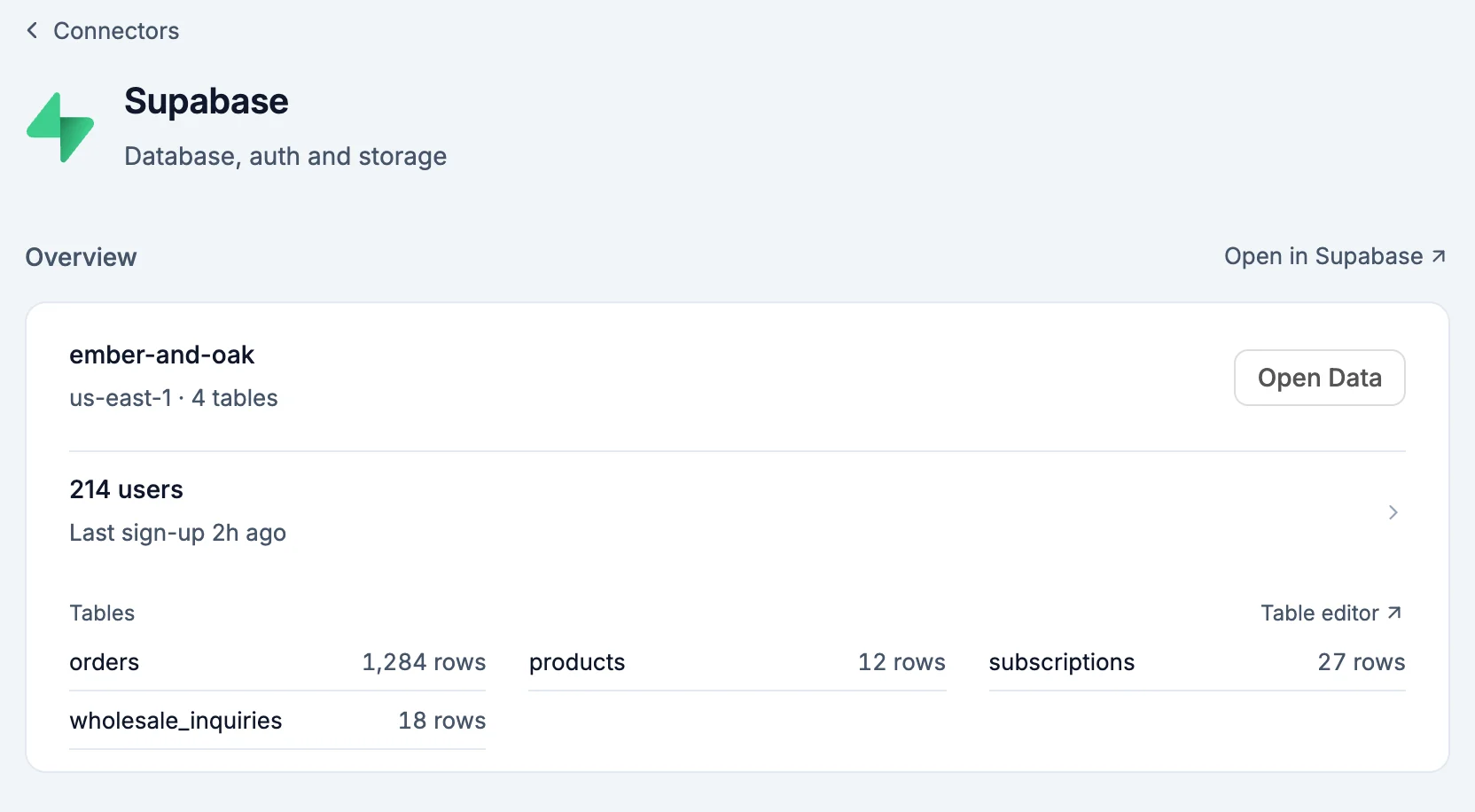
- Overview: your Supabase project with its region and table count, and Open Data. Below it, how many users have signed up and when the last one did, then Tables with their row counts. Users and tables open in the Data panel. Open in Supabase and Table editor open Supabase.
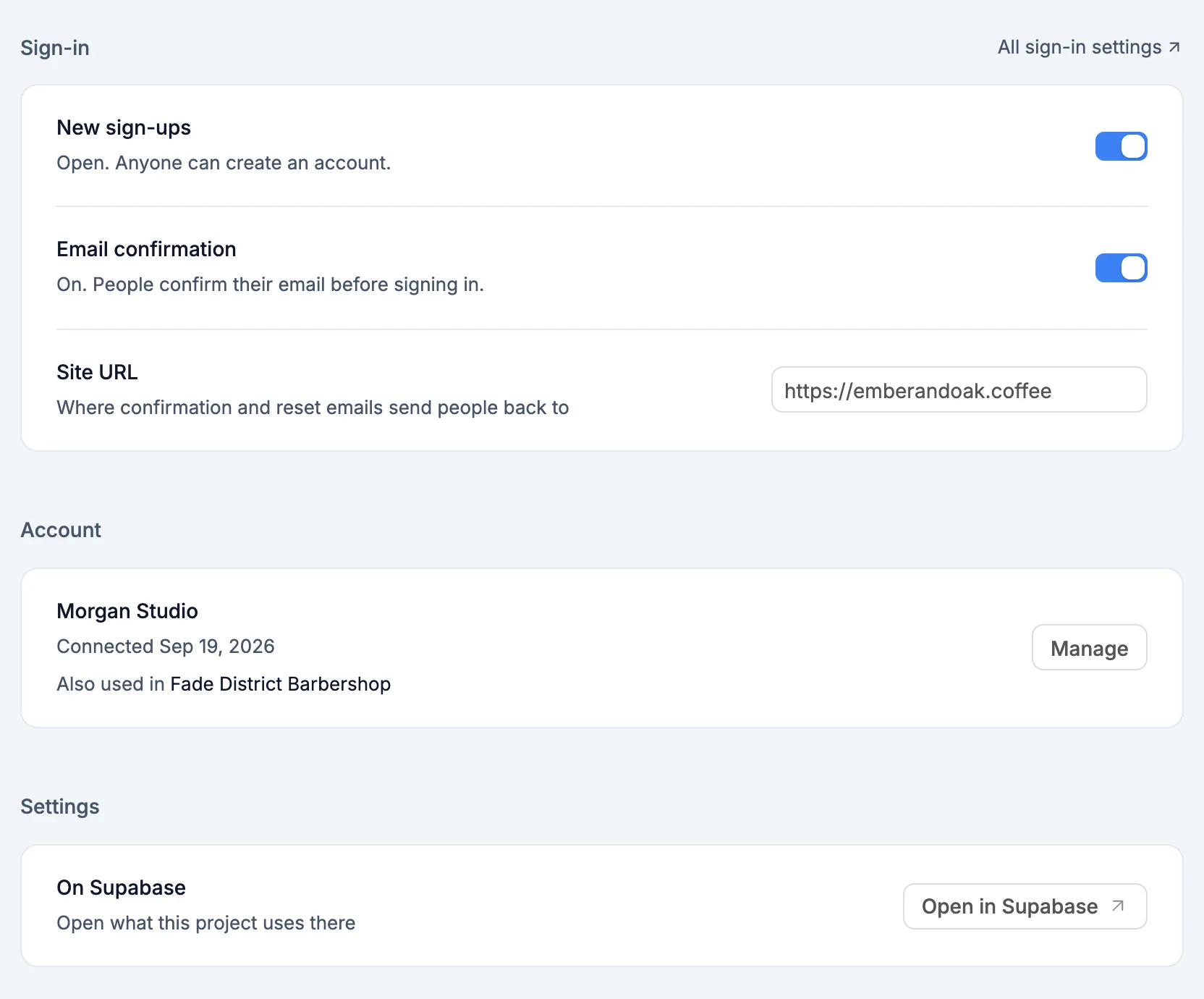
-
Sign-in: how people sign in to your site.
- New sign-ups: open, so anyone can create an account, or closed.
- Email confirmation: on, so people confirm their email before signing in, or off.
- Site URL: where confirmation and password reset emails send people back to.
Changes go to Supabase as you make them. All sign-in settings opens the rest in Supabase.
-
Settings: Open in Supabase opens the project this site uses.
What the AI can do
- Build on your database: create tables, wire up sign-up and login, and read and write rows through the Data panel's tools.
- Read your sign-in settings: whether sign-ups are open, whether email confirmation is on, and where emails link to.
- Change those settings, for example pointing confirmation emails at your live domain. It asks first, and only changes them after you click Accept.
Environment variables
NEXT_PUBLIC_SUPABASE_URL: your project's URLNEXT_PUBLIC_SUPABASE_PUBLISHABLE_KEY: the publishable key, safe to use in the browserSUPABASE_SERVICE_ROLE_KEY: full access to your database, server-side onlySUPABASE_ACCESS_TOKEN: lets WebTwizz manage the project for you, server-side only
Good to know
- A new Supabase project sends confirmation and reset emails to
http://localhost:3000until you change its Site URL. Set it to your live address under Sign-in, or ask the AI to. - A paused Supabase project can't be connected. Restore it in your Supabase dashboard first.
- Connecting another data source replaces Supabase in this project. Your data stays in Supabase.
- Removing Supabase from a project stops the site reading and writing through it. Nothing in Supabase is deleted.