Integrations
Connect third-party services to your Webtwizz project from Settings > Integrations. Each integration wires credentials into your site's Environment Variables so the code your app runs has what it needs at build and runtime.
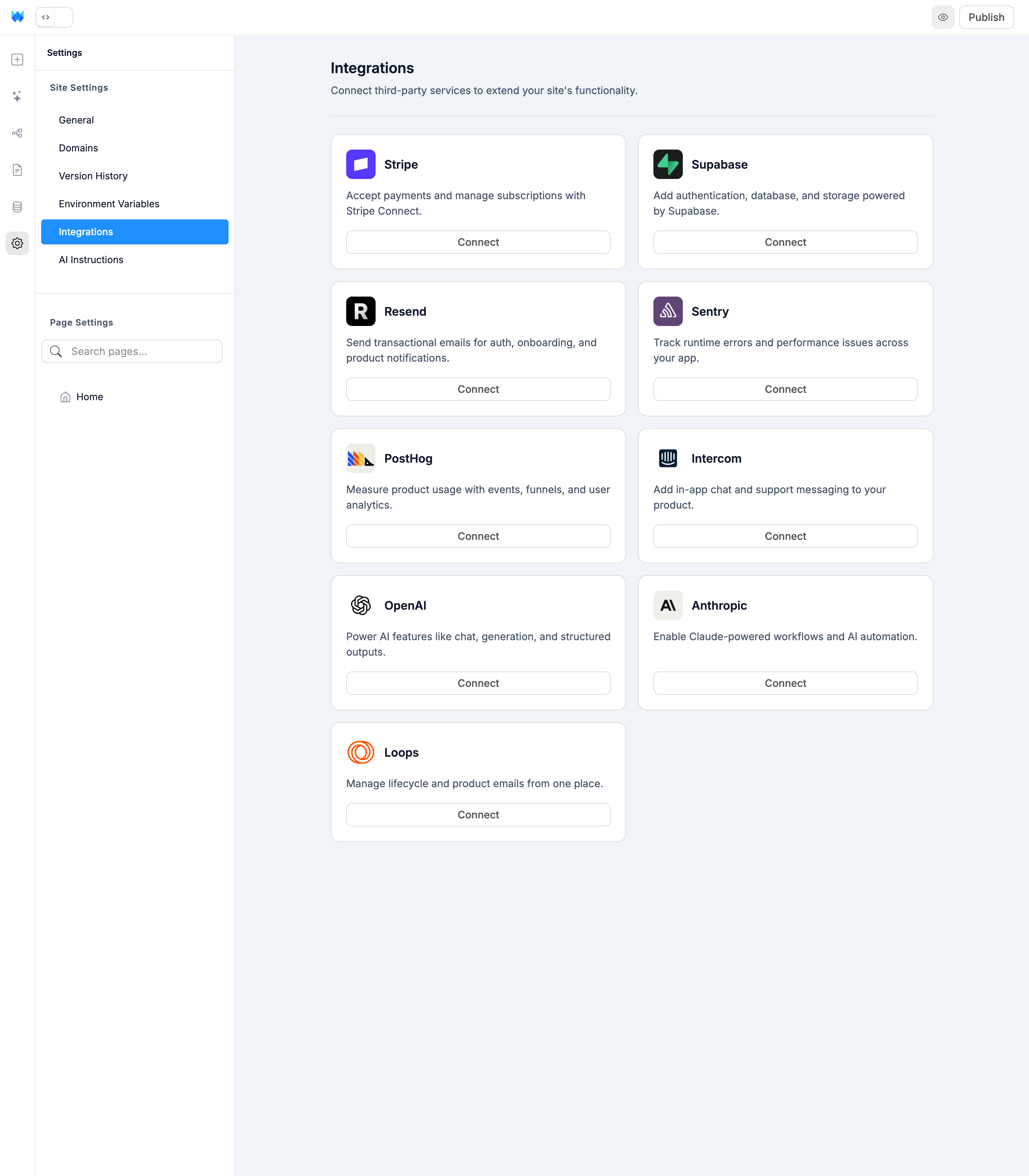
Available integrations
| Integration | Use for | Connection |
|---|---|---|
| Stripe | Payments, subscriptions, Stripe Connect | OAuth |
| GitHub | Two-way code sync with your repository | OAuth |
| Resend | Transactional email | API key |
| Sentry | Error and performance monitoring | OAuth |
| PostHog | Product analytics | API key |
| Intercom | In-app chat and support | App ID |
| OpenAI | GPT-powered AI features | API key |
| Anthropic | Claude-powered AI features | API key |
| Loops | Lifecycle email automation | API key |
Connecting
Click Connect on any card. Depending on the integration you'll either:
- Be redirected to the provider to authorize access (Stripe, GitHub, Sentry)
- Paste an API key into a modal (everything else)
Once connected, the card shows a green Connected badge and the credentials appear in Environment Variables.
Disconnecting
Click Disconnect on any connected card. This removes the environment variables that integration created, but does not touch your data on the provider - your Stripe customers, PostHog events, etc. stay intact.