Supabase
Supabase gives your app a real PostgreSQL database, authentication, and storage.
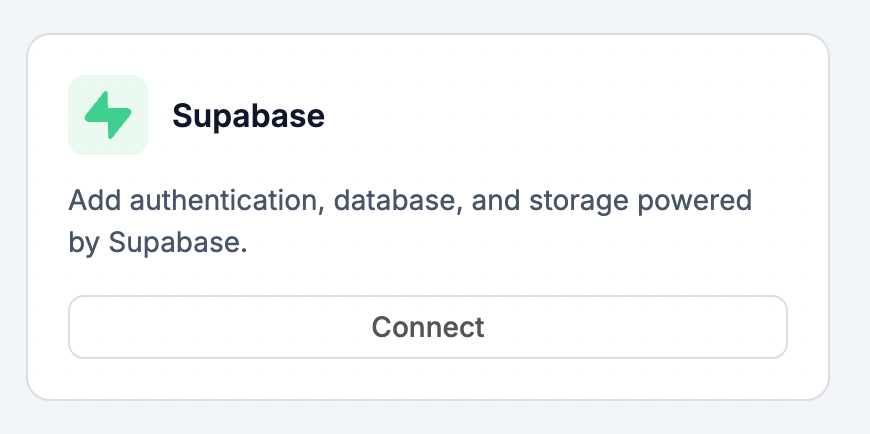
Click Connect to start the setup.
Step 1: Enter Your Access Token
Paste your Supabase access token. The dialog explains how to get one:
- Go to supabase.com/dashboard/account/tokens
- Click Generate new token
- Give it a name and copy the token
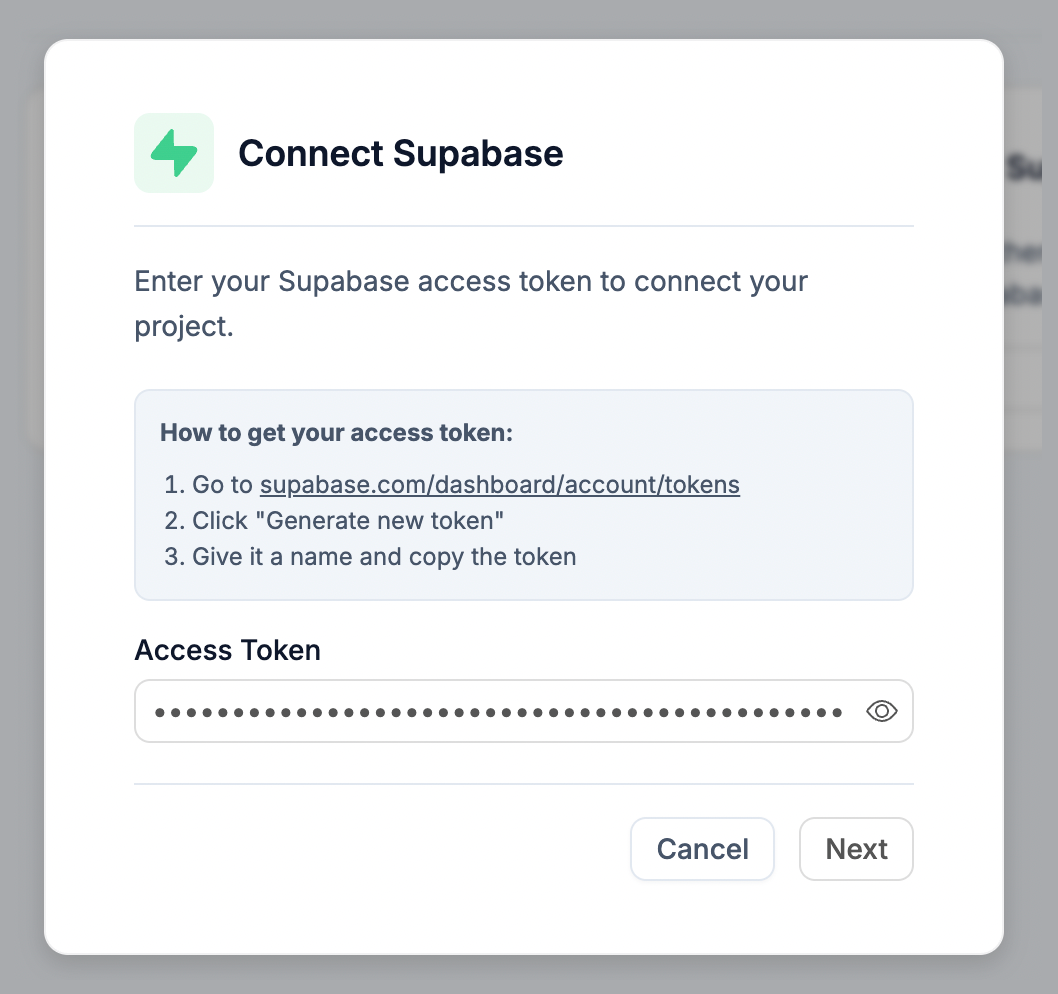
Click Next to continue.
Step 2: Select a Project
Choose which Supabase project to connect to this website.
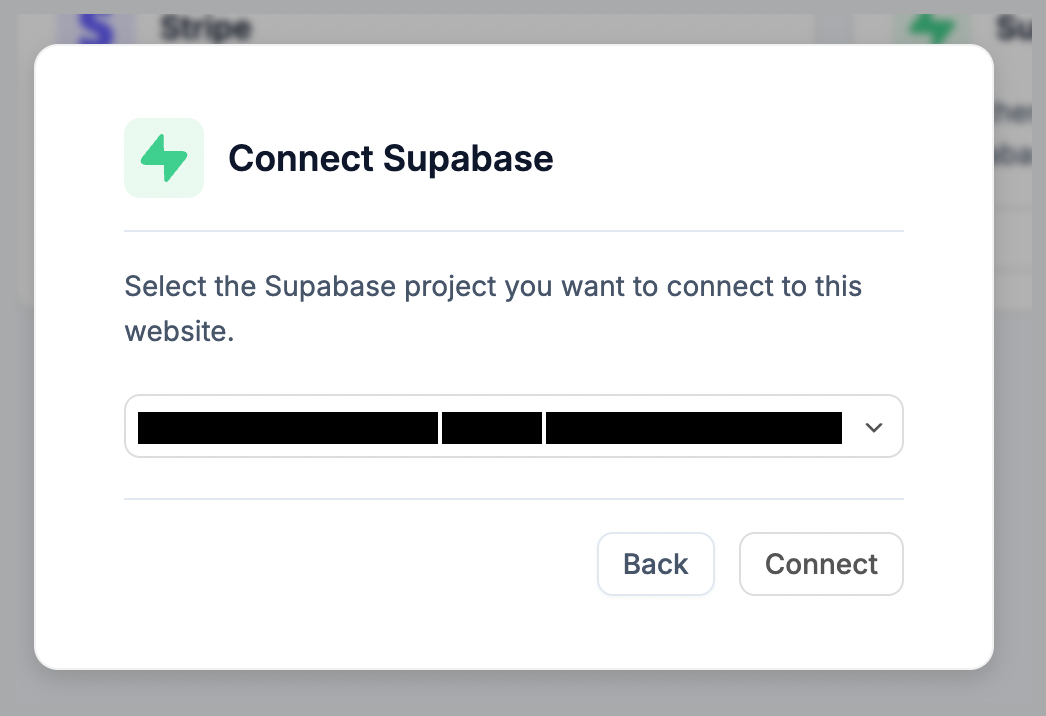
Click Connect to finish. Your Supabase tables will now appear in the Data & CMS panel under the Supabase tab.
Environment variables
Webtwizz adds the following to your project after a successful connection:
NEXT_PUBLIC_SUPABASE_URL— your project's API URLNEXT_PUBLIC_SUPABASE_PUBLISHABLE_KEY— the public (anon) key, safe to use in the browserSUPABASE_SERVICE_ROLE_KEY— the service role key, server-side onlySUPABASE_ACCESS_TOKEN— used by Webtwizz to call the Supabase Management API on your behalf
Disconnecting
Click Disconnect on the card to remove these environment variables. Your Supabase project and data are untouched — you can reconnect at any time.